
Putler Desktop App
All the powerful e-commerce analytics now on your desktop!
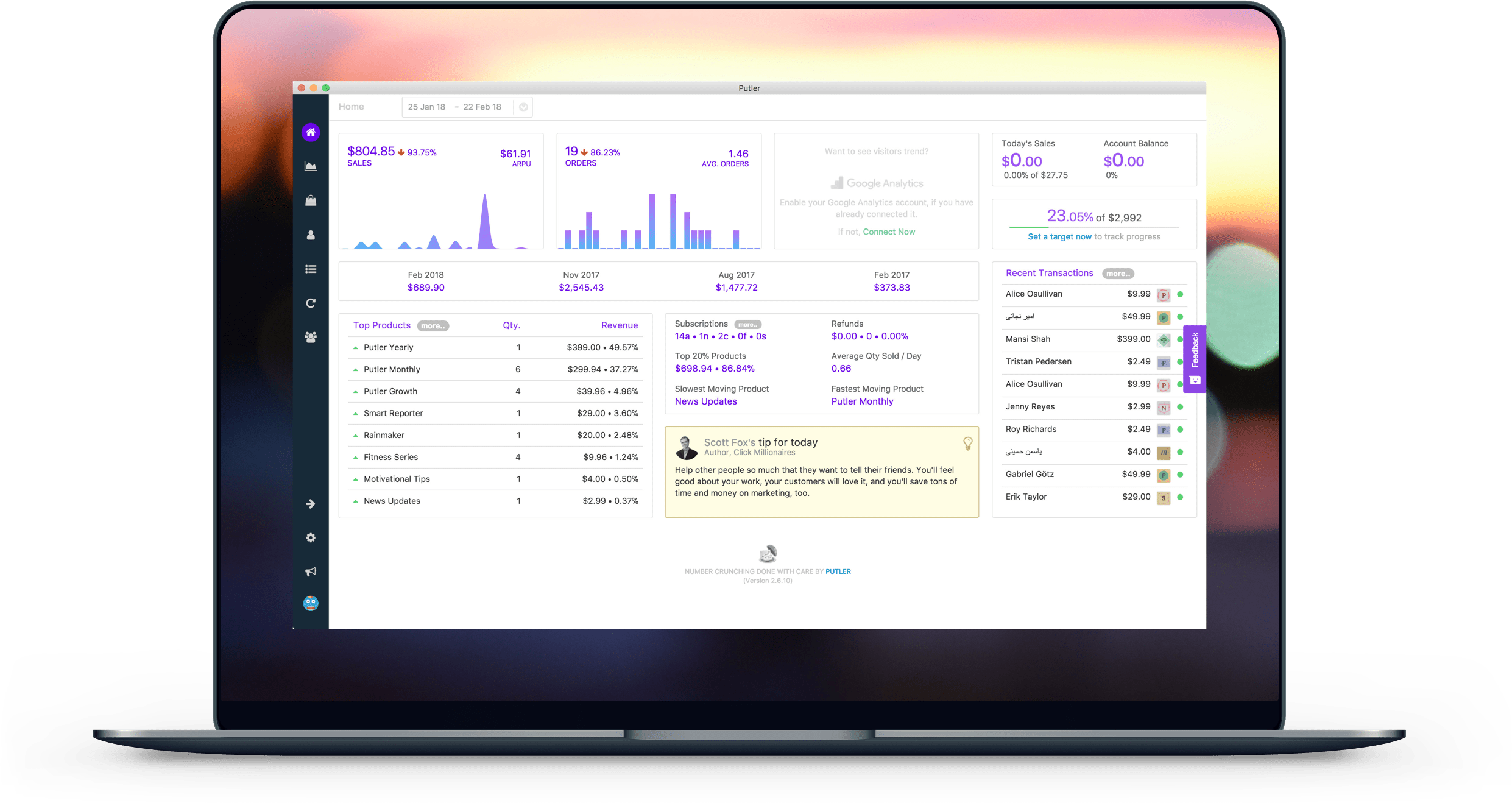
Installation Guide For Mac
Step 1: Download & open file
Download Putler for Mac. In your Downloads folder, double-click the Putler.dmg file to reveal the Putler app icon.
Download Putler for Mac. In your Downloads folder, double-click the Putler.dmg file to reveal the Putler app icon.
Step 2: Drag and drop
Drag and drop the Putler app icon over to your Applications folder. Wait a while for it to finish.
Drag and drop the Putler app icon over to your Applications folder. Wait a while for it to finish.
Step 3: Launch app
Go to your Applications folder, double click on Putler icon to launch. It may take a few seconds to “validate” the app on first run. Note: You need a steady internet connection to use the app.
Go to your Applications folder, double click on Putler icon to launch. It may take a few seconds to “validate” the app on first run. Note: You need a steady internet connection to use the app.
Installation Guide For Windows
Step 1: Download & open file
Download Putler for Windows. In your Downloads folder, double-click the PutlerSetup.exe
Download Putler for Windows. In your Downloads folder, double-click the PutlerSetup.exe
Step 2: Launch app
Go to your desktop and double click the newly added Putler app icon. Note: You need a steady internet connection to use the desktop app.
Go to your desktop and double click the newly added Putler app icon. Note: You need a steady internet connection to use the desktop app.
Open Putler every time you login…
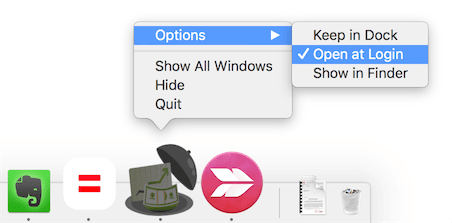
If you want Putler to open automatically every time you login – Right click / Command click Putler icon in the dock, and turn on “Open at Login” under Options.
Using the old AIR based Putler desktop app?
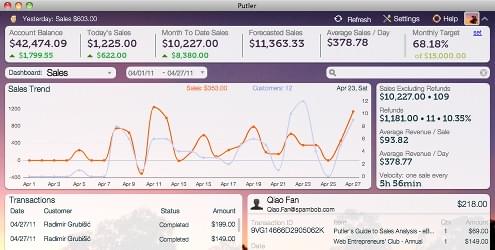
Rename the old Putler app to “Putler AIR” before installing the new app.. This way you can use both apps side by side.
The old app will be retired by end of May 2018. So do switch to the new app by then!