

Connecting Authorize.Net to Putler
Link your Authorize.Net merchant gateway to consolidate payment transactions, fees, and customer profiles in Putler.
Steps to Connect Your Authorize.Net Account to Putler
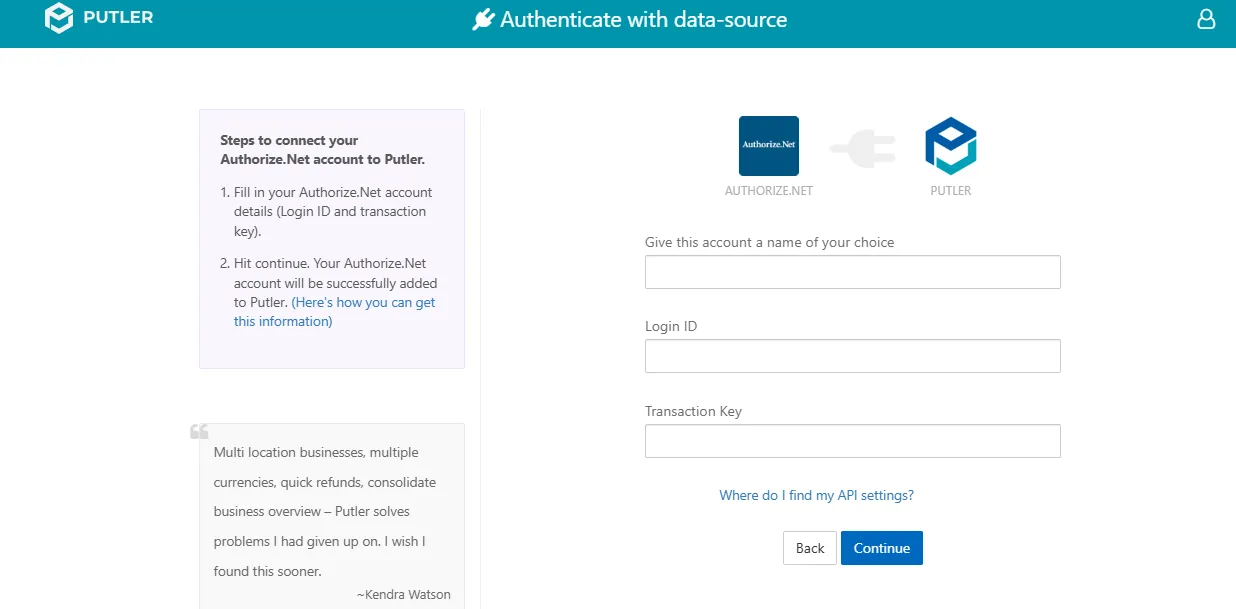
- Once you sign in to Putler, click on the
Authorize.Neticon. - Fill in your account details:
- Give this account a name of your choice: Add a name for your data source.
- For example: Authorize Store A
- Give this account a name of your choice: Add a name for your data source.
- Fill in your Authorize.Net API details:
- Login ID
- Transaction Key
- Hit Continue. Your Authorize.Net account will be successfully added to Putler.
Where do I find my API settings?
Get Your Login ID
- Log into the Merchant Interface at Authorize.Net.
- Select Settings under Account in the main menu on the left.
- In the Security Settings section, click API Login ID and Transaction Key.
- If this is your first time accessing this, you may need to enter the secret answer to the question you set up during account activation. Click Submit.
- Your API Login ID will be displayed on the API Login ID and Transaction Key page.
Get Your Transaction Key
- The Transaction Key is not always displayed on the Merchant Interface directly. If you navigate away from the confirmation page, you will not be able to access the Transaction Key again. In such cases, you will need to generate a new Transaction Key.
- Log into the Merchant Interface at Authorize.Net.
- Select Settings under Account in the main menu on the left.
- In the Security Settings section, click API Login ID and Transaction Key.
- Enter the secret answer to the secret question configured during account activation. Click Submit.
- Your Transaction Key will be displayed on a confirmation page.
Enabling Transaction Details API
- Log into the Merchant Interface at Authorize.Net.
- Select Settings under Account in the main menu on the left.
- In the Security Settings section, click Transaction Details API.
- Enter the answer to your secret question, then click Enable Transaction Details API.
- Once enabled, the Settings page will display the confirmation.
Once you have obtained your Login ID and Transaction Key, you can now use them in Putler when adding a new account.