


An Amazon order history report can mean a list of purchases you made or a report of orders customers placed with your business. The download route depends on your account. Start by choosing the right one below.
If you sell on Amazon and another platform, you may also want a sales export for comparing both channels. The Putler section explains how to work with connected Seller Central data.
Which Amazon order history report do you need?
Choose the account that holds the records you want. A business buying office supplies uses a different reporting area from a merchant shipping orders to customers.
| Your account | Records you need | Where to start |
|---|---|---|
| Personal Amazon account | Your purchases | Amazon’s Request Your Data page |
| Amazon Business purchasing account | Your organization’s purchases | Business Analytics |
| Seller Central account | Orders customers placed with you | Seller Central order reports |
For example, an Amazon Business Orders report can help you review purchases your team made last month. For your shop’s customer orders, start in Seller Central.
How do you download personal Amazon purchase history?
Sign in to the Amazon account you used for the purchases and open Amazon’s Request Your Data page. Follow the available request options for order information. This route requires sign-in, and the choices can depend on your account and marketplace.
You can view individual purchases in Your Orders. For a bulk data request, follow Amazon’s confirmation and download instructions. Check the contents of the files you receive before deciding which one to open in your spreadsheet.
Keep purchases from different accounts or countries labelled when combining files. That helps you avoid treating a missing account or a different currency as a gap in your order history.
How do you export Amazon Business purchases?
Use Business Analytics to download purchasing records for your organization. Amazon’s documented workflow lets you select an Orders report, choose a period, and generate a raw CSV to open in a spreadsheet. Your role and group determine which purchases appear. Buyers can use Business Analytics for their own purchases, while administrators can review orders within the groups they manage. Amazon Business user roles
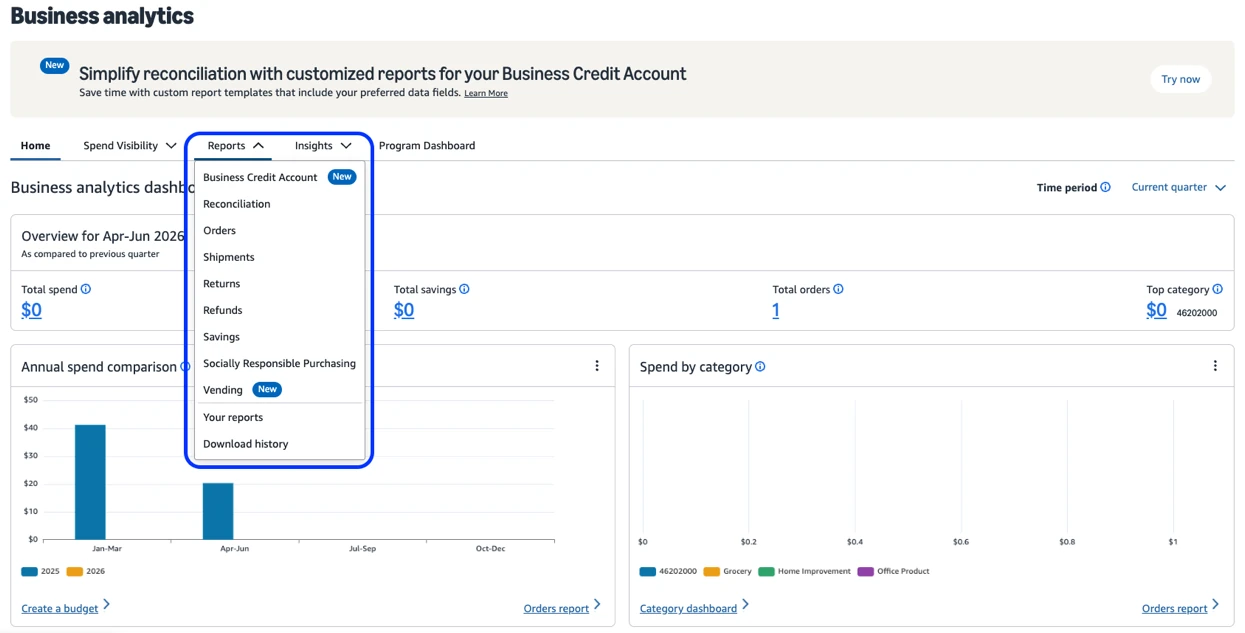
- Sign in to your Amazon Business purchasing account.
- Open Your Account, then Business Analytics.
- Under Reports, select Orders.
- Filter the report to the period you need.
- Select Generate report to download the raw CSV.
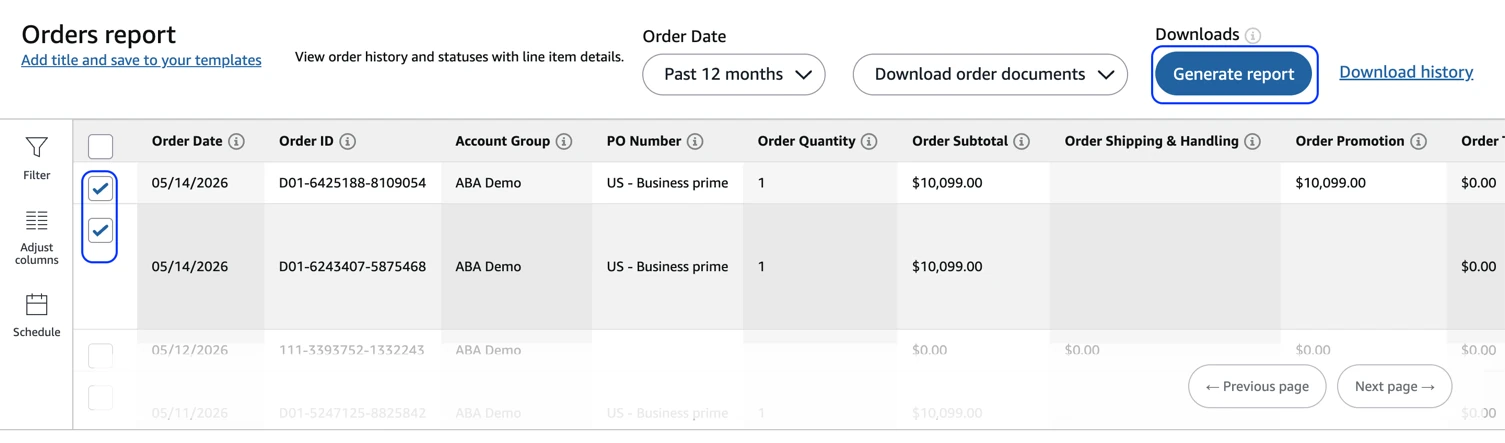
An order report gives you rows to sort and review. If you need the associated invoices or order documents, use Download order documents for the selected orders. Amazon documents that as a separate download action. Amazon Business reconciliation guide
For a monthly review, save the file with the account name and reporting dates. Check whether your total is based on order dates or shipment activity before comparing it with another report.
How do sellers download their Amazon order reports?
Choose the seller report that matches your fulfillment method and reporting period. For the FBM report, open Orders → Order Reports, select the report tab, and request the period you need. Download the generated file when it is ready. Seller reports contain orders placed with your business. Check the report’s eligibility and permissions if an option is missing.
Choose a report for seller orders
For seller-fulfilled orders, Amazon’s FBM Order Reports guidance describes generating reports for selected periods within the last 30 days. For history across both FBA and seller-fulfilled orders, check Amazon’s All Orders report guidance. Choose the date range available for that report. The FBM report’s 30-day request limit applies to that specific report. Amazon FBM Order Reports
Amazon describes the FBM file as tab-delimited text. In Excel, import it as a text file and choose Tab as the separator if the fields appear in one column. Save a working copy after checking the column headings.
Find older seller orders
Amazon documents an Archived Orders report for orders older than two years. In Order Reports, open Archived Orders, select the available reporting period, and request the file. Check the download area once the report is ready.
This report covers both seller-fulfilled and FBA orders. Amazon says it excludes buyer personal information such as names, phone numbers, and addresses. If you cannot download it, ask the administrator to check Settings → User Permissions → your user → Orders → Transactions for Edit access. Amazon Archived Orders guidance
How do you export connected Amazon sales with Putler?
Connect your Amazon Seller Central account to Putler, then use the Sales or Transactions list for a sales export. Putler also offers product summaries, which are useful when you want to review quantities sold or product performance.
The Amazon connection guide explains how to name the data source, choose the marketplace region, and approve the connection. If you also sell through WooCommerce, Shopify, or other connected channels, choose the account view you want before exporting.
Select the account and date range
- Open the Putler view that contains the Amazon data you want to review.
- If you need an Amazon-only view, open Settings and create a team containing the relevant Amazon data sources. Assign yourself to that team, then switch to its view above your profile image.
- Open Sales or Transactions and choose the date range.
- Apply the available filters needed for your question.
- Select Export to download the list as CSV.
If you already have a team for the Amazon sources you need, switch to that view. The business unit reporting guide explains the setup. Confirm the selected sources before exporting.
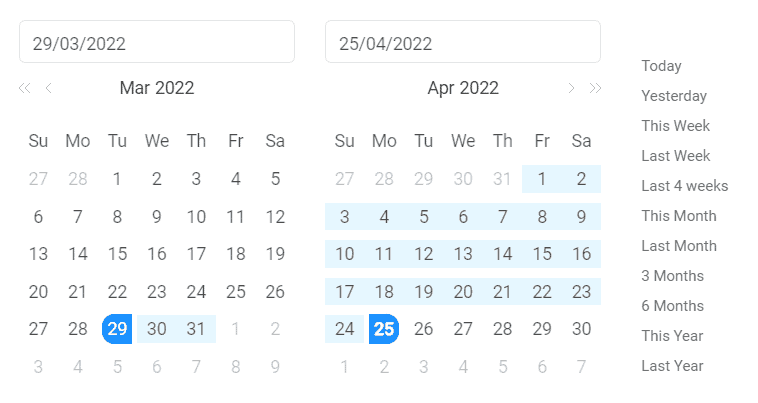
The export documentation sets a limit of 10,000 rows per report. Split a larger export into smaller periods and check the boundary dates so you can combine the files without repeating rows.
Filter the sales list for a specific question
To review sales of one product, select it in the Sales dashboard’s product filter, then export the resulting list. Location and transaction-status filters can help narrow the same review, where the connected data includes those fields. Putler order segmentation
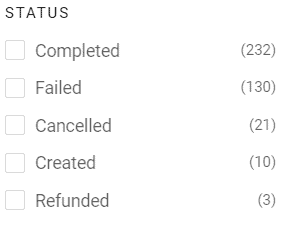
Check the downloaded columns before using customer details or product attributes in your analysis. Field availability depends on what the connected source supplies.
Review product performance after the export
The Products dashboard helps you review quantities sold, product revenue, and refunds. Its product list export answers questions about product performance. Use Sales or Transactions when you need the underlying transaction records. Putler Products documentation
Once you have checked the figures, use the Amazon analytics guide to plan your review, or compare best-selling Amazon products using your sales data.
What should you check in the downloaded file?
Before adding up the rows, check the account, dates, and what each row represents. An order containing three items may occupy several rows. When you need an order count, count each order ID once within its account and marketplace.
- Account and marketplace. Keep a source column when combining exports so you can identify each account later.
- Reporting period. Check whether the date means an order, update, or shipment date.
- Columns and separator. If the file opens in one column, import it with the delimiter used by that report.
- Statuses and refunds. Review cancellations and refunds before treating every row as a completed sale.
- Currency. Group amounts by currency or use a consistent conversion method before comparing totals.
FAQs
Can I open an Amazon order history report in Excel?
Yes, when your export provides a CSV or tab-delimited text file. Use Excel’s import options to select the correct delimiter and check dates, currency, and order IDs before editing the file.
Does the report include digital purchases?
Check whether the records supplied with your personal data request include the digital purchases you need. Seller Central sales reports and Amazon Business purchase reports each have their own scope.
Can I combine reports from multiple Amazon accounts?
Download the relevant report from each account and label its source before combining it. Sellers with multiple connected accounts can also review them through Putler. See the multiple Amazon accounts guide for related account-management guidance.