

Plenty of apps, shopping carts and developers ask for your PayPal API username, password and signature. PayPal doesn’t make them easy to find, and the menu you need depends on your PayPal interface version and country.
This guide covers the two places the credentials usually live, what to try when neither works, and how to stay safe once you have them.
Why do apps need your PayPal API credentials?
PayPal lets other applications talk to your account programmatically through an API. Reporting tools, shopping carts and your own website use it to check your balance, look up transaction details, issue refunds and more.
Because that access is sensitive, PayPal only grants it to whoever holds the right combination of API username, password and signature. Without all three, a third-party app can’t read your PayPal account.
Option 1: Tools, then All Tools (latest PayPal interface)
- Log in to your PayPal account.
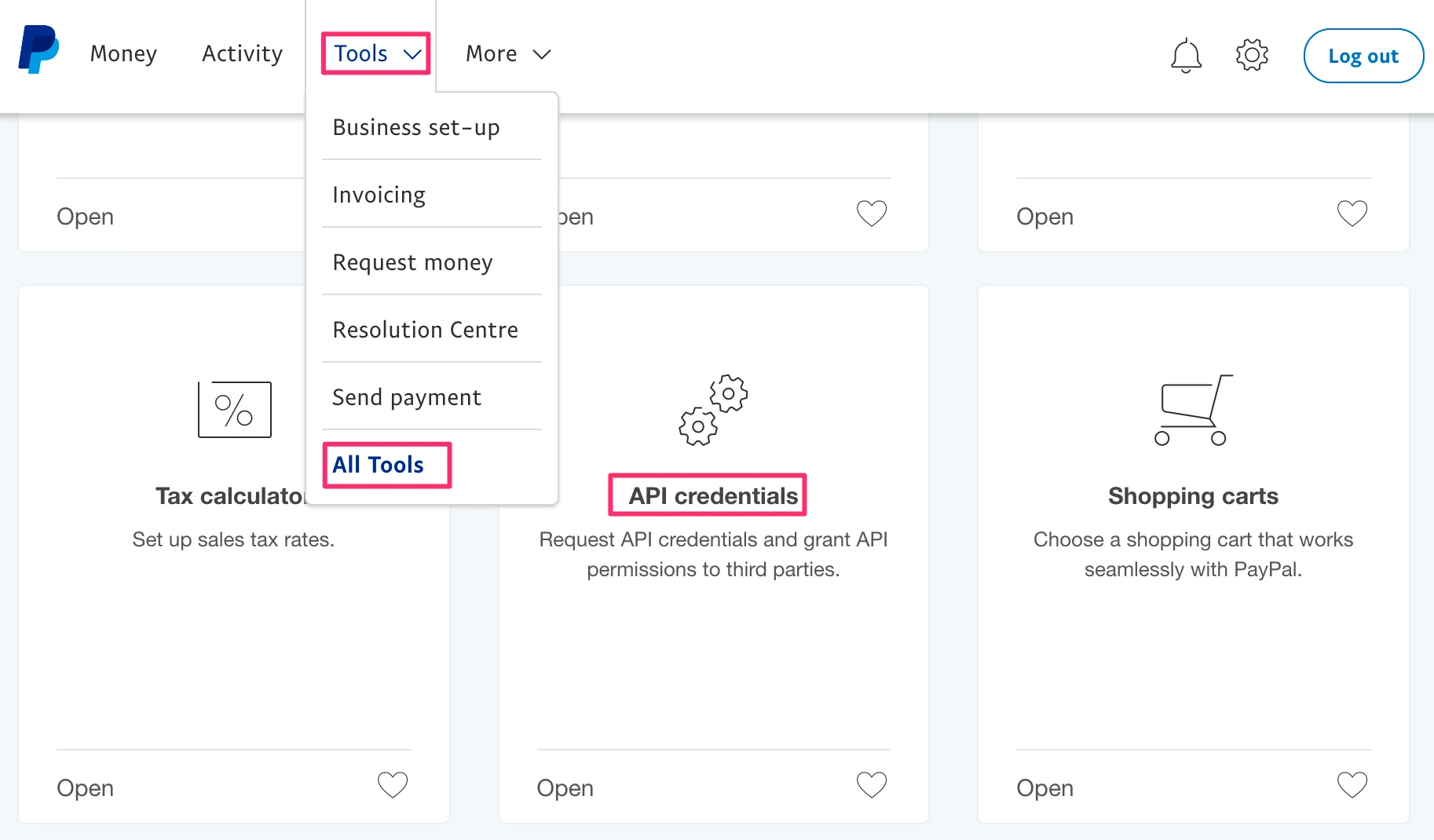
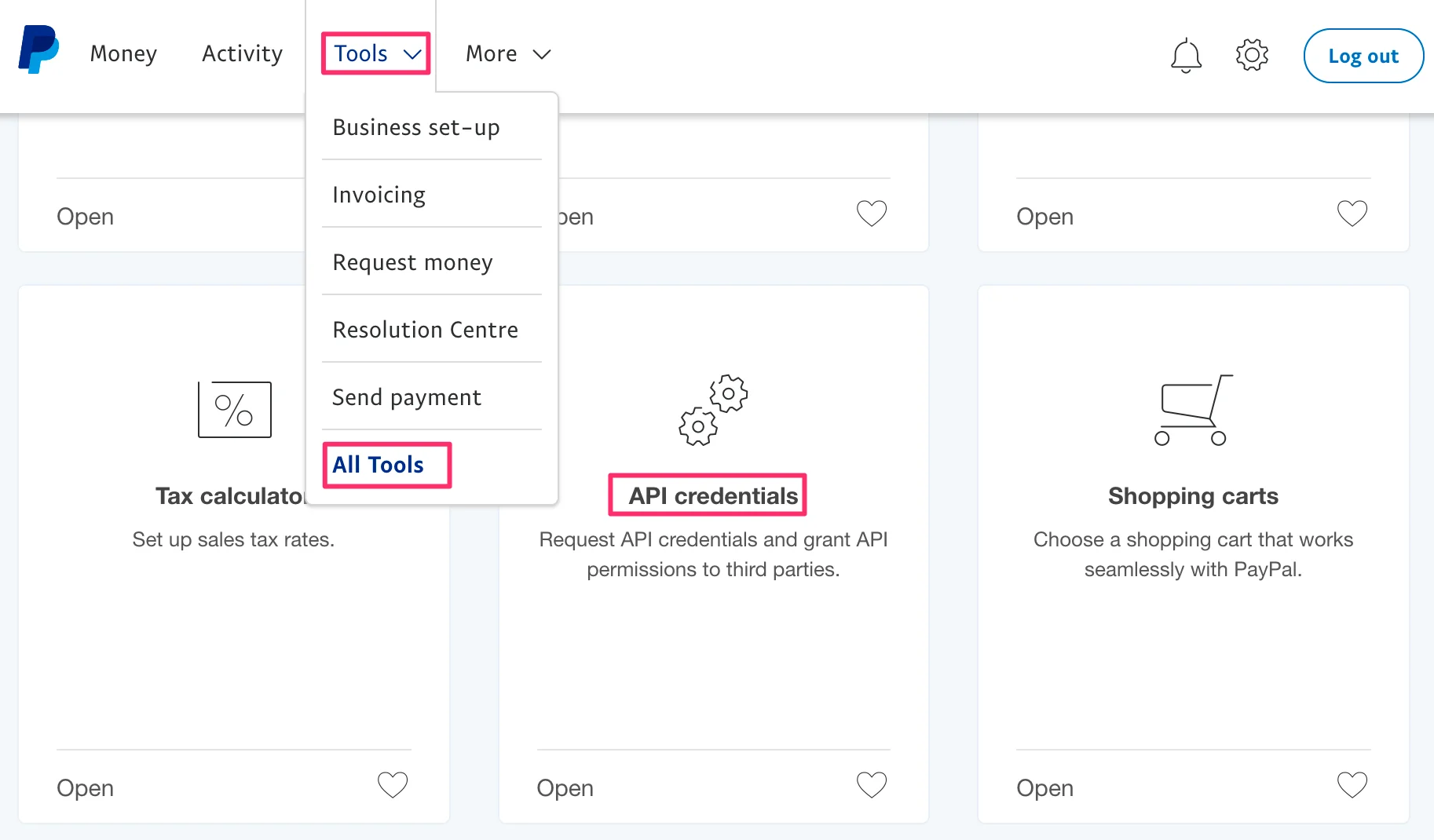
- Hover over Tools in the top navigation, then click All Tools.
- Scroll to the box labelled API credentials and click it. (Shortcut: paypal.com/businessexp/tools.)
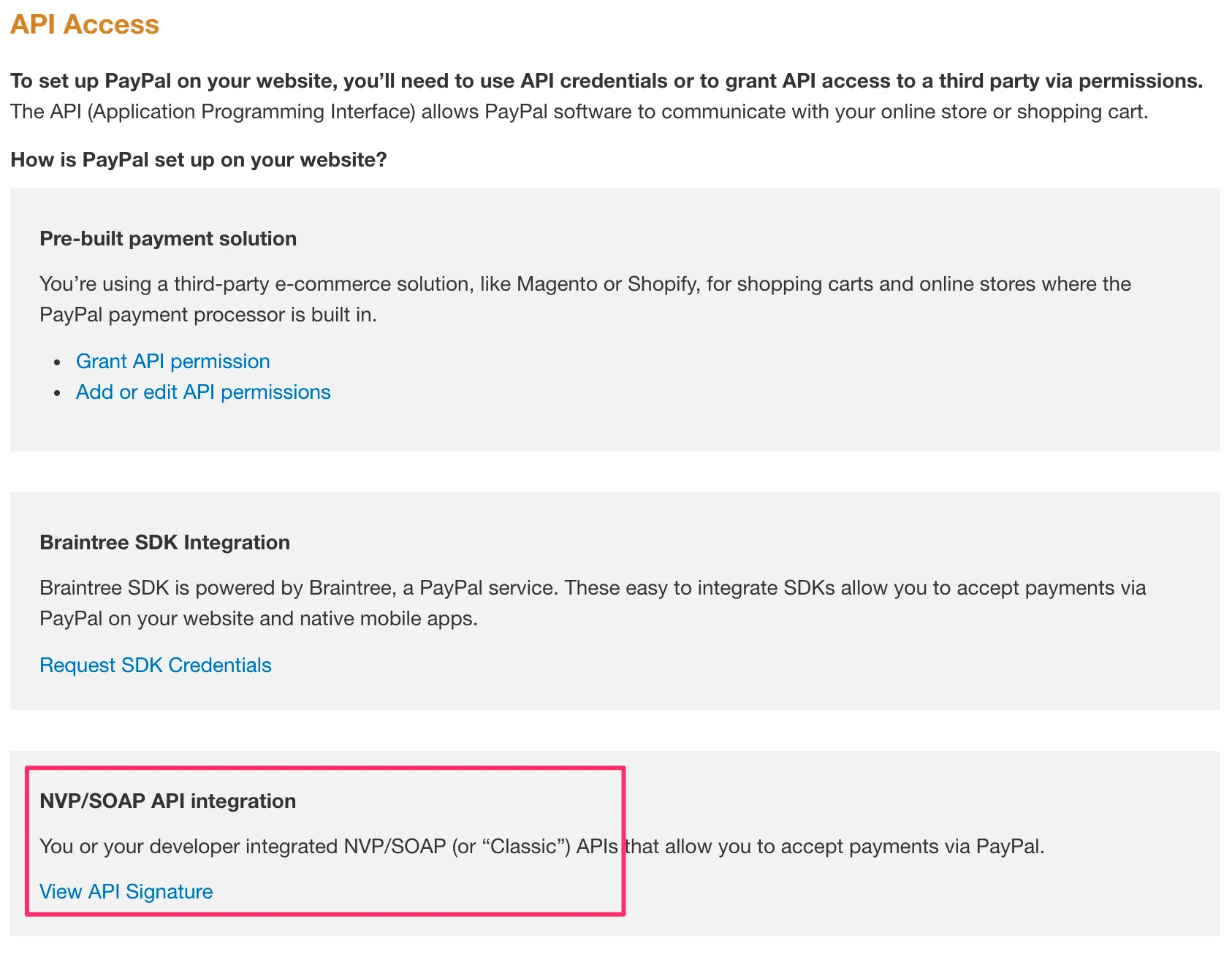
- On the API credentials page, choose the last option, NVP/SOAP API integration.
- If this is your first time, complete the API Credential Request form.
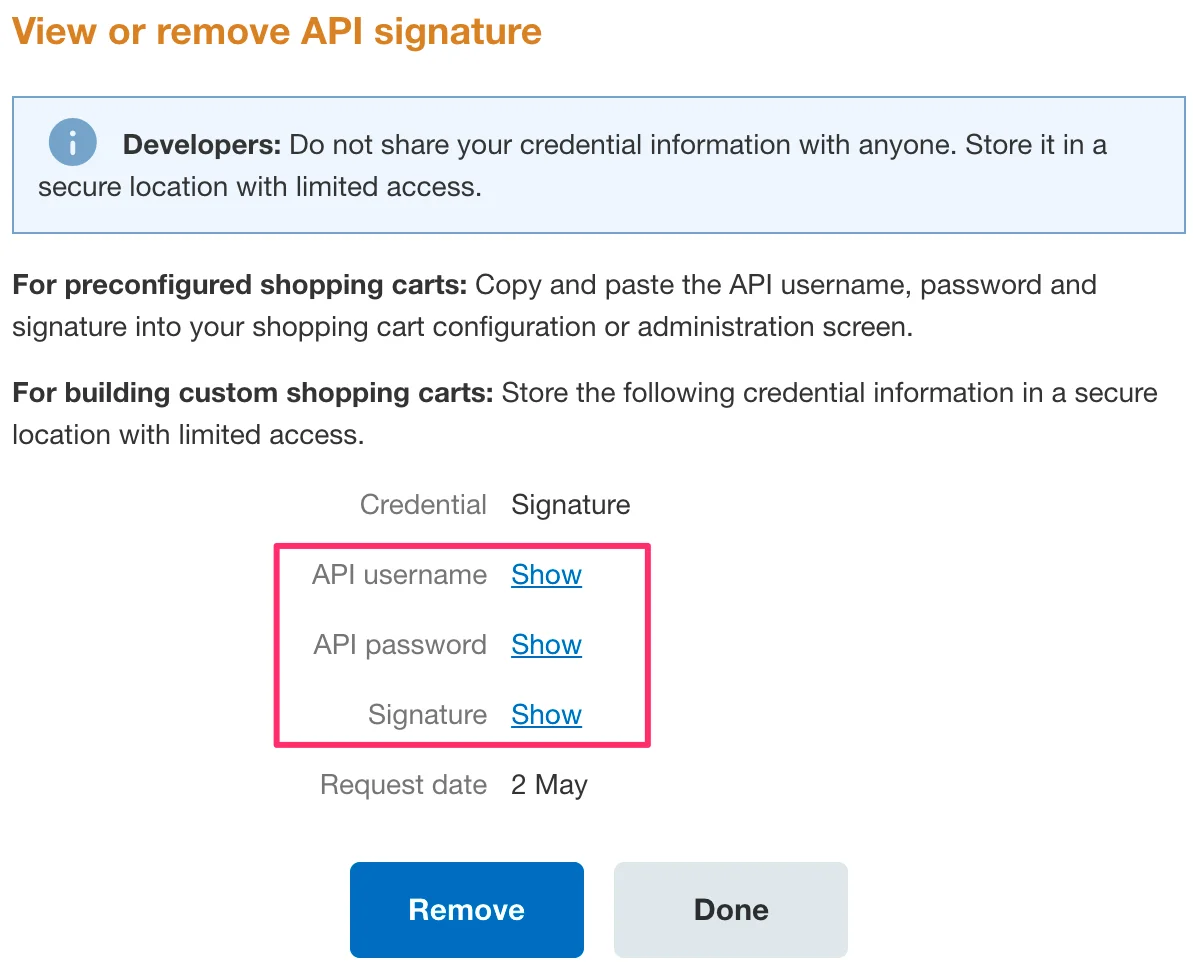
- Click View API Signature, then click each Show link to reveal your API username, password and signature.
Option 2: Profile, then Account information, then API access
This route works on older PayPal Premier and Business accounts.
- Log in to your PayPal Premier or Business account.
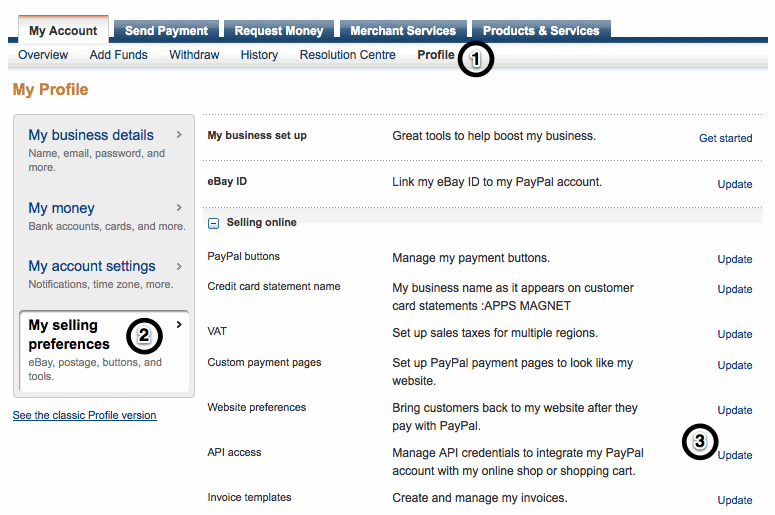
- Click the Profile tab in the top navigation.
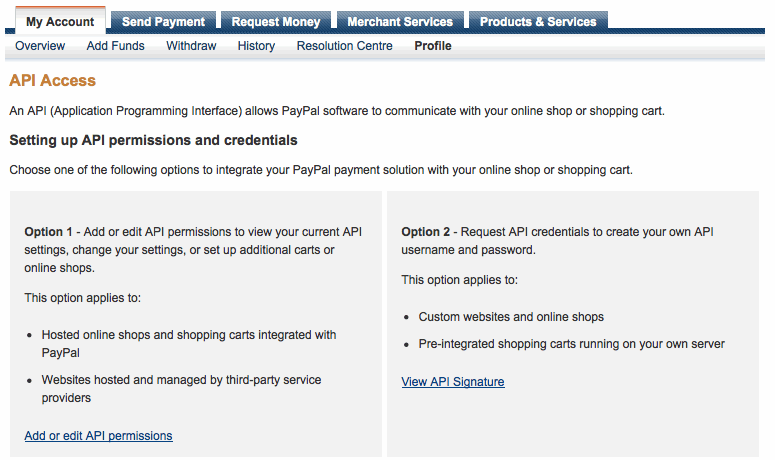
- Under Account Information, click API Access.
- Under Request API Credentials, click Get Started. (In the newer profile, open My selling preferences in the left sidebar and click Update next to API access.)
- Tick the agreement checkbox on the API Credential Request form and click Submit.
- Copy the API username, password and signature into the app that asked for them, or send them securely to your developer.
Still can’t find your API details?
If the options above didn’t work, try the classic profile:
- Log in to your PayPal account and click Profile.
- Switch to the classic Profile view (on the left, outside the My Selling Tools box).
- Under Account Information, click API Access.
- Choose Option 2: Request API credentials, then click View API signature.
Using an API certificate instead of a signature?
If your account uses an API certificate, remove the existing certificate and then choose Request API Signature with the steps above. Any other system using that certificate needs the new signature to keep working. You’ll then see all three values: signature, username and password.
If you’re still stuck, PayPal’s own help article on requesting API signature or certificate credentials may help.
Skip the API credentials altogether
If you were hunting for these credentials to connect PayPal to a reporting tool, there’s an easier way. Putler doesn’t need your PayPal API username, password or signature. You sign in to PayPal, click Grant Permission, and Putler starts importing your transactions. There’s nothing to copy and paste, and nothing sensitive to store.
Working in the PayPal site is slow, even in the latest design. Finding a transaction, issuing a refund or checking a report takes a lot of clicks. Putler is built to make that fast: it’s up to 12 times faster than the PayPal site for everyday jobs like searching for a transaction or refunding one.
What PayPal users like most about Putler:
- Instant search to find any transaction in seconds.
- Refunds and subscriptions managed quickly, with better control.
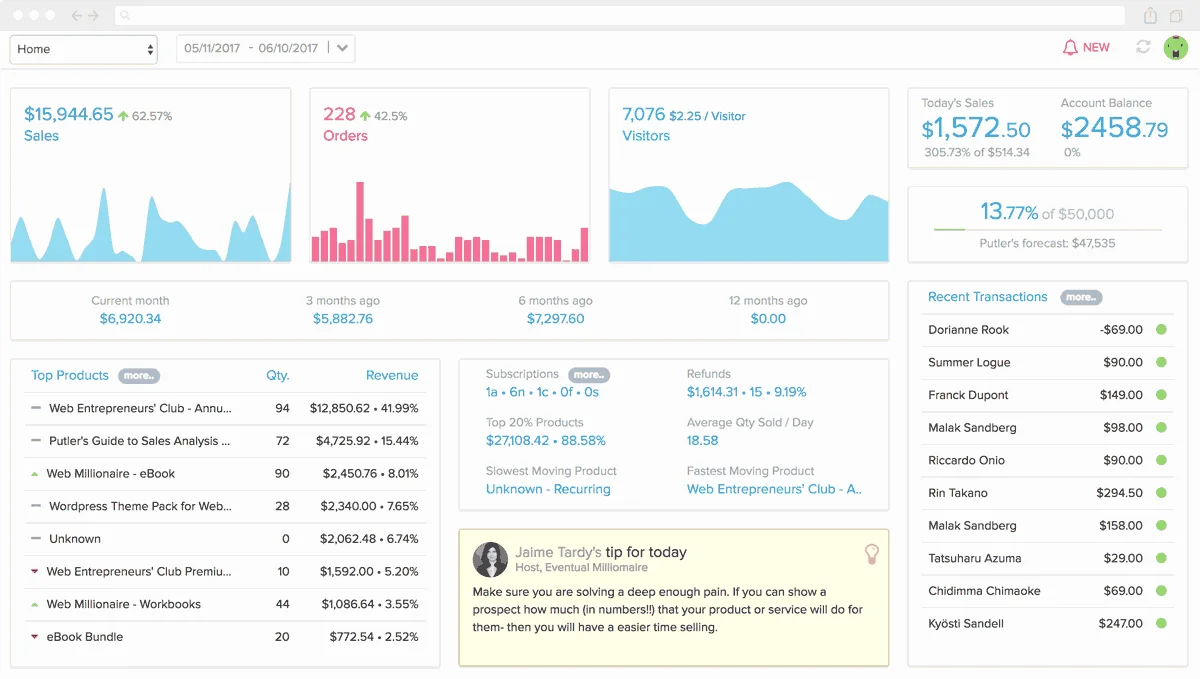
- Meaningful analytics on sales, customers, products and transactions.
- Multiple PayPal accounts and currencies combined in one place, alongside Stripe, WooCommerce, Shopify and 20+ other sources.
I am amazed by how quickly Putler finds transactions compared to PayPal. It also monitors how our SKUs are performing over time. Putler truly makes the PayPal experience bearable and a lot less stressful. It’s totally worth the subscription! — Jon Campbell, The Battle Buddy Foundation
Managing subscriptions and refunds, paying affiliates takes about a tenth of the time it would if I had to log in to PayPal every time. As a bonus, when I want to analyze sales performance and customer details, all the data is right there in the form of super fast reports. — James Rose, Director, Aktura Technology
Want to see how it’s set up first? Read the guide to connecting PayPal to Putler or browse the PayPal integration.
FAQs
Where do I find my PayPal API username?
Log in to PayPal, open Tools > All Tools > API credentials, choose NVP/SOAP API integration and click View API Signature. Your API username, password and signature each have a Show link.
What is the PayPal API signature?
It’s a long string that, together with your API username and password, proves to PayPal that a third-party app is allowed to access your account. It replaces the older certificate-based method.
Is it safe to share my PayPal API credentials?
Only share them with software or people you trust, and over a secure channel. If you think they’ve been exposed, remove the API signature in PayPal and request a new one.
Do I need PayPal API credentials to use Putler?
No. Putler connects to PayPal by sign-in and permission grant, so you don’t need to find or paste any API credentials.