


If you use PayPal for your business, you already know the drill. Log in, wait for the data to load, dig through transaction tables trying to make sense of the numbers, and still walk away without a clear picture of how your business is actually performing.
That’s the core limitation of PayPal reporting: it’s built for processing payments, not for running a business on data.
This guide covers everything you need to know about PayPal reporting — which reports exist, what they show, where they fall short, and which PayPal analytics tools give you the deeper insights your business actually needs to grow.
Whether you’re tracking sales trends, customer behavior, or subscription health, having the right PayPal analytics in place makes all the difference.
The importance of PayPal reports
As a business owner, keeping track of your financial activity is non-negotiable — especially when you’re running an eCommerce store through PayPal. PayPal’s reports offer a foundation of transaction data to help you make informed business decisions.
Here’s what they cover at a basic level.
- Sales and transaction insights: PayPal reports give you updates on your sales and transactions across daily, weekly, or monthly periods. You get a clear view of your revenue flow and payment statuses without having to manually tally anything.
- Product performance tracking: If you want to know which products are driving the most revenue in your store, PayPal reports can surface your best-sellers and show you which items customers are buying most frequently.
- Customer analytics: Knowing your loyal customers is vital. PayPal reports provide data on your most frequent shoppers, their average spending, and their purchase patterns — information that helps you build better relationships and target the right people.
- Visitor behavior analysis: PayPal reports help you analyze visitor behavior, revealing which pages attract the most attention and which ones might need improvement. By understanding visitor interactions, you can enhance the overall user experience.
There is a catch, though. To get these insights reliably, you need to know which PayPal reports to pull and how to read them. The native dashboard doesn’t surface everything automatically.
Let’s look at which reports give you the most useful data.
Key PayPal analytics metrics every eCommerce business should track
Understanding which numbers actually matter can transform how you run your business. PayPal gives you transaction data, but raw transaction data is not the same as actionable PayPal analytics. These are the metrics that separate guesswork from smart decision-making.
Revenue metrics:
- Gross sales: The total value of all transactions before deductions. This tells you how much money flowed through your PayPal account in a given period.
- Net sales: What remains after subtracting refunds, chargebacks, and PayPal fees. This is the real money reaching your bank account.
- Monthly recurring revenue (MRR): If you run subscriptions, this metric shows the predictable income you can count on each month — a critical number for planning and forecasting.
- Daily average revenue: Helps you spot trends and identify whether your business is growing, flat, or declining over a rolling period.
Customer metrics:
- Customer lifetime value (CLV): How much a typical customer spends with you over their entire relationship. Higher CLV means you can afford to spend more on acquisition without hurting margins.
- Churn rate: The percentage of customers who stop buying from you in a given period. Even small reductions here compound into significant revenue gains over time.
- Repeat purchase rate: What percentage of customers come back for a second purchase. This is one of the clearest indicators of product satisfaction and brand loyalty.
Transaction metrics:
- Average order value (AOV): Total revenue divided by the number of orders. Increasing AOV is often more efficient than finding new customers.
- Refund rate: High refund rates signal product quality issues, mismatched customer expectations, or fulfillment problems that need attention before they compound.
- Conversion rate: The percentage of visitors who complete a purchase. Even a 1% improvement can meaningfully shift your revenue.
Why PayPal doesn’t surface these easily
PayPal’s native reports focus on transaction-level details, not business intelligence. You won’t find CLV calculations, churn tracking, or revenue forecasting in the standard dashboard. Getting to these insights requires either manual spreadsheet work or a dedicated PayPal analytics tool that processes your data and calculates these metrics automatically.
Key PayPal reports every business needs
PayPal offers a range of reports to help you keep tabs on your business activity. The list can feel overwhelming when you first log in, so here’s a breakdown of the ones that will genuinely benefit you most — and what each one actually shows.
PayPal Monthly Financial Summary Report
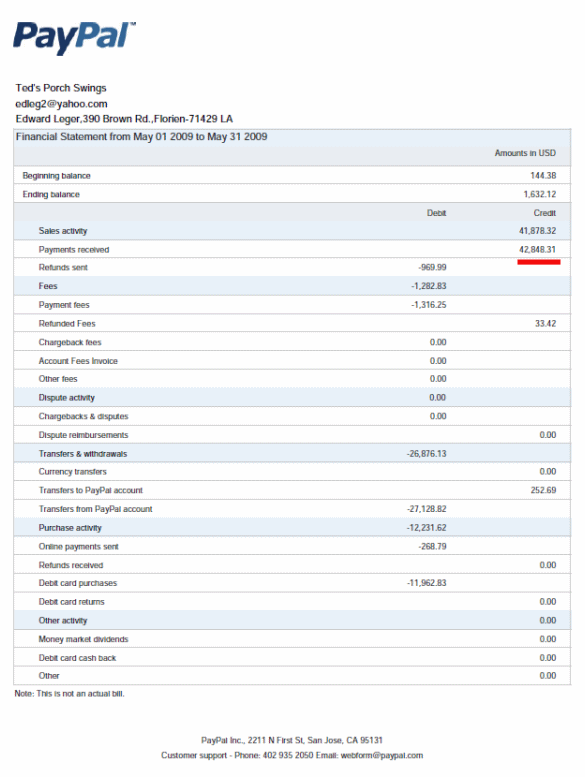
This report gives you a detailed view of all your PayPal transactions within a selected period. Customer payments, PayPal fees, business expenses, bank transfers, and more are all summarized in one place. You can also drill down to track individual transactions within the report.
3 steps to generate your Monthly Statement:
Select a time period.The default option is the current month. You can set a maximum range of 31 days, excluding the current day.Select a currencyfrom the drop-down menu. You can only view transactions in a single currency at a time.- Click
View Reportto generate the report.
You can open and save the report in PDF, Excel, CSV, or tab format for later reference.
PayPal transaction detail report
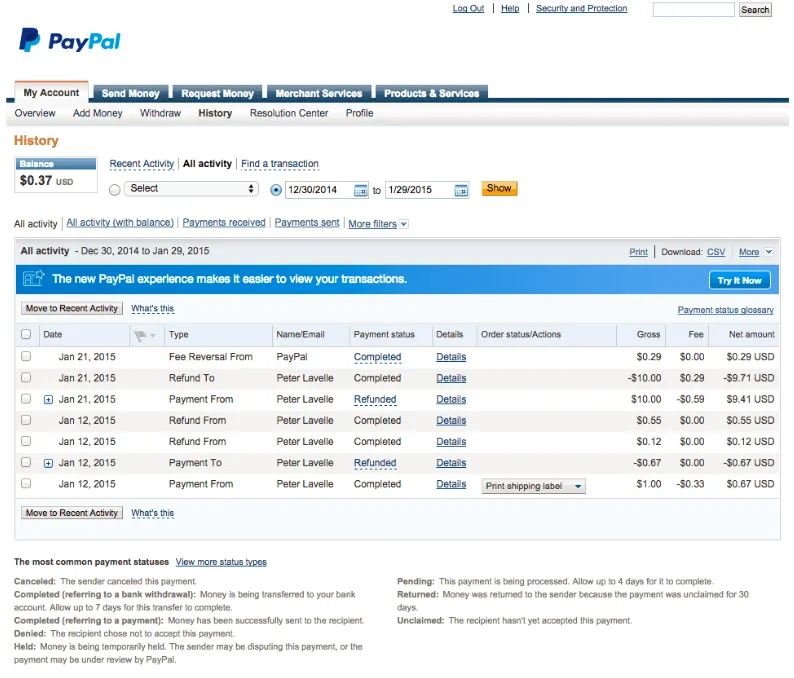
The PayPal transaction detail report provides comprehensive information about each individual transaction in your account, whether it’s a pending or completed order. It also includes shipping status and PayPal Seller Protection availability for each transaction.
If you need to find a specific transaction, you can search your PayPal transaction history using PayPal’s built-in search. The results are detailed and informative, though they can take time to load on accounts with high transaction volumes.
3 steps to generate your PayPal transaction detail report:
- Go to
My Account > History > All Activity Select the date rangeyou want to viewClick Showto generate the results
The report covers individual transactions made within the last 45 days. Read the transaction detail report specifications to understand the report format, file structure, and available fields in detail.
PayPal Settlement Report
The PayPal Settlement Report keeps you informed about transactions that affect your fund settlements. It shows transaction event codes and initiation dates so you can track exactly when funds move.
PayPal Case Report
Previously known as the Downloadable Dispute Report (DDR), this report keeps you informed about any claims, disputes, or chargebacks made against your PayPal accounts. These reports also serve as backup records during audits, including for tax purposes.
Other PayPal reports include:
- Revenue Share Report
- Recurring Payments Profile Report
- Subscription Agreement Report
- Pre-approved Payments Agreement Report
Order Report (ORT)
The Order Report helps you track orders that customers have approved but that haven’t fully processed yet. This covers situations where funds are held by banks, shipping issues have occurred, or technical errors have interrupted the payment flow.
The ORT provides detailed information on every pending order, each identified by a unique ID — including customer details (PayPal account ID, email, and name), currency details, shipping information, and any custom fields.
Revenue Share Report
The Revenue Share Report provides partners with detailed insights into the revenue share received from merchant activities, including comprehensive summaries of debits, credits, and balances for each currency in your accounts.
Note: Access to the Revenue Share Report is limited to selected business accounts approved by PayPal. When a PayPal account manager activates the report for a partner, the partner can also create a user account for accessing the Secure FTP Server.
Recurring Payments Report
If you run a subscription-based service, the Recurring Payments Profile Report (RPP) is your go-to tool for tracking upcoming payments from subscribers. It shows your account ID and each subscription’s starting and ending dates.
The RPP is accessible via PayPal’s website and Secure FTP Server. For a deeper understanding of how to maximize your subscription revenue through PayPal, check out this guide on PayPal subscriptions.
If you want to explore all available PayPal reports in detail, you can go through PayPal reports documentation for full technical documentation.
How to find and download PayPal reports
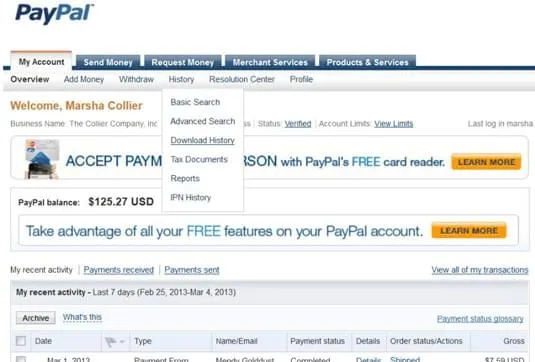
Accessing and downloading your PayPal reporting data involves a few steps. Here’s the full walkthrough.
Step 1: Log in to your PayPal account and click on the My Account tab at the top of the page.
Step 2: Within this tab, hover over the History item in the navigation bar. Click Download History from the drop-down menu.
Step 3: Scroll down to the customization section and click the Customize link to refine which data fields appear in your report.
Step 4: Mark the checkboxes next to the fields you want to include, then click Save. You’ll return to the download history page.
Step 5: Specify the date range for the data you want to download.
Step 6: Select a file format from the download drop-down — CSV, Excel, or tab-delimited depending on how you plan to use the data.
Step 7: Click the Download History button. Your file will be ready to download within a few minutes.
Once downloaded, you can view your PayPal statements and reports in your chosen application.
Now that you know which reports to pull and how to access them, the next step is understanding where PayPal reporting falls short and what you can do about it.
Common PayPal reporting challenges eCommerce businesses face
PayPal is a payment platform, not a dedicated analytics platform. While it delivers transaction data reliably, its reports don’t fully address the needs of businesses trying to use that data strategically. Here are the most significant limitations that hold eCommerce merchants back.
- Limited customization: PayPal’s built-in reports have restricted customization options, making it difficult to extract specific data tailored to your business. One-size-fits-all reports rarely serve unique operational needs.
- Incomplete data visibility: PayPal reports provide a basic transaction overview but often lack the depth needed for informed decisions as your business scales. Metrics like CLV, churn rate, and forecasting are simply absent.
- Slow loading and manual analysis: Searching for specific transactions by customer name or email is not instant. For high-volume accounts, pulling and analyzing reports manually consumes time that could be spent on growth instead.
- Complex data interpretation: For many eCommerce merchants, the raw numbers and technical terminology in PayPal reports can be difficult to interpret without an analytics background. Identifying meaningful trends becomes a challenge rather than a routine.
- Integration challenges: Most eCommerce businesses use multiple platforms and tools simultaneously. Consolidating PayPal data with other systems creates fragmented insights and an incomplete view of overall performance.
- Limited time range on activity searches: PayPal’s transaction history search only covers the last 45 days. While full report data goes back 7 years, navigating and comparing data across longer periods requires manual effort or third-party tools.
- Missing product and customer intelligence: PayPal reports don’t surface best-selling products, customer lifetime value, or loyalty segments automatically. These require additional analysis that the native dashboard simply doesn’t provide.
- No sales pattern insights: Peak sales periods, geographic revenue breakdowns, and daily average revenue trends are not available out of the box in PayPal’s standard reporting interface.
These limitations aren’t unique to PayPal. Businesses using multiple payment gateways face similar gaps with Stripe payment analytics and other processors. If you’re also using Stripe alongside PayPal, here’s how Stripe reporting compares and what solutions exist.
Managing multiple PayPal accounts
Many eCommerce businesses end up running more than one PayPal account — separate accounts for different brands, regions, currencies, or stores. While this is common, it creates a real reporting problem: PayPal has no native way to consolidate data across accounts. Each account lives in its own dashboard, which means pulling a complete picture of your business requires logging in and out repeatedly and merging reports manually.
The challenges compound quickly. Duplicate customers appear across accounts. Revenue from different stores can’t be compared side by side. Refunds and fees from one account aren’t visible from another. And if your accounts operate in different currencies, reconciling the numbers adds another layer of manual work.
This is one of the specific gaps where a dedicated PayPal analytics tool earns its place. Tools like Putler connect to multiple PayPal accounts simultaneously and consolidate all transaction data into a single dashboard — automatically handling currency conversion, deduplication, and unified reporting across every account you manage.
For a step-by-step guide on handling this, read how to manage multiple PayPal accounts with Putler.
PayPal analytics tools worth considering
PayPal’s native reporting covers the basics, but most growing eCommerce businesses quickly outgrow it. A dedicated PayPal analytics tool fills the gaps — calculating metrics PayPal doesn’t surface, consolidating data across accounts and platforms, and turning raw transaction records into actionable business intelligence.
Here are the most relevant options to evaluate.
Putler
Putler is the most comprehensive PayPal analytics tool for eCommerce businesses that need more than transaction records. It connects directly to your PayPal account, pulls all historical data automatically, and presents it in dedicated dashboards covering sales, customers, products, subscriptions, and audience behavior. Unlike PayPal’s native reports, Putler calculates CLV, churn rate, MRR, refund trends, and 200+ other metrics automatically — no spreadsheet work required.
Its strongest differentiator for multi-platform businesses is data consolidation. If you use PayPal alongside Stripe, WooCommerce, Shopify, or other gateways, Putler merges everything into one unified view with automatic currency conversion and deduplication.
Best for: eCommerce and SaaS businesses using PayPal as one of multiple payment sources, and businesses that need customer segmentation and forecasting alongside their PayPal reporting.
Pricing: Starts at $20/month.
ChartMogul
ChartMogul is a subscription analytics platform that connects to PayPal among other billing sources. It focuses on MRR, churn, LTV, and cohort analysis — metrics designed specifically for subscription and SaaS businesses. If your primary use case is tracking recurring revenue from PayPal subscriptions with deep cohort analysis, ChartMogul is a capable option.
Best for: Pure subscription businesses that want detailed MRR and churn tracking.
Pricing: Free plan available for under $10K MRR. Paid plans start at $100/month.
Baremetrics
Baremetrics connects to PayPal and other payment processors to provide real-time SaaS metrics including MRR, ARR, LTV, and churn. It offers a clean dashboard and a 60-day free trial. Like ChartMogul, it’s subscription-focused and less suited to general eCommerce transaction analysis.
Best for: Subscription-first businesses that want real-time metrics and benchmarking tools.
Pricing: Starts at $108/month.
Databox
Databox is a broader business intelligence tool that connects to PayPal alongside 130+ other data sources. It lets you build custom dashboards combining PayPal data with marketing, advertising, and operational metrics in one place. It’s less specialized for payment analytics but more flexible if you need a cross-platform reporting hub.
Best for: Teams that need PayPal data combined with marketing and sales metrics in a single dashboard.
Pricing: Starts at $199/month. A 14-day free trial is available.
How Putler works as your PayPal reporting app
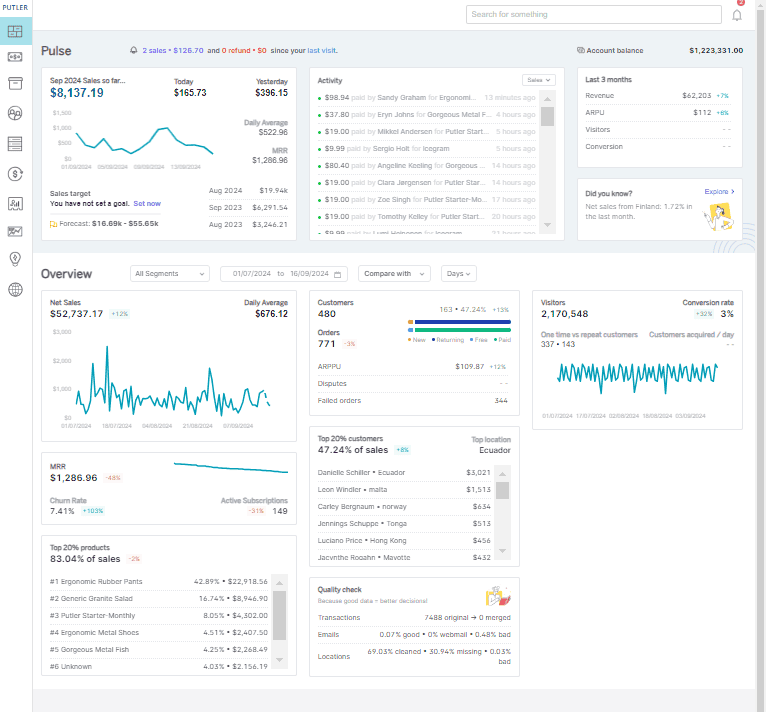
Putler connects to your PayPal account via API, pulls all your transaction history automatically, and presents it across dedicated dashboards — no manual exports, no spreadsheet work, no waiting for reports to load. Here’s what it covers.
Automatic sync with payment platforms
Simply enter your payment platform API details and Putler takes care of the rest. It automatically downloads the latest transactions and keeps all statistics updated in real time. Payment platforms Putler connects with include:
- PayPal
- Stripe
- 2Checkout
- Braintree
- Authorize.Net
- Razorpay
Beyond payment gateways, Putler also integrates with storefronts (Shopify, WooCommerce, Amazon, eBay, Etsy) and analytics tools (Google Analytics). See all 17+ Putler integrations here.
What this gives you:
- MRR, daily average revenue, monthly revenue, sales forecasts, and more — calculated automatically from your PayPal data
- A full transaction list covering sales, refunds, disputes, and more, so you can track both sales frequency and customer purchasing patterns
- Deeper filtering by location, product, transaction status, tax, and platform fees — all in one transaction dashboard
Instant reports and business overview
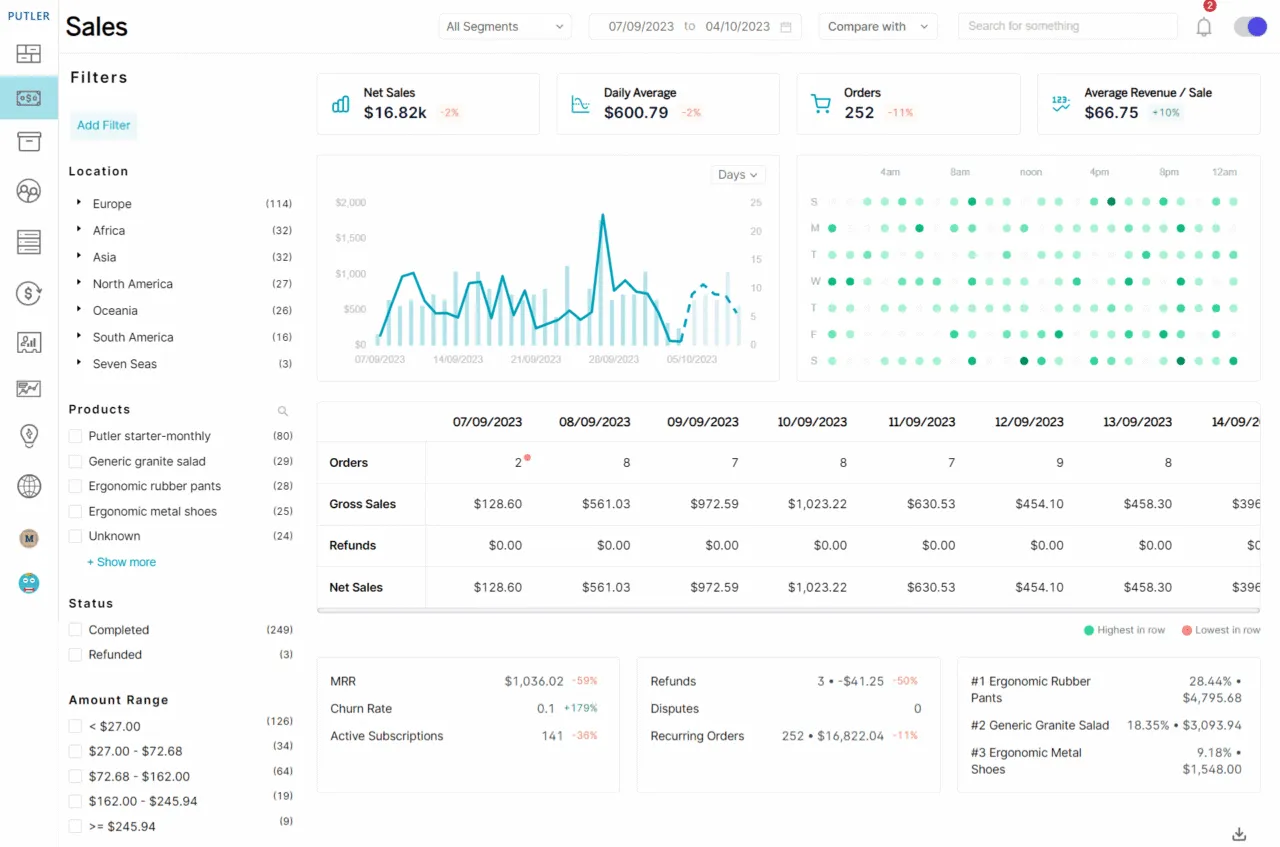
With Putler, you get instant reports without logging into PayPal repeatedly or waiting for data to load. Reports available include:
- Sales Reports
- Customer Reports
- Order Reports
- Product Reports
- Subscription Reports
- Insight Reports
- Multi-store Reports
- Automatic Data Aggregation
Putler aggregates data from your PayPal accounts, other payment gateways, shopping carts, and connected accounts into a single unified report. No matter where your data lives, Putler brings it together. Putler also includes Web Analytics — a privacy-focused, simpler alternative to Google Analytics built directly into the platform.
For a real-world example, take a look at this case study where Putler helped Nicolai Grut, owner of Grut Brushes, consolidate his data and make better-informed decisions from a single dashboard.
What this gives you:
- Net sales, gross sales, order frequency, and overall business performance at a glance
- Visibility into loyal customers so you can build and target the right loyalty programs
- Customer segmentation data to identify new customers, potential loyalists, and at-risk buyers worth re-engaging
Built-in customer segmentation
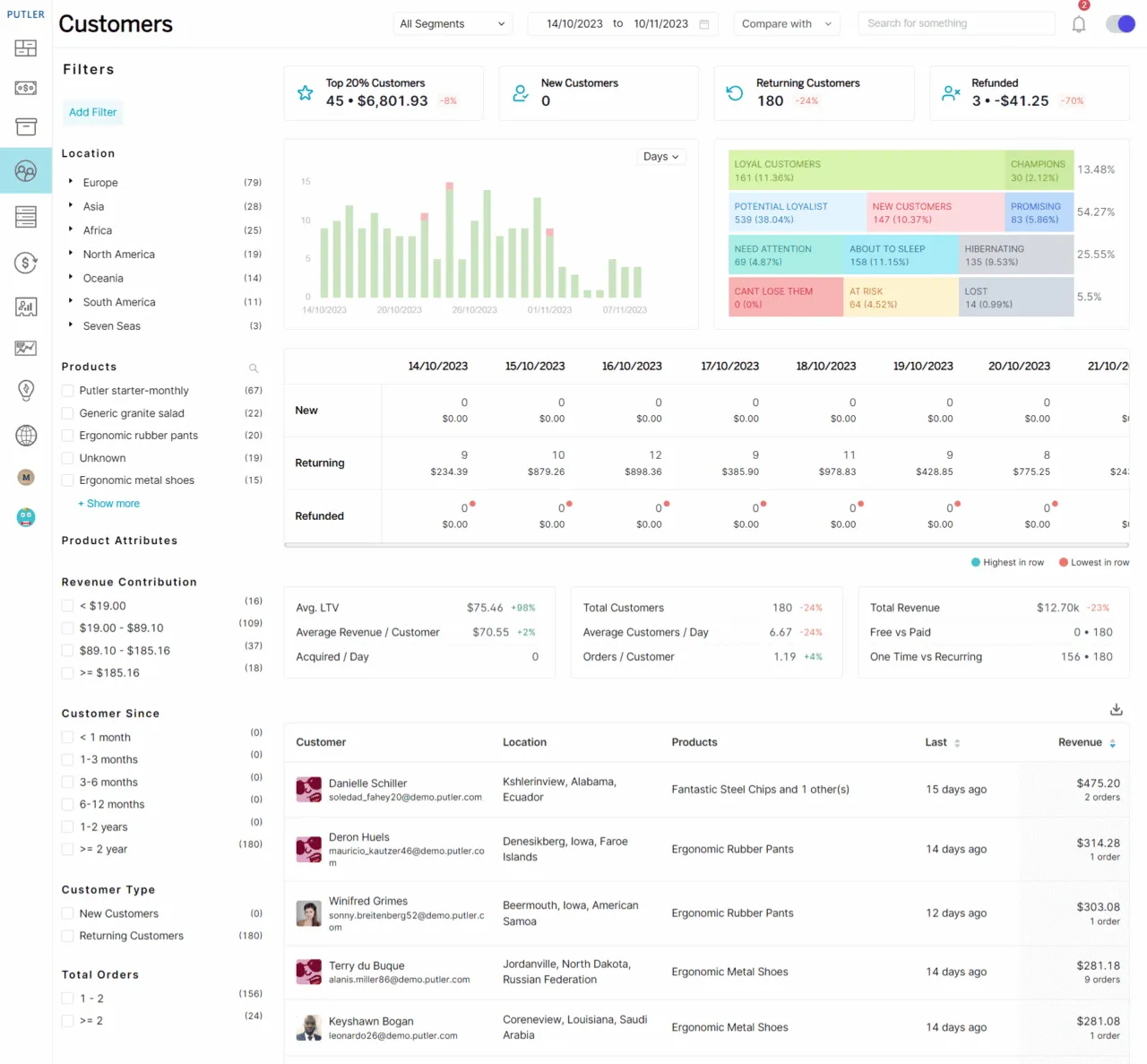
Putler’s customer dashboard gives you all the vital information you need about your buyers. Its RFM analysis provides details on different customer segments, their loyalty levels, profitability, and purchasing patterns. You can read more about how to use RFM analysis to make the most of this feature.
What this gives you:
- Feedback from detailed analysis to strengthen your brand’s credibility and build stronger customer relationships
- Clear visibility into which customers need re-engagement and which are ready to become long-term loyalists
Take the example of KLM Royal Dutch Airlines. They use customer segmentation to provide targeted benefits to their frequent flyers — earning miles through flights, car rentals, and hotel bookings, with rewards scaling by elite status level. The result is sustained engagement and reduced churn. The same principle applies to any eCommerce business willing to act on its customer data.
Lightning-fast transactions
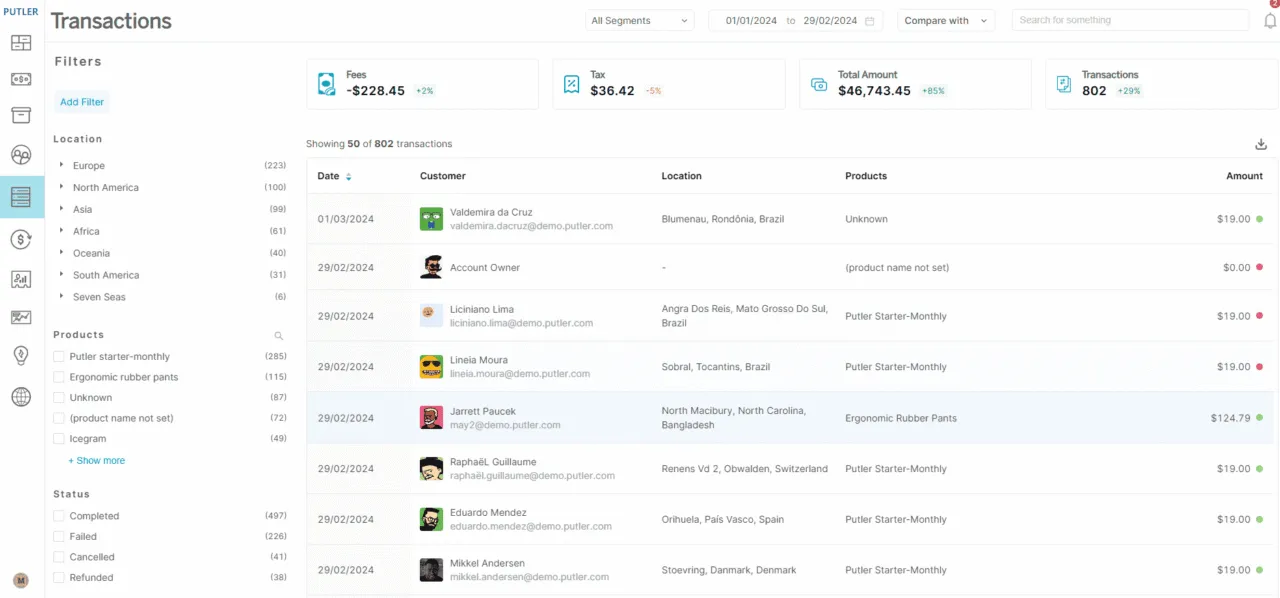
Putler loads transactions in a fraction of a second, unlike PayPal’s native dashboard which can take minutes on high-volume accounts.
What this gives you:
- Instant access to customer data for faster decision-making and better financial oversight
- The ability to identify irregular or suspicious activity quickly and take prompt action
- Efficient handling of large transaction volumes in a single place as your business scales
Intuitive search
Putler’s search feature lets you find any customer or product instantly. When you search for a product, you get a full breakdown of its revenue, sales volume, orders, refunds, and the customers who bought it — all on one screen.
What this gives you:
- The ability to find specific customer or product details quickly from a large data set
- Real-time data to adjust strategies and respond to market opportunities faster than competitors
Comprehensive product metrics
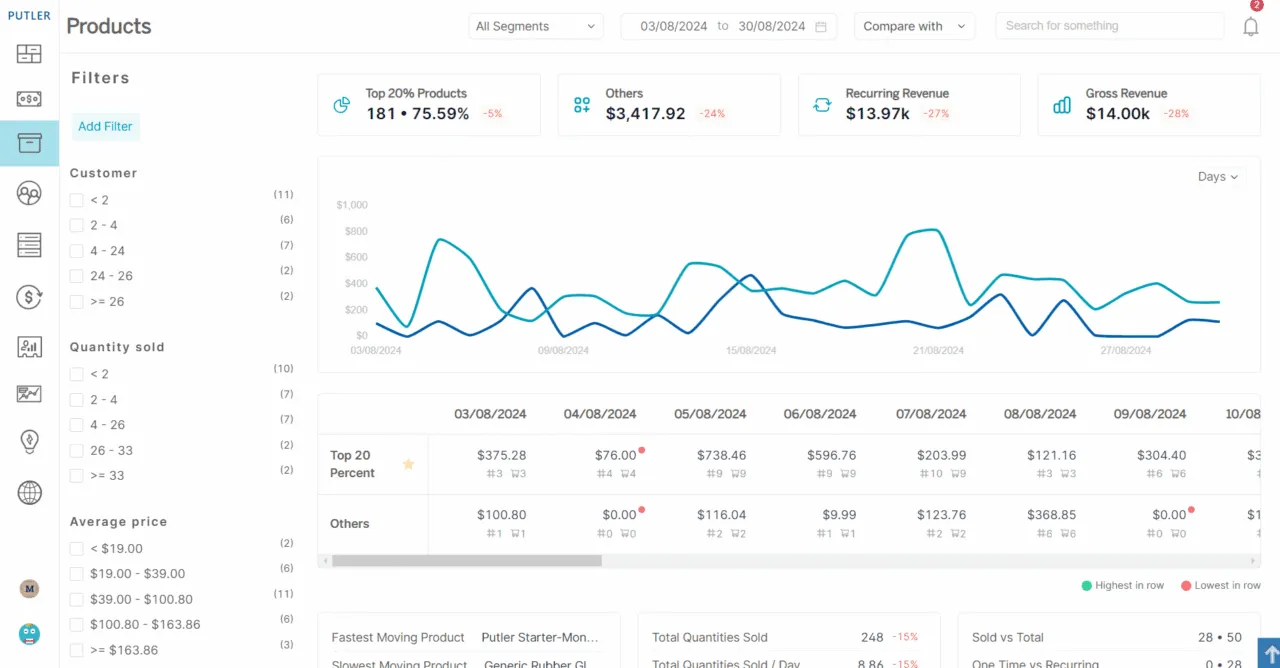
Putler provides instant detail on your product movements — best sellers, product leaderboards, top 20% revenue drivers, and product-level sales and refunds. You can read more about product metrics in Putler here.
What to do with this data:
- Identify which products are underperforming and bridge the gap between customer expectations and your marketing
- Improve strategy for slow-moving products by offering them as bundles with top performers to increase order value
Putler also includes data cleansing, sales heatmaps, weekly email updates, revenue forecasting, and holiday season analysis. To get the most from all these features, connect Putler to at least three data sources and let it surface the patterns your individual platform reports were hiding.
Choosing the right PayPal reporting app for your business
In business, records are everything. They are the evidence behind every decision, the foundation of every forecast, and the clearest signal of where your business is heading.
PayPal gives you the transaction layer — and that matters. But growing eCommerce businesses need more than a list of payments. They need to know which customers are worth re-engaging, which products are quietly dragging on margin, and whether this month’s revenue trend is real momentum or a seasonal spike.
That’s the gap a dedicated PayPal reporting app fills. Whether you’re running a single store or managing multiple PayPal accounts across different platforms, the right tool consolidates your data, calculates the metrics PayPal doesn’t, and surfaces the patterns that drive better decisions.
FAQs
What is the best PayPal reporting app?
The best PayPal reporting app depends on your business type. For subscription-only businesses, ChartMogul or Baremetrics offer focused MRR and churn tracking. For eCommerce businesses that need broader analytics across multiple payment sources, stores, and currencies, Putler is the most comprehensive option — covering 200+ metrics from a single dashboard with automatic multi-account consolidation.
What is the PayPal transaction detail report?
The PayPal transaction detail report shows comprehensive information on each individual transaction in your account, including pending and completed orders, shipping status, and PayPal Seller Protection availability. It can be accessed via My Account > History > All Activity and covers transactions within the last 45 days. Full transaction history is retained by PayPal for up to 7 years.
Can I manage multiple PayPal accounts in one dashboard?
Not natively — PayPal has no built-in way to consolidate data across multiple accounts. Each account requires a separate login and generates separate reports. A dedicated PayPal analytics tool like Putler solves this by connecting to all your PayPal accounts simultaneously and presenting unified reporting with automatic currency conversion and deduplication.
What PayPal analytics tools are available?
Several tools connect to PayPal for analytics purposes. Putler is the most versatile for eCommerce, covering sales, customers, products, subscriptions, and multi-account reporting. ChartMogul and Baremetrics focus on subscription metrics. Databox is a broader BI tool that includes PayPal as one of 130+ data sources. Each serves a different use case depending on your business model and reporting needs.
How far back do PayPal reports go?
PayPal retains your transaction data for up to 7 years, meaning you can access historical records dating back 7 years from today. After this retention period, PayPal removes the data. For long-term trend analysis beyond what the native dashboard surfaces, connecting PayPal to a third-party analytics tool lets you store and query this historical data more flexibly.
Does PayPal delete old transactions?
No, PayPal does not delete transactions before the 7-year retention period. All transaction details — payments, refunds, fees, and customer IDs — are retained for 7 years. Once that period ends, PayPal removes the data, so exporting historical records before the window closes is worth doing for long-term accounting purposes.
How long do PayPal activity reports take to generate?
Standard reports typically take up to five business days to generate. If you’re pulling a large volume of data or a long historical period, it may take slightly longer. For real-time reporting without waiting, a connected analytics tool like Putler pulls and displays PayPal data instantly without requiring manual report generation.
lisa
how can i get historical data? That’s the only way I can truly identify my loyal customers. I have data going back to 2011
Andrea
Yes, I completely agree that you need to have a complete overview to find out the exact loyal customers. That’s why Putler can pull in historical data. So if you need historical data of the past 7 years, I suggest you opt for Putler’s Scale Plan.
Deneshia Mayes
Can I get an example of the reports you can generate.
Andrea
You can take a look at Putler Marco Polo here – https://demo.putler.com/beta/