
Shopify customer segments let you group buyers who share a trait, like how much they have spent, when they last ordered, or which product they bought, so you can market to each group differently.
The feature lives inside Shopify admin, runs on a query editor, and updates on its own as customer behavior changes. Most guides stop at the theory. This one shows you the actual clicks, the exact filters to type, and five segments worth building before anything else.
This article covers how to segment customers in Shopify step by step, the ShopifyQL filters that power each segment, and where the native tool runs out of road for sellers on more than one channel.
What Shopify customer segments actually are
A customer segment is a saved group of customers who all match a rule you set. Spend more than $500. Ordered in the last 30 days. Live in California. Bought a specific product. Each rule produces a live list that Shopify keeps current for you.
The mechanics come down to three parts:
- Filter: the attribute you are sorting on, like
amount_spentorlast_order_date. - Operator: the comparison, like greater than, equal to, or between.
- Value: the number, date, or text you are matching against.
Put together, a rule reads like number_of_orders > 10. That is one segment: every customer who has placed more than ten orders.
Here is the part that trips people up. Older advice talks about “customer groups” built from tags that update automatically. Tags still exist, but they are now just one filter among many. The current system runs on Shopify Query Language, and it is far more capable than tagging ever was.
How to segment customers in Shopify, step by step
Shopify builds every segment through a query editor on the Customers page. You do not need to know the query language to start, because the editor suggests filters, operators, and values as you type. Here is the full process for how to segment customers from scratch.
- Go to Customers in your Shopify admin. Click Segments in the top navigation to see your existing segments and Shopify’s default ones.
- Click Create segment. A query editor opens with a default query already in place.
- Look at the default query. Every segment starts with locked
FROM customersandSHOWlines you cannot edit. You build your segment by filling in theWHEREline. - Add your first filter. Click into the
WHEREarea and pick a filter name, likeamount_spent. Then pick an operator, like greater than. Then enter a value, like 500. - Add more conditions if you need them. Use
ANDto narrow the group orORto widen it. For example,amount_spent > 500 AND number_of_orders > 3. - Run the query. Click Run query. Matching customers appear below the editor, and the total count shows above it. This is your live preview.
- Save the segment. Click Save segment, give it a clear name, and click Save.
That is the whole loop. Pick a filter, set the rule, run it, save it.
If typing filters feels like too much, Shopify gives you three shortcuts. You can start from a template (pre-built segments like first-time buyers or lapsed customers), start from an existing segment and tweak it, or use Sidekick to generate a segment from a plain-language description like “customers in Canada who bought in the last 90 days.”
Five Shopify customer segments worth building first
Not every segment earns its keep. These five cover the highest-value marketing moves for most stores, and each one is a copy-paste filter you can drop straight into the query editor.
1. High-value customers
Your biggest spenders deserve different treatment: early access, loyalty perks, a thank-you that is not a discount code. Filter on total spend.
amount_spent >= 500
Adjust the threshold to your store. If your average order is $40, then $500 marks a serious repeat buyer.
2. Repeat customers
Customers who have ordered more than once are your retention core. Target them with replenishment reminders and cross-sells.
number_of_orders > 1
3. At-risk customers (about to lapse)
Someone who used to buy and has gone quiet is a win-back opportunity before they forget your brand. Filter on last order date.
last_order_date < -90d
That captures everyone whose most recent order was more than 90 days ago. Pair it with a comeback offer.
4. First-time buyers
New customers need a different message than loyal ones: onboarding, what to expect, a nudge toward a second purchase. Filter on order count.
number_of_orders = 1
5. Email subscribers who buy
The overlap of "subscribed to email" and "has spent money" is your warmest marketing list. Layer two filters.
email_subscription_status = 'SUBSCRIBED' AND amount_spent > 0
How to edit, use, and remove customers from a segment
Segments are not static lists you manage by hand. They are rules, and the membership updates itself. This is the piece older guides get wrong, so here is how it actually works.
Editing a segment: Open Customers, click Segments, click the segment you want, and change the filters in the query editor. Run the query again and save. The membership recalculates against your new rule.
Adding and removing customers: You do not add or remove people manually. When a new customer matches the rule, Shopify includes them automatically. When a customer stops matching, Shopify drops them. If you built a segment on last_order_date < -90d and a lapsed customer finally buys again, they leave that at-risk segment on their own.
Using a segment: Once saved, a segment powers real marketing. Send it a Shopify Email campaign, apply a discount to just that group, or export it to an ad platform as a custom audience through the Use segment option.
The one exception to hands-off membership is tags. If you build a segment on customer_tags CONTAINS 'VIP', then you control who is in it by adding or removing the VIP tag on individual customer profiles. That is the closest thing to manual control the system offers.
Where Shopify's native segments stop
Shopify's segment editor is very good for a single store. The honest limitation is that it only ever sees one Shopify store's data, and most growing businesses are not one store.
Here is where sellers hit the wall:
- One shop only: a Shopify segment can include members from a single shop. Run two Shopify stores, or sell on Amazon and Etsy alongside Shopify, and each lives in its own silo. There is no combined view of a customer who buys from you in three places.
- Shopify data only: segments cannot factor in what happens in Stripe, PayPal, WooCommerce, or your other channels. A customer's true value is split across systems Shopify cannot read.
- Last-click attribution: Shopify's own analytics lean on last-click, which undercounts the channels that assist a sale earlier in the journey.
- Fixed RFM buckets: the native
rfm_groupfilter is a useful addition, but it gives you 11 predefined groups for that one store. You cannot redefine the recency, frequency, and monetary thresholds, and it still does not cross channels.
None of this makes Shopify's segments bad. It makes them single-channel. If your business is one Shopify store, the native tool may be all you need.
How Putler segments customers across every channel
Putler is a multi-channel analytics platform that connects Shopify, WooCommerce, Amazon, Etsy, Stripe, PayPal, and 17+ other sources into one dashboard. Where Shopify segments one store, Putler segments the customer.
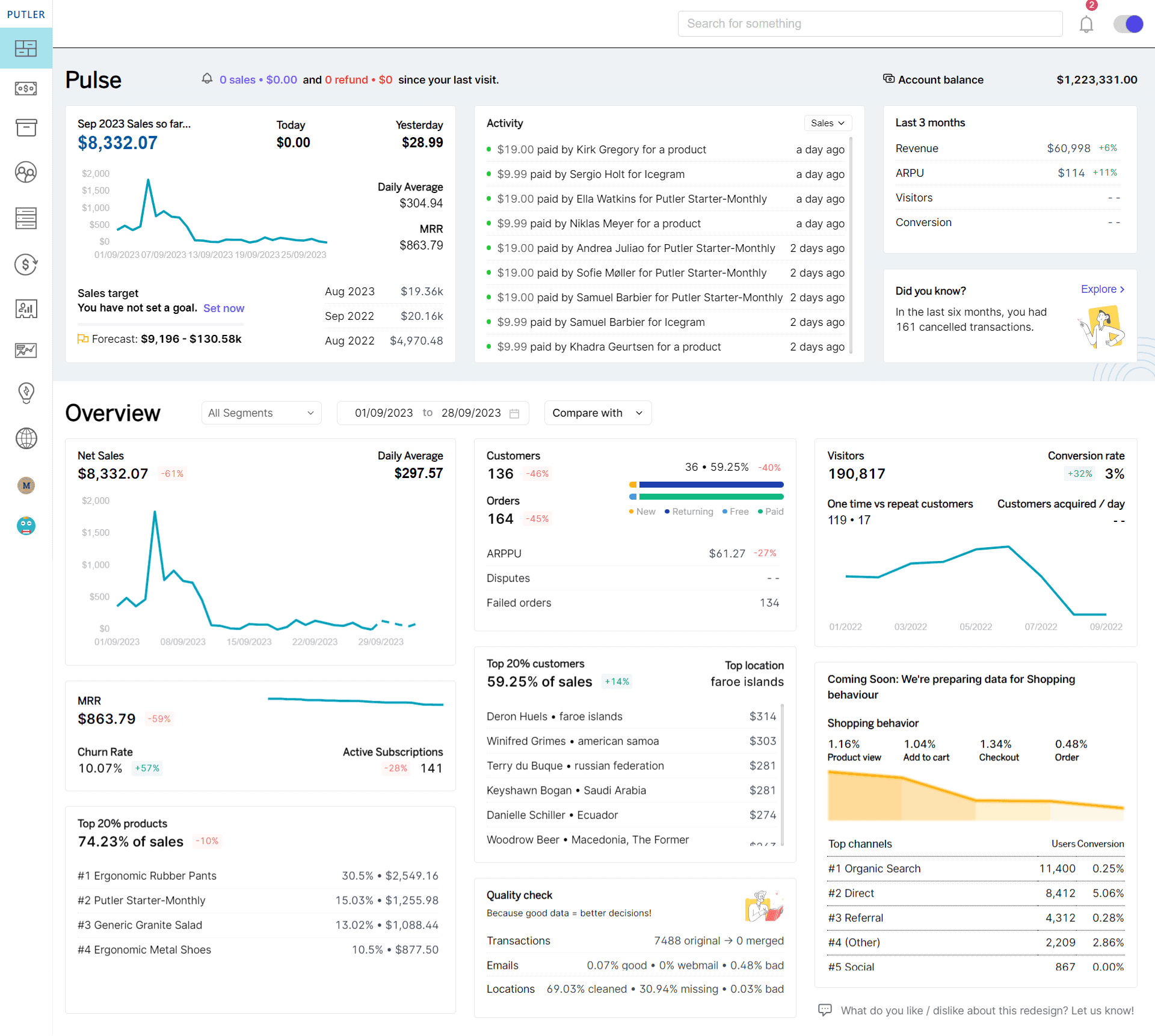
The difference is consolidation. If one buyer orders from your Shopify store, your WooCommerce site, and your Amazon listing, Putler recognizes them as one customer and combines their full history. It also deduplicates transactions that show up in both a payment gateway and a store, so a single sale is not counted twice.
On top of that unified data, Putler runs RFM segmentation automatically:
- Recency, frequency, monetary: Putler scores every customer across all connected channels, not one store, and sorts them into segments like champions, loyal, at risk, and hibernating.
- Instant segments: the RFM grid is clickable. Click "champions" to see your best customers across every channel, or "at risk" to find who needs a win-back, no query writing required.
- Deeper filtering: segment by location, product, order status, customer behavior, and more, then act on the group directly.
For a single Shopify store, the native editor does the job. The moment you add a second store or a channel outside Shopify, Putler is what keeps your segments pointed at the whole customer instead of one slice. You can dig into the approach in Putler's guide to customer segmentation, and see how it maps to richer customer insights and smarter Shopify marketing strategies.
Putler pricing is simple: Starter from $20/month (3 data sources, 2 years of history), Growth from $50/month (15 data sources, 5 years of history, unlimited users), and Custom for larger businesses. Billing is metered to your monthly revenue, the first month is $1, and there is a 14-day free trial with no credit card.
Conclusion: making Shopify customer segments work for you
Shopify customer segments are a capable, self-updating way to group buyers inside one store, and the five filters above cover most of what a single-channel seller needs. The limit is reach, not quality. Once your customers live across more than one store or channel, segmentation has to follow them there.
That cross-channel view is exactly what Putler is built for.
FAQs
What is a Shopify customer segment?
A Shopify customer segment is a saved group of customers who share a characteristic, such as total spent, number of orders, location, or product purchased. Shopify builds it from a rule and keeps the list current automatically as customer data changes.
How do I create a customer segment in Shopify?
Go to Customers in your Shopify admin, click Segments, then click Create segment. In the query editor, choose a filter, an operator, and a value (for example amount_spent > 500), click Run query to preview the group, then click Save segment and name it.
How do I remove a customer from a Shopify segment?
Segments update on their own, so you do not remove customers by hand. When a customer no longer matches the segment's rule, Shopify drops them automatically. The exception is tag-based segments, where you control membership by adding or removing the tag on a customer's profile.
What is the difference between Shopify customer groups and customer segments?
"Customer groups" is the older name for what Shopify now calls segments. The current system replaces manual tag-based grouping with a query editor built on Shopify Query Language, though tags still work as one available filter inside a segment.
Can Shopify segment customers across multiple stores or channels?
No. A Shopify segment includes members from a single shop and only reads Shopify data. To segment one customer across multiple stores or channels like Amazon, WooCommerce, and Stripe, you need a multi-channel analytics tool such as Putler.