

The WooCommerce Analytics dashboard is built into WooCommerce. In WordPress admin, open Analytics → Overview to see orders, net sales, and average order value. Then open Revenue, Orders, or Products to find what changed.
WooCommerce also offers an extension called WooCommerce Analytics. Its last-touch reports show the channels and campaigns associated with orders placed after you enabled Order Attribution. For the sales and refund checks below, use the built-in reports in WordPress. WooCommerce attribution extension
If net sales fell last week, start with the store’s order data. A drop can come from fewer orders, smaller baskets, heavier discounts, or more refunds. Each calls for a different response.
Which WooCommerce Analytics reports should you check?
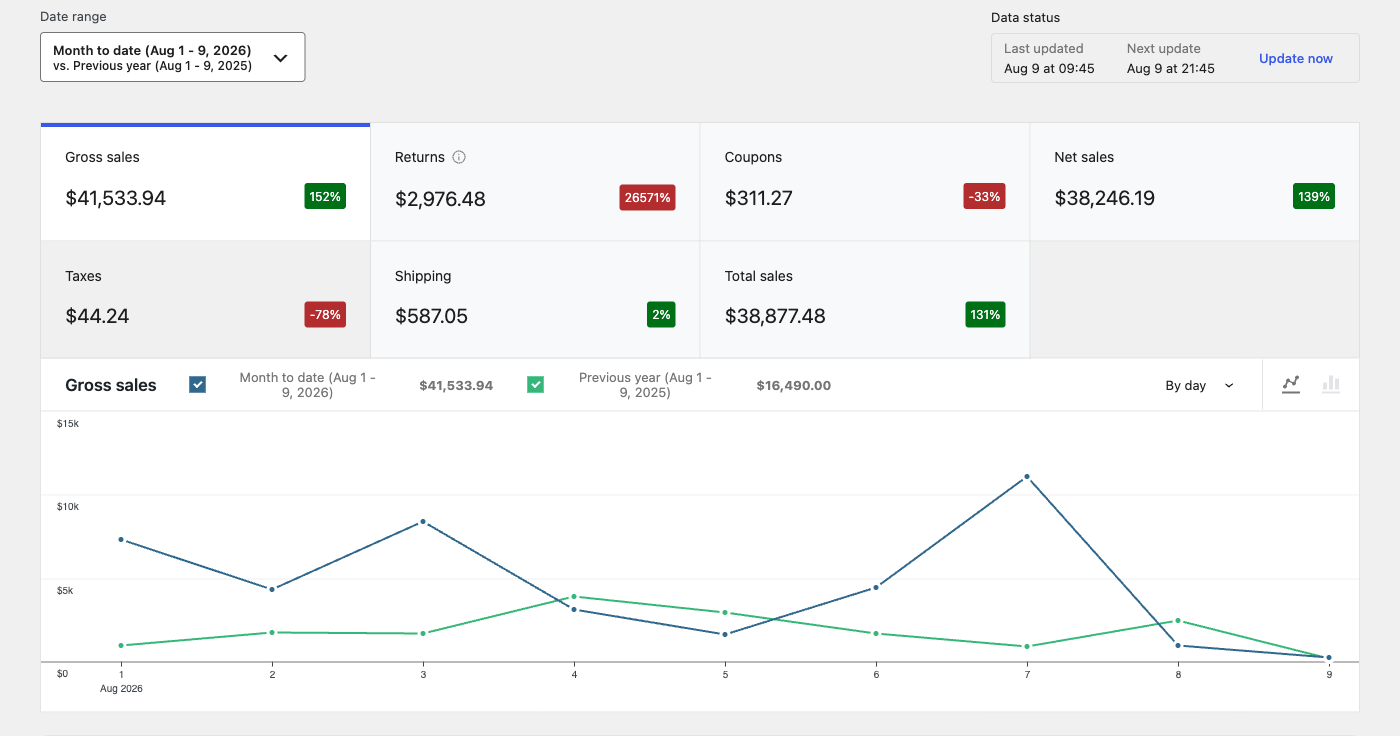
Start with Overview and compare two complete periods of the same length. If your store sells more on weekends, compare the same days of the week. Open Revenue to see what drove the change. WooCommerce Analytics documentation
- Open Analytics → Revenue and choose the dates. Turn on a comparison with the previous period or year.
- Select Net sales to see its trend. Check Gross sales, Returns, and Coupons to see which figures moved with it.
- In the table below the chart, select an order count to open the Orders report for that interval.
- To export a WooCommerce Analytics report as a CSV, select Download above the report table. If the table spans multiple pages, WooCommerce emails the download link to the WordPress account that requested it. Revenue report · WooCommerce CSV export instructions
Revenue and order reports
Start with Analytics → Revenue for your WooCommerce sales reports. It shows gross sales, returns, coupons, net sales, taxes, and shipping. WooCommerce calculates net sales by subtracting returns and coupons from gross sales. Total sales also include taxes and shipping. See gross sales vs. net sales for examples.
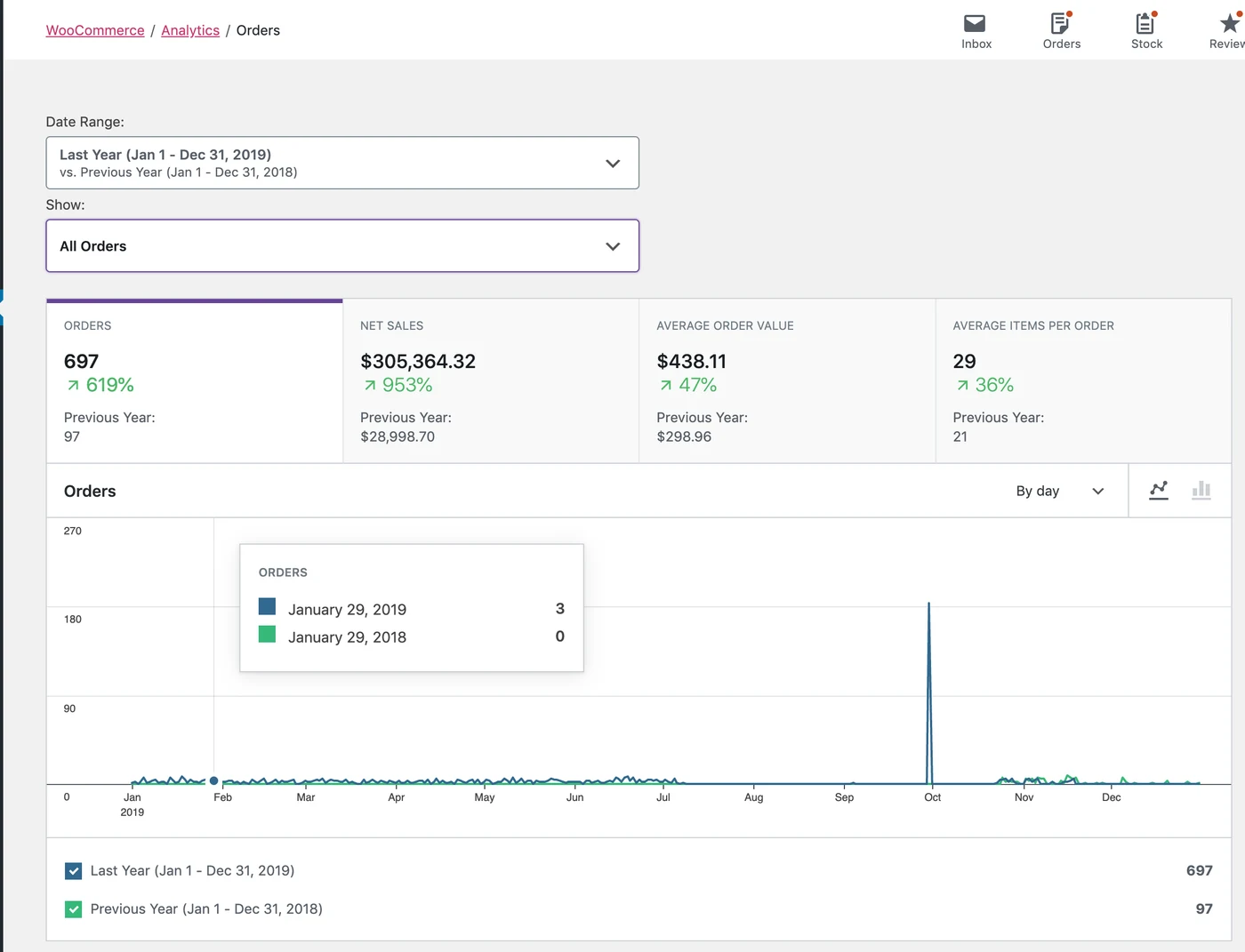
Use Analytics → Orders when you need to inspect individual orders or narrow down a change by product, coupon, or order status. Refunds can appear on a different day from the original order. Compare the same date range and check the date type and excluded statuses in Analytics settings before reconciling two reports. WooCommerce Revenue report · WooCommerce Orders report
Customer reports
Open WooCommerce → Customers to review buyers and their order activity, including guests who placed orders. Use the report to check order count and spending before deciding which shoppers to follow up with. For a deeper look at repeat purchases and customer value, see WooCommerce customer analytics.
Product reports
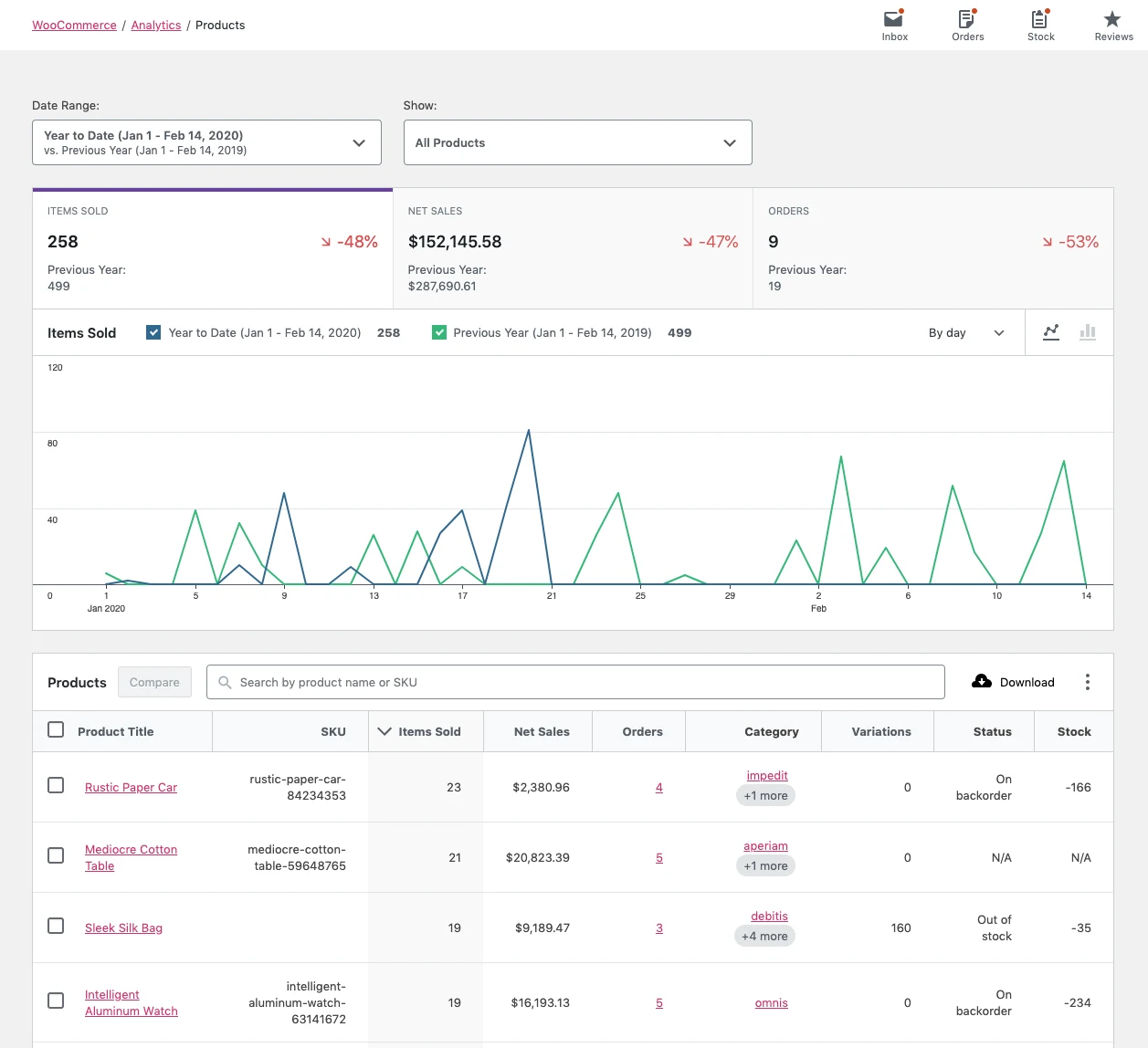
Use Analytics → Products to see which products sold and how much each generated in net sales.
Stock reports
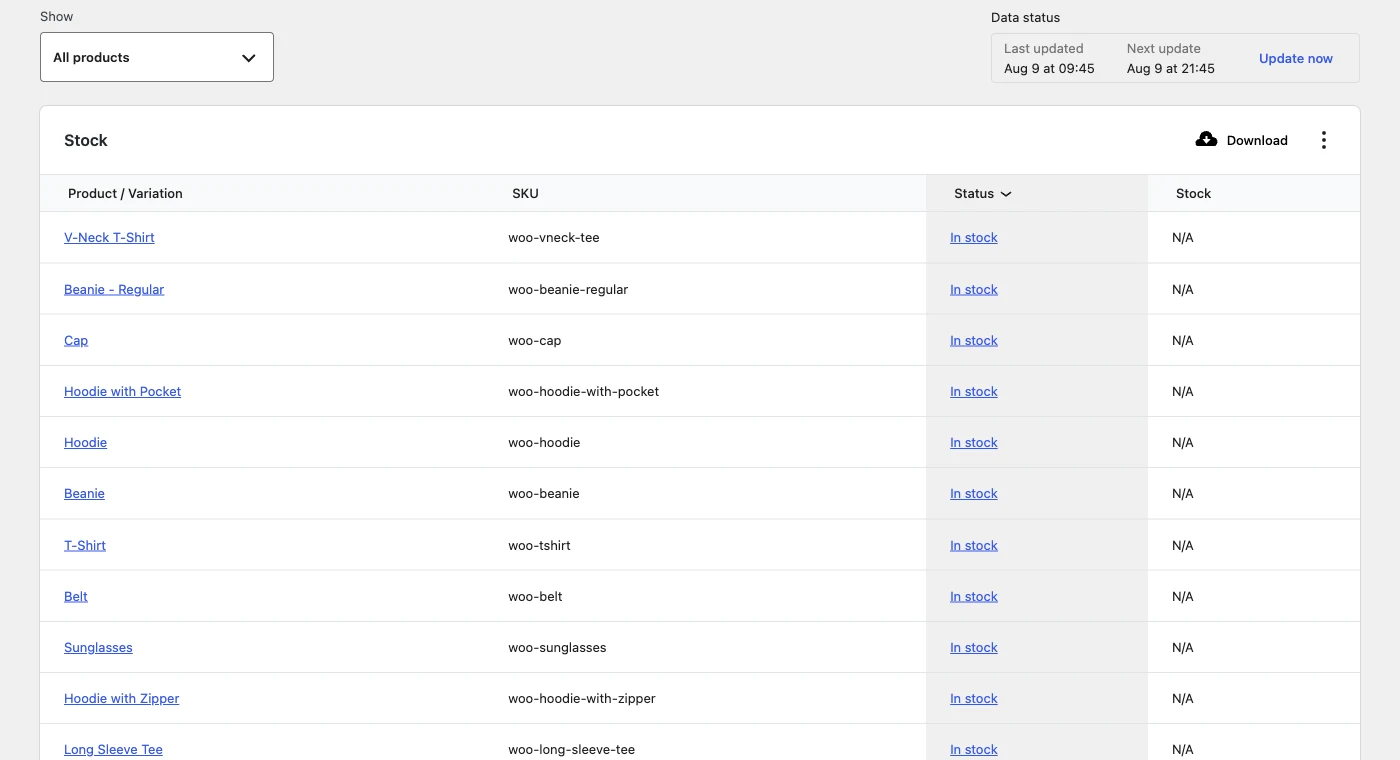
Check Analytics → Stock to see whether an item is low or out of stock. The report shows current availability. If a bestseller’s sales fell, check inventory records to confirm whether it was out of stock during the sales drop.
Tax reports

Use Analytics → Taxes to review tax totals by rate code and see the split between order tax and shipping tax. If you compare this report with Orders or Revenue, use the same period and check the date type setting. For more report options, see WooCommerce advanced reports.
How do you find out why WooCommerce sales dropped?
Suppose weekly net sales dropped from $9,000 to $8,400 while orders stayed at 200. The store still took the same number of orders, but net sales per order fell from $45 to $42. These figures are illustrative.
Start in Revenue to see which figure changed. Then open the report that lets you inspect it.
| What changed | Report to open | What to check |
|---|---|---|
| Returns increased | Orders | Which orders were refunded and whether they involved the same product |
| Coupon discounts increased | Coupons | Which codes contributed most to the increase |
| Gross sales fell while order count held steady | Products or Variations | Whether top items sold fewer units or buyers chose lower-priced items |
If gross sales and coupons stayed flat while returns rose by $600, those returns explain the difference. Net sales per order can fall even when shoppers paid the same amount at checkout, because refunds issued this week can relate to older orders. WooCommerce metric and refund definitions
If orders also fell, check GA4 to see whether traffic declined or fewer visitors made it through checkout. Confirm purchase tracking is working before drawing a conclusion.
What if orders are missing from Analytics?
- Confirm the date range, then check Date Type and Excluded Statuses under Analytics → Settings. For example, an order without a paid date is excluded when the report uses Date Paid.
- For missing older orders, check the historical import status on the same settings page. Review the log and resolve any errors before retrying failed imports.
- If the settings and source orders match but figures look stale, go to WooCommerce → Status → Tools and run Clear Analytics Cache. WooCommerce Analytics troubleshooting
When should you use Google Analytics with WooCommerce?
Use Google Analytics 4 (GA4) to see how people arrive and what they do on the site. For example, if a campaign sent more visitors but orders stayed flat, check the landing page and whether visitors reached checkout. Use the WooCommerce order record to confirm the sale or refund itself.
GA4 purchase counts can differ from WooCommerce order counts. Check the reporting time zones, consent settings, event setup, and how each tool counts a purchase. If you use two integrations, check whether both are sending purchase events to the same GA4 property. WooCommerce’s GA4 integration guide
How to set up GA4 for your WooCommerce store
- Create or select a GA4 property and a web data stream for your store. Copy the Measurement ID that starts with G-.
- Install and activate the free Google Analytics for WooCommerce plugin. Open WooCommerce → Settings → Integration → Google Analytics, enter the Measurement ID, enable Purchase Transactions, and save. The free plugin needs a payment gateway that returns shoppers to the order-received page.
- Review the events your integration supports and test a purchase in a staging store or approved test flow. Use GA4 DebugView with debugging enabled to check for one purchase event. Confirm its transaction ID, value, and currency.
- If you use Google Analytics Pro, follow its GA4 property and data stream instructions. The Pro setup also documents a Measurement Protocol API secret. Official Pro setup guide
For more detail, use the WooCommerce Google Analytics setup guide.
Where built-in WooCommerce reports and GA4 have limits
WooCommerce’s core reports give you order, product, customer, and tax data for the store you’re viewing. GA4 shows activity from the sites and events you’ve configured. If you run several stores or want to compare order data with other sources, you’ll need to bring those figures into the same review.
For reports beyond the built-in dashboard, see our WooCommerce reporting plugins guide.
How to connect WooCommerce and GA4 to Putler
Putler’s WooCommerce integration brings order and customer data from connected stores into one reporting workspace. GA data appears in the Audience dashboard when you connect a supported source. The source order in WooCommerce remains the place to confirm the details of a refund or transaction.
Connect your WooCommerce store
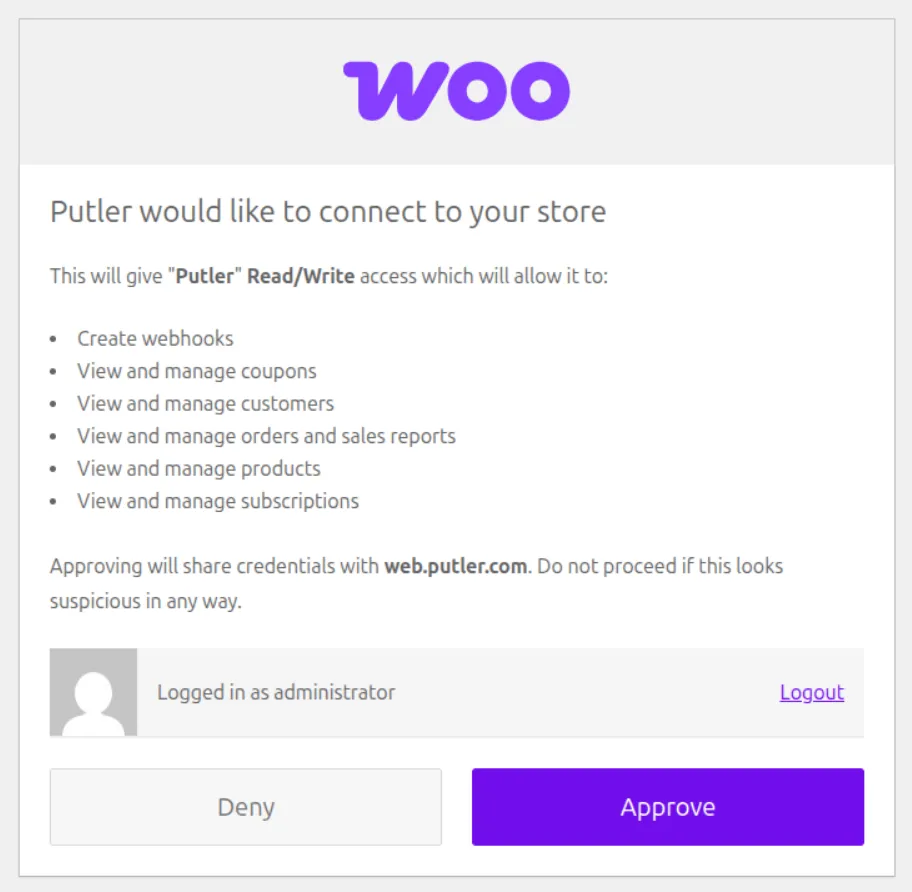
Sign in to Putler, choose WooCommerce, and enter the store URL. Follow the connection prompts and activate the WooCommerce Putler Connector if prompted. For a connection that needs reauthorization, the connector opens WooCommerce’s standard approval screen. Check the connection status and wait for the import before comparing totals. Putler’s WooCommerce connection guide
Connect Google Analytics
Add Google Analytics as a separate data source in Putler. Sign in to the Google account that has access and follow the prompts to choose the relevant property. Once the source is connected, open Audience to check the data. Putler’s Google Analytics connection guide
What can you check with Putler?
Customer history
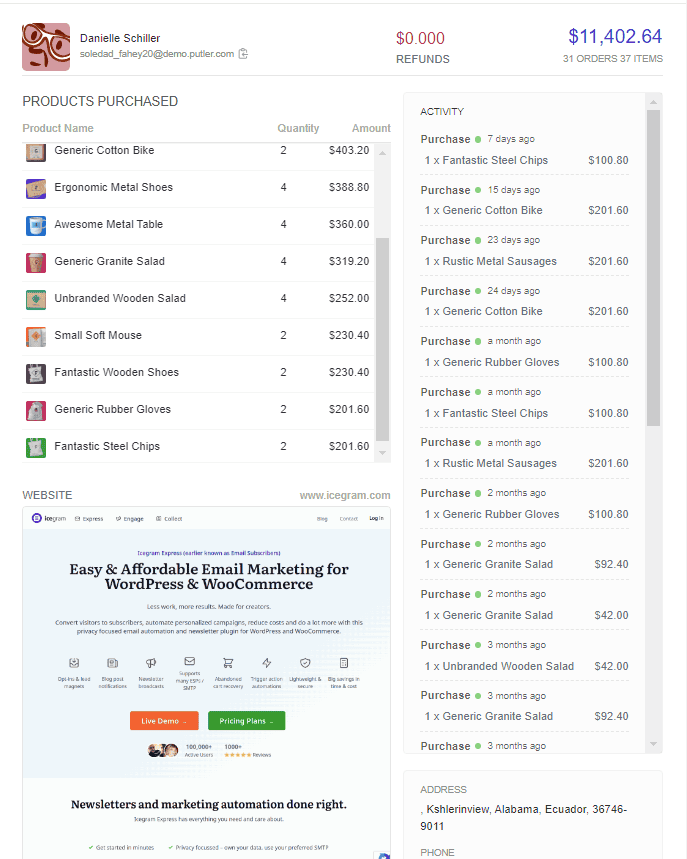
Open a customer profile to review previous orders, products purchased, and refunds from the sources that feed the profile. If a buyer requests a refund, their history can help you see whether they previously bought the same product or had a similar issue. Putler Customers documentation
Customer segmentation
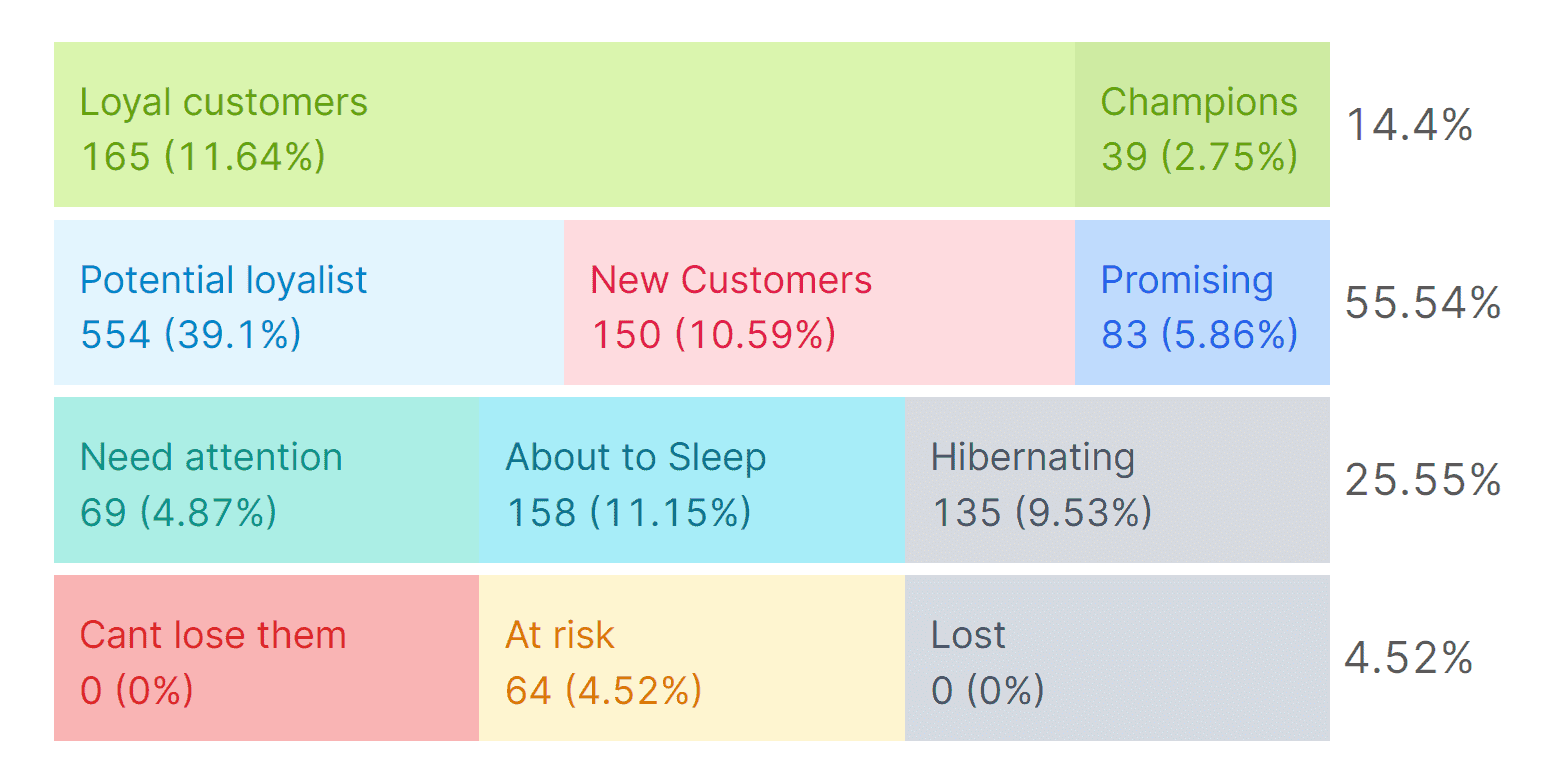
Putler’s RFM groups use how recently people bought, how often they buy, and how much they spend. Woo also offers RFM and retention reports in its separate Customer Analytics extension. If you’re planning a win-back campaign, open the At risk group and check the last purchase before choosing an offer. Confirm consent in the tool you use to send the message. For product-level questions, see WooCommerce product filters. Putler’s RFM documentation
Subscription metrics
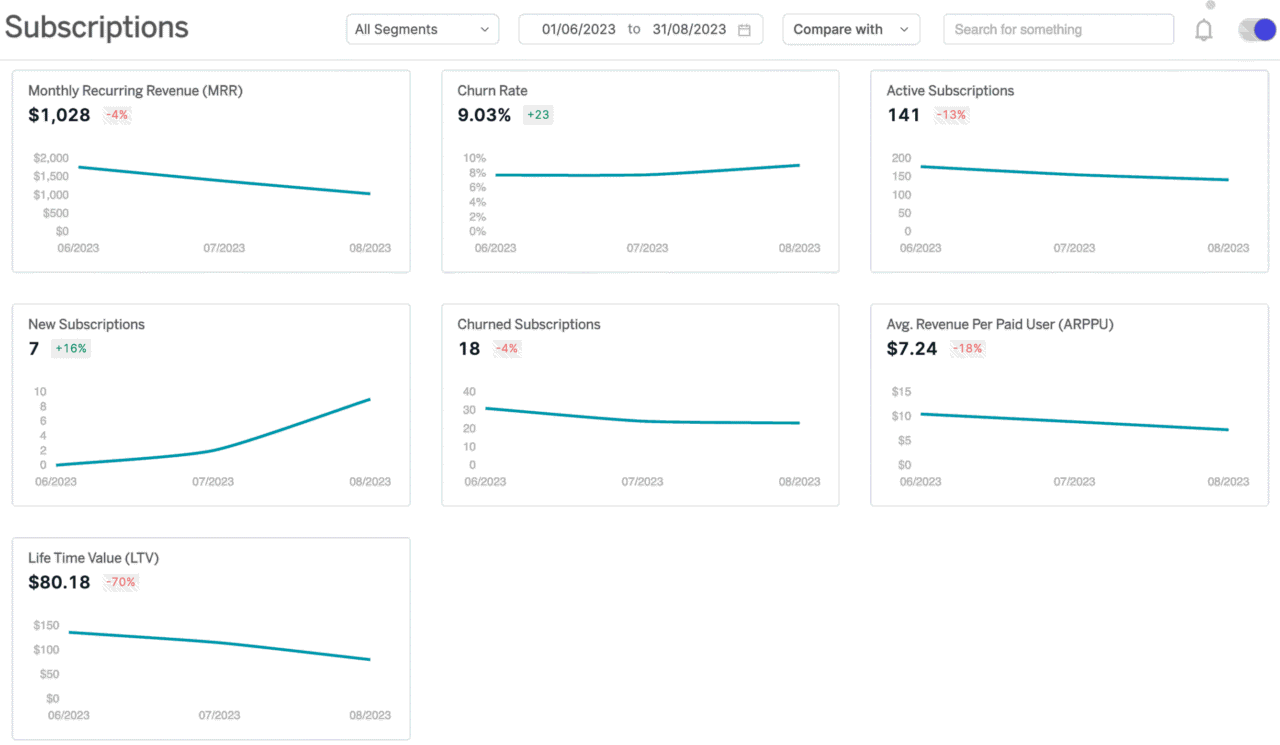
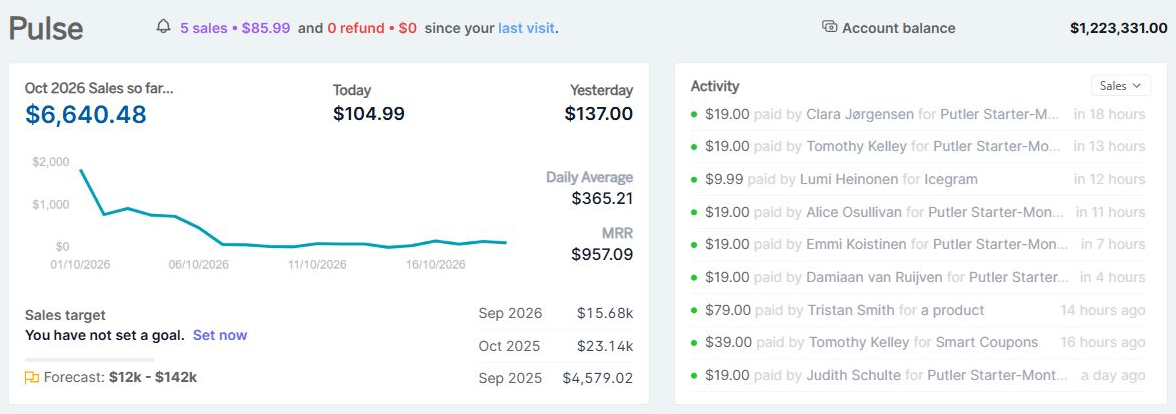
For supported subscription sources, use the Subscriptions dashboard to review monthly recurring revenue (MRR), annual recurring revenue (ARR), and churn. If MRR falls, check cancellations and changes to existing subscriptions before deciding what to investigate. See our WooCommerce subscription reporting guide. Putler’s dashboard documentation
Forecasting
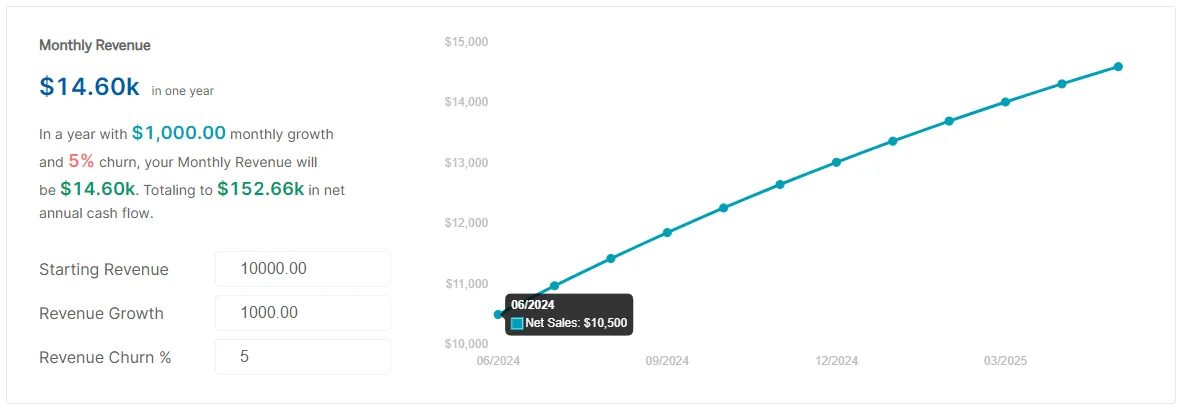
Use Putler’s Time Machine forecast as a planning estimate based on historical sales. When you plan stock or set a revenue goal, compare that estimate with changes you already know about, such as a scheduled sale or a product running out. Putler’s dashboard documentation
Multi-store reporting
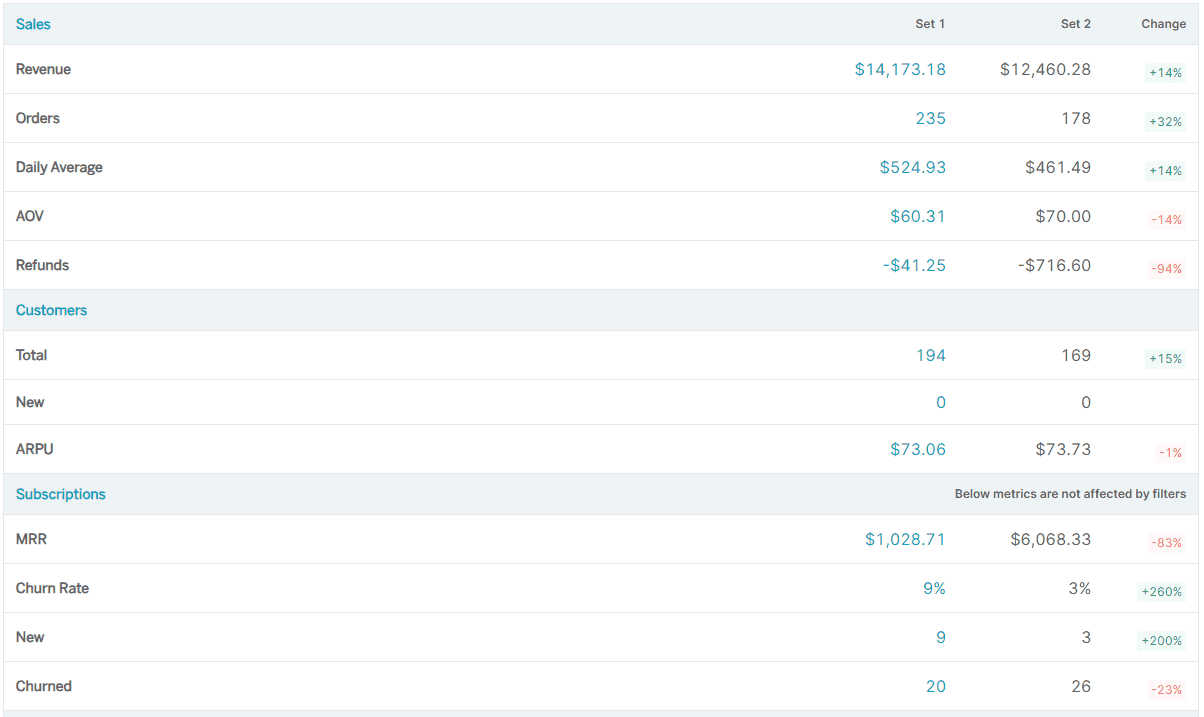
Suppose the retail store from the example lost $600 in net sales while your wholesale store gained $600. The combined total would look flat. In Putler’s Insights → Performance Comparison, compare the same two weeks for the retail store, using its team in both selections if you’ve set up stores as separate teams. Check the Refunds row alongside revenue and orders.
If retail refunds rose, open that store’s transactions for the affected dates and review the refund records. Use the original WooCommerce orders to confirm the products involved and any reason recorded in the order notes. See how to review multiple WooCommerce stores. Putler’s Insights dashboard
Filtering
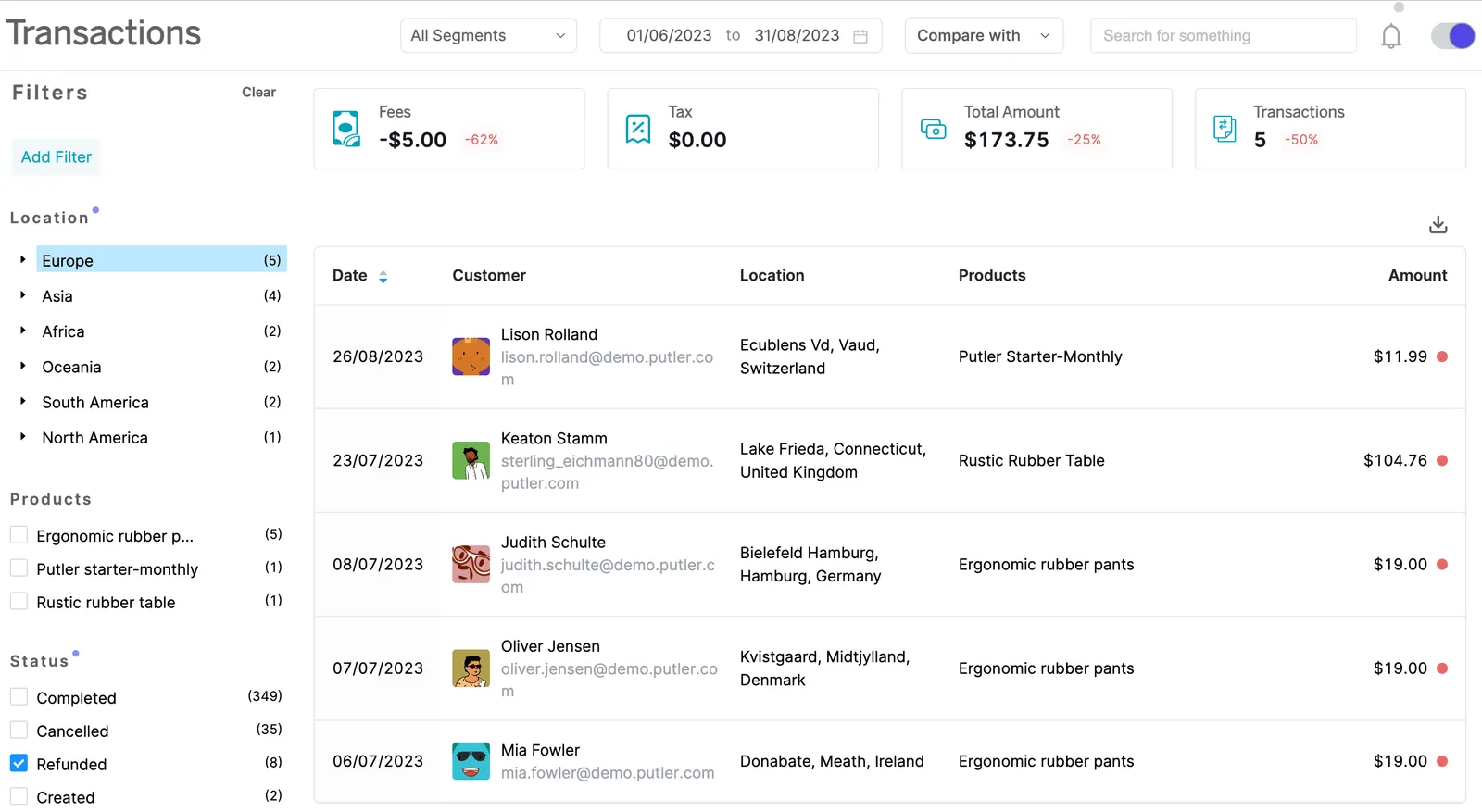
Narrow your report to the customers, products, or orders that matter to the question. For example, filter orders by status to see which transactions need attention before checking the original records. Putler custom segmentation documentation
Put your WooCommerce reports to work
For your next weekly review, compare net sales, orders, and returns in WooCommerce Analytics. If one moved, open the report behind it and check what drove the change. Use ecommerce analytics and insights to decide which metrics to review as your reporting needs grow.
FAQ
How do I view WooCommerce Analytics?
Open Analytics → Overview in WordPress admin. Then choose an individual report such as Revenue, Orders, Products, or Taxes from the Analytics menu.
How do I reset WooCommerce Analytics?
Use the cache tool when figures look stale. If you need to rebuild Analytics after a historical import, Analytics → Settings → Delete Previously Imported Data clears the imported reporting data. The underlying orders, customers, and products stay in WooCommerce. Re-import the history you need to repopulate the reports. WooCommerce Analytics troubleshooting
How do I track WooCommerce purchases in Google Analytics?
Connect the WooCommerce Google Analytics plugin to a GA4 property using its web stream Measurement ID. Test a purchase and confirm that GA4 receives the expected event and transaction ID.
What should I do if WooCommerce Analytics is missing orders?
Check the date range, date type, and excluded order statuses. Review the historical import status and retry failed imports if WooCommerce reports them. If the issue persists, use the order IDs and affected dates when contacting WooCommerce support.
What else should WooCommerce store owners read?
The WooCommerce library covers native reports, order and customer exports, subscriptions, payment gateways, and multi-store reporting. Start with the WooCommerce reports guide for more detail about individual reports.

WooCommerce's dashboard looks complete — until you ask harder questions. Here are every significant reporting gap, what each one costs you, and the most practical ways to fix them.
WooCommerce revenue not accurate? Here are all the reasons your numbers don't match across WooCommerce, Stripe, PayPal and your bank account and exactly how to fix each one.

Got multiple WooCommerce stores to manage? Here's a complete guide on how to manage/monitor multistore WooCommerce from a single place.

Export WooCommerce analytics reports to analyze trends, track performance, and refine strategies. Empower your business with data-driven insights to drive growth and make informed decisions effectively.







WooCommerce product filters can help you make key decisions for your eCommerce store. Take a look at this article to know more.
Setting up Google Analytics is critical for any WooCommerce store. Here's the easiest way to achieve the WooCommerce Google Analytics integrations.






Here's a list of best reporting plugins for WooCommerce Subscriptions. Know their features, pricing & then pick the best plugin for your subscription business.

Discover the best WooCommerce plugins for increasing sales and improving your eCommerce store's performance in 2024. Find out which ones are right for you!

Looking for the best WooCommerce reporting plugin of this year? Here's a detailed list of the best WooCommerce reporting plugins to help you make the right decision.
Everything you need to know about WooCommerce reporting. Explore the core of WooCommerce reports along with advanced WooCommerce reporting tools that provide reports that matter.
WooCommerce export is tricky. Read this step by step process on how to export products, orders and customers from your WooCommerce stores.