

You open WooCommerce and it shows $9,800 in revenue for the month. You check Stripe and it shows $8,200. PayPal says $1,400.
You add those up and get $9,600. Still doesn’t match. Then you look at your actual bank deposits and see $7,900.
Four numbers. Zero clarity on which one to trust.
If this sounds familiar, you’re not alone. WooCommerce revenue not accurate is one of the most searched frustrations among store owners, and the reason it keeps happening isn’t a bug you can fix with a plugin update.
It’s a deeper problem with how WooCommerce defines revenue, how payment gateways track money, and how those two systems were never really designed to agree with each other.
The good news is that every single discrepancy has an explanation. And most of them have a fix.
This article breaks down every reason your WooCommerce revenue numbers are wrong.
How WooCommerce actually calculates revenue
Before you can fix the problem, you need to understand what WooCommerce is actually measuring. Because the numbers it shows you are not what you think they are.
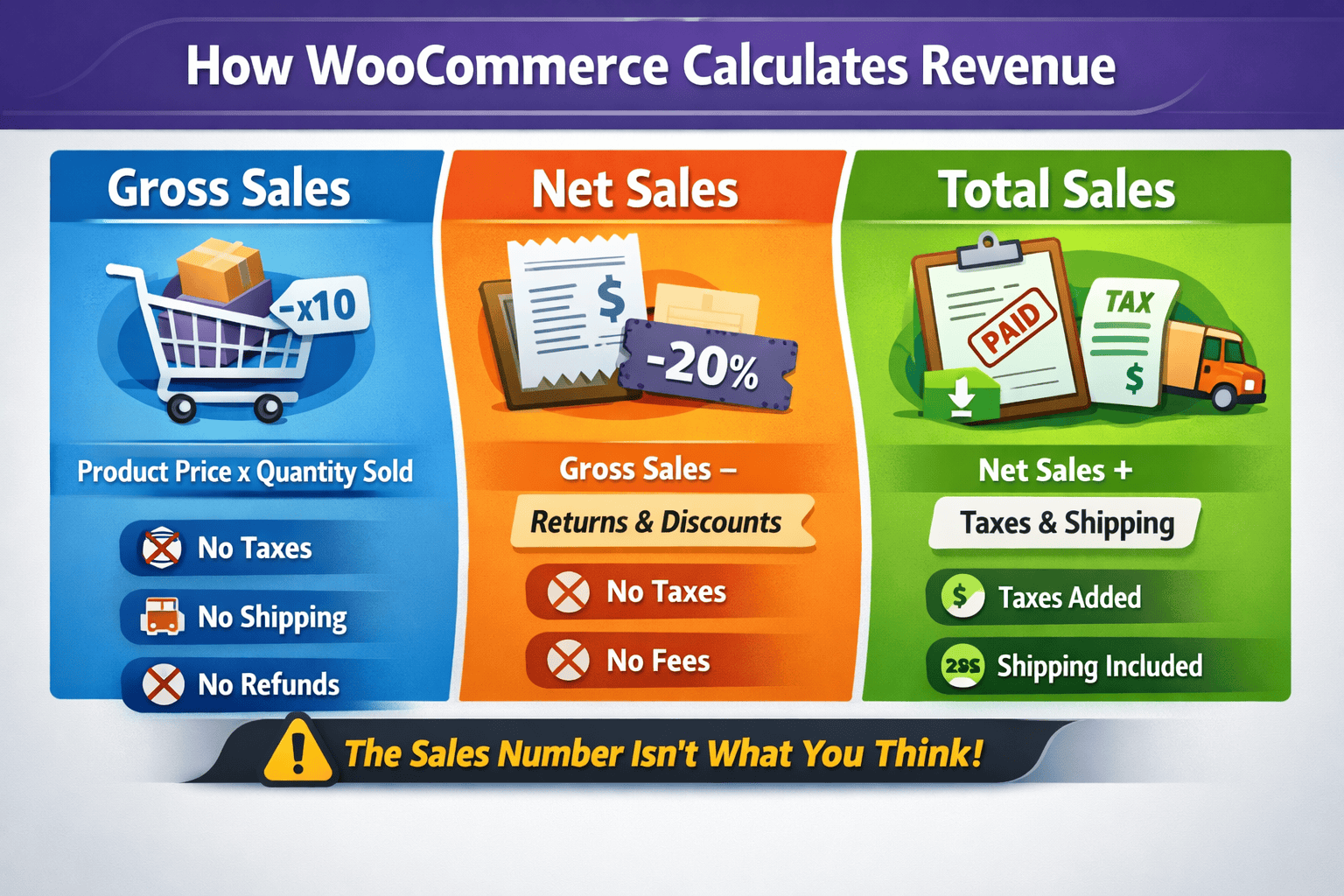
WooCommerce reports three main revenue figures:
Gross Sales: Sale price multiplied by quantity sold. No taxes, no shipping, no refunds, no coupons. Just raw product price times units sold.
Net Sales: Gross Sales minus returns and coupon discounts. Still no taxes. Still no gateway fees.
Total Sales: Net Sales plus taxes and shipping added back on top. This is the headline number most store owners look at. It’s also the most misleading one.
Here’s why. Total Sales includes VAT or sales tax you collected on behalf of the government. That money was never yours. It also includes shipping charges that go straight to the courier. WooCommerce counts both as your revenue.
And then there’s the number WooCommerce never shows you at all: payment gateway fees. Every time a customer pays, Stripe or PayPal takes roughly 2.9% plus $0.30 per transaction.
In a store doing $50,000 a month, that’s around $1,500 disappearing before the money hits your bank. WooCommerce has no idea this is happening and never deducts it from any report.
The number in your bank account is what’s left after tax, shipping, and fees come out. WooCommerce doesn’t show you that number anywhere by default.
That’s the root of why WooCommerce revenue not accurate reports are so common — the platform and your bank account are measuring entirely different things.
Order statuses are silently inflating your numbers
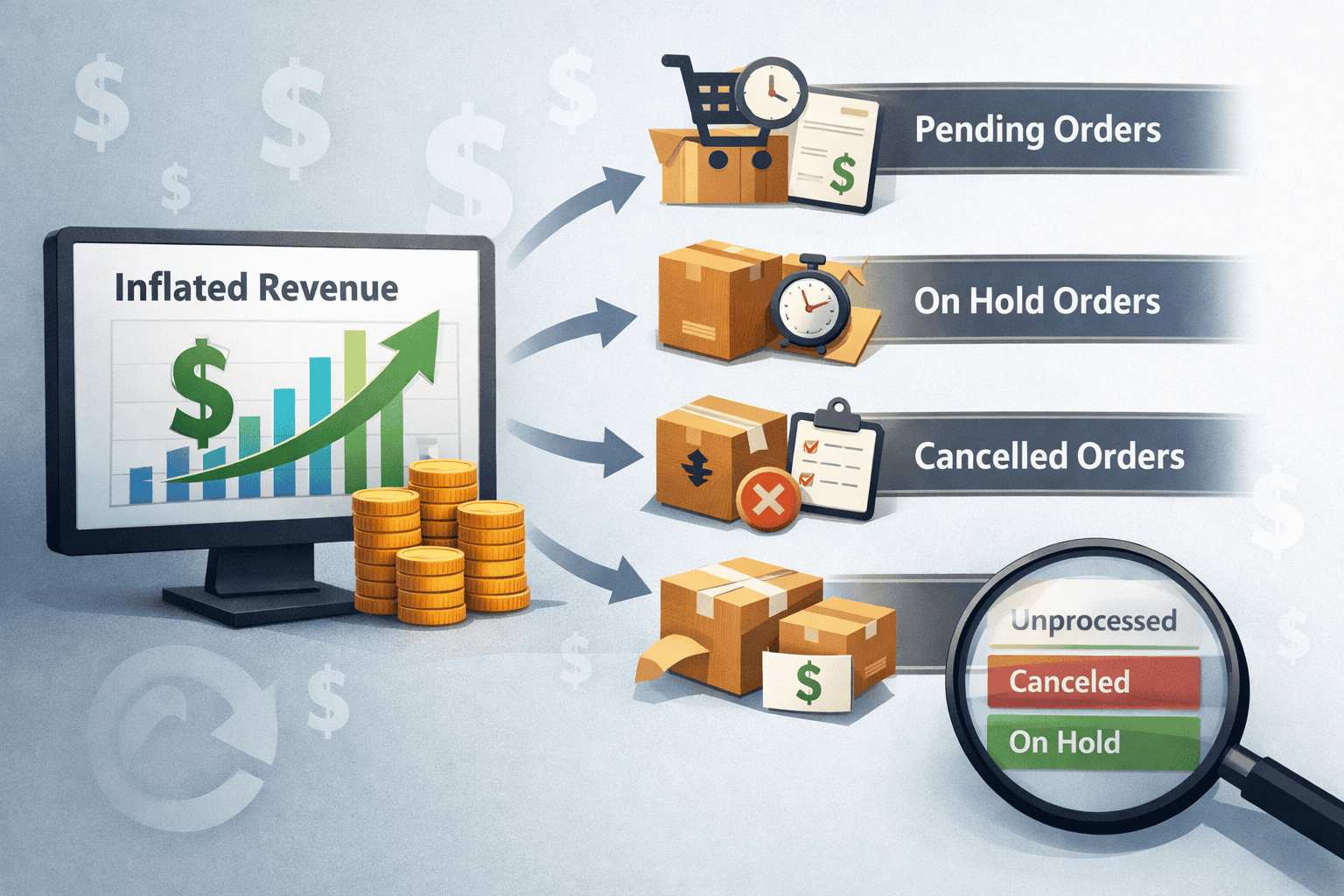
Order status misconfiguration is one of the most overlooked WooCommerce analytics problems — and one of the fastest to fix once you know it’s there. WooCommerce counts orders as revenue before the money is actually confirmed.
By default, WooCommerce Analytics includes three order statuses in its revenue reports:
- Processing: Payment received, order being fulfilled. Fine to include.
- Completed: Order fulfilled and closed. Fine to include.
- On Hold: Payment not yet confirmed. Absolutely not fine to include, but included anyway.
On Hold orders are common when your store accepts bank transfers, checks, or BACS payments. The moment a customer places the order, WooCommerce adds it to your revenue figures. The money might never arrive. You’d never know from looking at your dashboard.
Custom order statuses make this worse. If you’ve added statuses like “Shipped,” “Awaiting Pickup,” or anything beyond WooCommerce’s defaults, they get included in analytics automatically. Every single one inflates your reported revenue until you manually exclude them.
There’s one more wrinkle. WooCommerce defaults to using “Date Paid” for reporting. If you change a batch of On Hold orders to Completed, they all appear as today’s revenue rather than their original order dates. So your dashboard suddenly shows a spike that never actually happened. Something worth knowing before you do any bulk status updates.
Your payment gateway and WooCommerce don’t agree — here’s why
Even with perfect WooCommerce settings, your Stripe or PayPal numbers will never exactly match your WooCommerce numbers. That’s not a bug. It’s a fundamental difference in what each system is designed to track.
WooCommerce records orders based on order status. Stripe and PayPal record actual money movements. These are different things, and several specific issues drive the WooCommerce analytics mismatch revenue gap wider than it needs to be.
Timezone misalignment: WooCommerce runs on your store’s local timezone. Stripe operates in UTC. A sale at 11 PM Eastern shows up as the next day in Stripe’s records. Multiply this across hundreds of transactions, and your daily reconciliation becomes a guessing game.
Gateway-only refunds create phantom revenue: When you process a refund directly through your Stripe or PayPal dashboard without going through WooCommerce, your store has no idea the refund happened. The order stays at Completed. The revenue stays in your reports. Permanently. With the average eCommerce return rate sitting at around 18%, this is not a small problem for stores doing real volume.
Failed then succeeded payments get double-counted: When a payment initially fails but later succeeds, WooCommerce Analytics records both the failed attempt and the successful payment as separate orders. One real sale becomes two reported sales. This is a confirmed bug with no clean fix inside WooCommerce itself.
Duplicate orders from caching: Stores using Cloudflare or aggressive caching plugins can generate duplicate orders at checkout. One real purchase, two WooCommerce orders. Some store owners have reported this happening on roughly 1 in every 10 to 15 transactions.
Refunds processed outside WooCommerce stay in your revenue forever
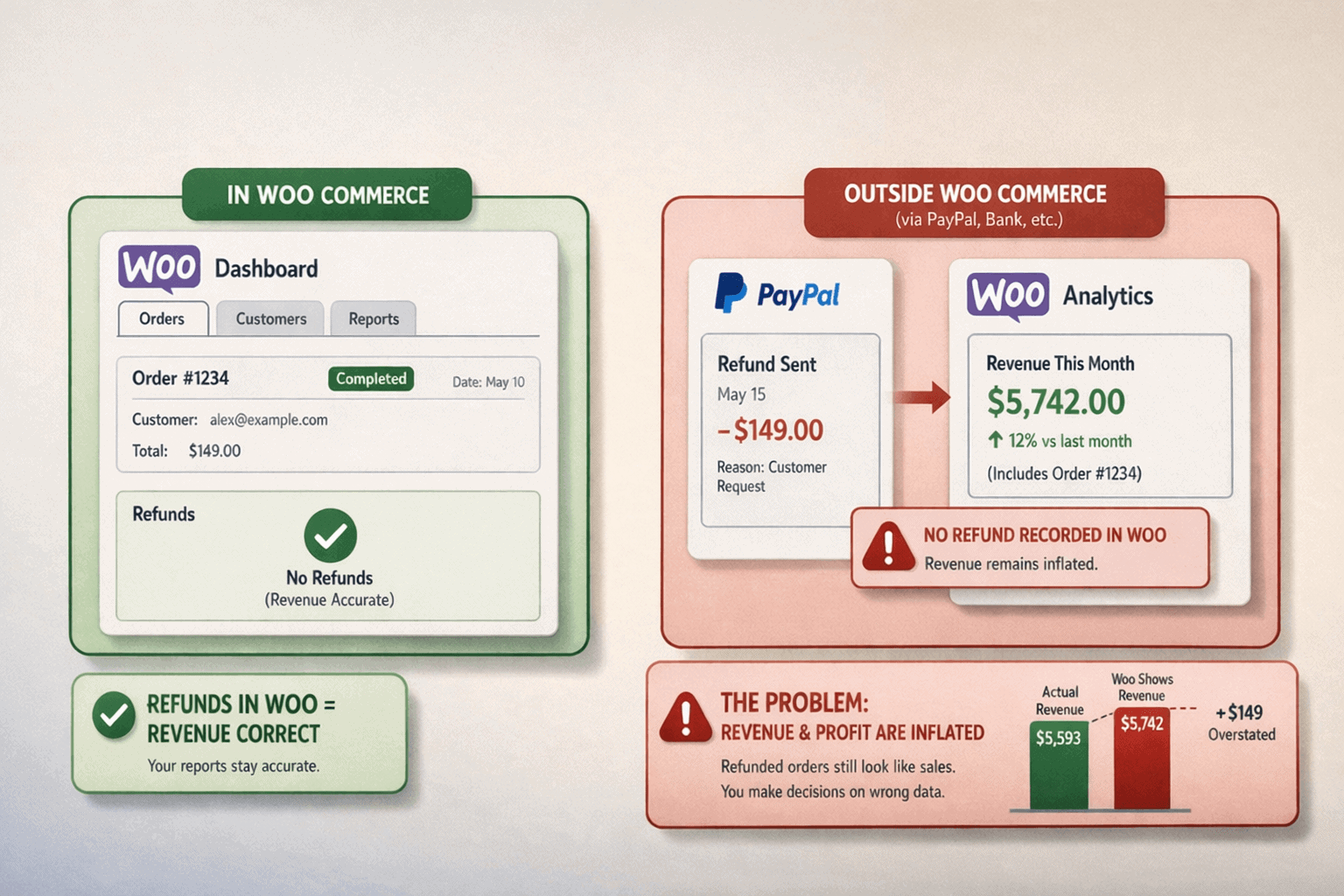
This one catches a lot of store owners off guard. And it’s one of the clearest examples of WooCommerce revenue not accurate behavior — revenue that disappears from your bank but never disappears from your dashboard.
When a customer asks for a refund, the natural instinct for many store owners is to log into Stripe or PayPal, find the transaction, and hit refund. Fast, familiar, done. The problem is that WooCommerce has absolutely no visibility into what just happened. The order in your dashboard stays at Completed. The revenue stays in your reports. And it stays there forever unless you go back and manually update it.
At an average eCommerce return rate of around 18%, a store doing $200,000 a year could be carrying up to $36,000 in phantom revenue that was refunded through the gateway but never removed from WooCommerce reports. Your dashboard looks healthier than your business actually is.
The fix is simple, but it requires discipline:
Always refund through WooCommerce first: Open the order, click Refund, enter the amount, and use the gateway refund button inside WooCommerce. This updates the order status, removes the revenue from your reports, and processes the refund through the gateway simultaneously. One action, both systems updated.
If you’ve already refunded outside WooCommerce: Go back into the order and manually process a refund for $0 through WooCommerce. This updates the order status and removes the phantom revenue from your reports without charging the customer again.
Audit your last 90 days: Filter your WooCommerce orders by Completed status and cross-reference against your Stripe or PayPal refund history. Any mismatch is phantom revenue sitting in your reports right now.
Taxes and gateway fees are hiding in your revenue figures

Your WooCommerce sales report incorrect figures often trace back to two hidden sources working in opposite directions. One inflates your numbers. The other makes them look smaller than reality. Both are invisible unless you know where to look.
The tax problem: money you collected but don’t own
WooCommerce’s Total Sales figure includes every dollar of sales tax or VAT your store collected. That money was never yours. It belongs to the government, and you’re just the collector. But WooCommerce reports it as part of your revenue anyway.
For a store in a US state with 8% sales tax doing $50,000 a month, that’s $4,000 every month in your reported revenue that isn’t actually income. Over a year that’s $48,000 in phantom earnings sitting in your WooCommerce dashboard.
Always look at WooCommerce’s Net Sales figure rather than Total Sales when assessing actual business performance. Net Sales strips out taxes and shipping, giving you a cleaner picture of what your products actually earned.
One important configuration check: go to WooCommerce → Settings → Tax and make sure your three tax display settings are consistent. If prices are entered excluding tax but displayed including tax on the checkout page, WooCommerce throws a warning and your reports can show rounding errors that compound across hundreds of orders.
The gateway fee problem: money that disappears before it arrives
Payment gateway fees are the expense WooCommerce pretends doesn’t exist. Stripe charges 2.9% plus $0.30 per transaction. PayPal charges similarly. WooCommerce deducts none of this from any report.
For a store processing $10,000 a month, that’s roughly $320 in fees every month, $3,840 a year, which WooCommerce counts as your revenue even though it never reaches your bank account.
There is no native fix for this inside WooCommerce. The only way to account for gateway fees accurately is to either export your orders and calculate fees manually, use your payment gateway’s payout reports as your revenue benchmark, or adopt a third-party analytics tool that pulls fee data directly from your gateway alongside your order data.
Multi-currency stores have a math problem
If your store sells in more than one currency, your WooCommerce revenue reports are almost certainly wrong. Not slightly off. Potentially wrong by thousands of dollars.
The core issue: WooCommerce Analytics doesn’t convert multi-currency orders to your base currency before adding them up. It takes the raw numeric value and adds it directly.
So an order for 1,500 Thai Baht gets added as $1,500 USD. An order for 800 Mexican Pesos becomes $800 USD. The actual converted values are $43 and $41. That error compounds across every international order you receive.
Real examples from store owners:
- A store doing €70,000 in actual revenue saw WooCommerce report €5,000 more than reality
- Another found an 87% error in product analytics when operating in multiple currencies
WooCommerce’s own Order Attribution documentation carries an explicit warning: multi-currency functionality is not supported and may result in inaccurate analytics.
Currency switcher plugins make it worse. Aelia caused double-counted orders after a WooCommerce core logic change in version 9.3. WOOCS and WP Wham both introduce their own reporting conflicts that vary by store configuration.
GA4 adds one more layer: every time you load a GA4 report, it reconverts historical currency data using the previous day’s exchange rate. The same report shows different revenue numbers depending on when you open it.
The most reliable fix for multi-currency stores is to use your payment gateway’s settlement reports in your base currency as the revenue benchmark and treat WooCommerce’s figures as directional only.
WooCommerce subscriptions make revenue reporting even messier
If you sell subscriptions, your revenue reporting problem isn’t just inaccurate. It’s structurally broken in ways that affect both WooCommerce and GA4 simultaneously — and it compounds the WooCommerce tracking issues that already exist across your store.
Failed payment retries create phantom orders: WooCommerce Subscriptions retries failed payments up to 5 times by default. Each retry creates a brand new renewal order in WooCommerce. Each one can trigger a thank-you page load. Each one fires a purchase event in GA4. One failed subscription payment can generate up to 5 phantom purchase events, each reporting revenue that was never actually collected.
GA4 misses every renewal after the first: The initial subscription purchase happens in the browser. GA4 sees it. Every renewal after that happens server-side through automated payment processing. No browser is open. No JavaScript executes. GA4 sees nothing. For a $29 per month subscription over 12 months, GA4 reports total revenue as $29, not $348. That’s a 91% undercount on lifetime subscription value.
WooCommerce’s own forecasts warn you: WooCommerce subscription revenue forecasts explicitly state they assume all scheduled payments will succeed and should be treated as a guide only. If your renewal failure rate is even 5 to 10%, your forecast is meaningfully overstated before any other errors compound on top.
The practical fix: never use WooCommerce or GA4 subscription revenue figures for financial decisions without cross-referencing against your payment gateway’s actual collected payments.
Why GA4 and WooCommerce revenue will never match
If you’ve ever opened GA4 expecting it to confirm your WooCommerce numbers, you’ve probably noticed it almost never does. The gap isn’t a configuration error you can fix. It’s two platforms measuring fundamentally different things using fundamentally different methods.
WooCommerce records confirmed orders at the database level. GA4 records purchase events when JavaScript fires successfully in the customer’s browser. A lot can go wrong between order confirmation and that tag firing.
GA4 undercounts because:
- Ad blockers: Around 31.5% of global internet users run ad blockers that prevent GA4’s tracking script from firing entirely.
- Cookie consent rejection: EU consent banners get rejected 40 to 70% of the time. Every rejected visitor is invisible to GA4 for their entire session.
- PayPal and offsite payment redirects: When customers pay through PayPal and don’t return to your thank-you page, the purchase event never fires.
- Safari and iOS restrictions: Apple’s Intelligent Tracking Prevention limits first-party cookies to 7 days.
GA4 overcounts because refunds never reach it. WooCommerce processes refunds server-side. GA4 never receives the refund event. Every refund your store processes stays as positive revenue in GA4 permanently.
The typical gap between WooCommerce and GA4 revenue sits between 15 and 50%, depending on your audience, store configuration, and how many subscription renewals you process.
Use GA4 for understanding marketing performance and traffic behavior. Use WooCommerce, cross-referenced with your payment gateway, for actual revenue figures. Never use GA4 revenue numbers for financial reporting.
How to fix WooCommerce revenue not accurate reports
None of these problems requires a developer to fix. Here’s a practical WooCommerce revenue not accurate fix for each major issue, in order of impact.
Fix your order status settings: Go to WooCommerce → Analytics → Settings. Review every order status included in revenue reports. Remove On Hold. Remove any custom statuses that don’t represent money actually collected. This single change often closes the biggest gap immediately.
Always refund through WooCommerce: Open the order in WooCommerce, click Refund, enter the amount, and use the gateway refund button inside the order. This updates WooCommerce records and processes the gateway refund simultaneously. Never refund directly through Stripe or PayPal without doing this first or you create phantom revenue that sits in your reports permanently.
Align your tax display settings: Go to WooCommerce → Settings → Tax. Make sure all three tax display settings are consistent. If they don’t match, WooCommerce shows a warning and your reports accumulate rounding errors across every order.
Reconcile monthly with your gateway: Export your WooCommerce orders as CSV. Download Stripe’s Balance report or PayPal’s Settlement report for the same period. Match transactions by order ID. Knowing how to fix WooCommerce revenue tracking at this level means accounting for gateway fees, timezone differences, and any held payments — not just comparing headline totals.
Rebuild your analytics cache if the data looks wrong: Go to WooCommerce → Status → Tools and click “Reset WooCommerce Analytics cache.” Then go to Analytics → Settings and re-import historical data. If your store recently migrated to High Performance Order Storage, enable order synchronization under WooCommerce → Settings → Advanced → Features.
A tool that gives you an accurate revenue number
The core problem with WooCommerce revenue accuracy is that WooCommerce only sees its own data. It has no visibility into what your payment gateways actually collected, processed, or refunded. Putler solves this at the foundation.
Instead of treating WooCommerce as the single source of truth, Putler connects to your WooCommerce store and your payment gateways — including Stripe, PayPal, and others — as completely separate, independent inputs.
It then pulls data from all of them simultaneously, automatically deduplicates transactions that appear in multiple sources, normalizes time zones, and converts currencies using the actual exchange rate from each transaction date.
The result is one clean revenue number that reflects what actually happened across your entire business, not just what WooCommerce recorded.
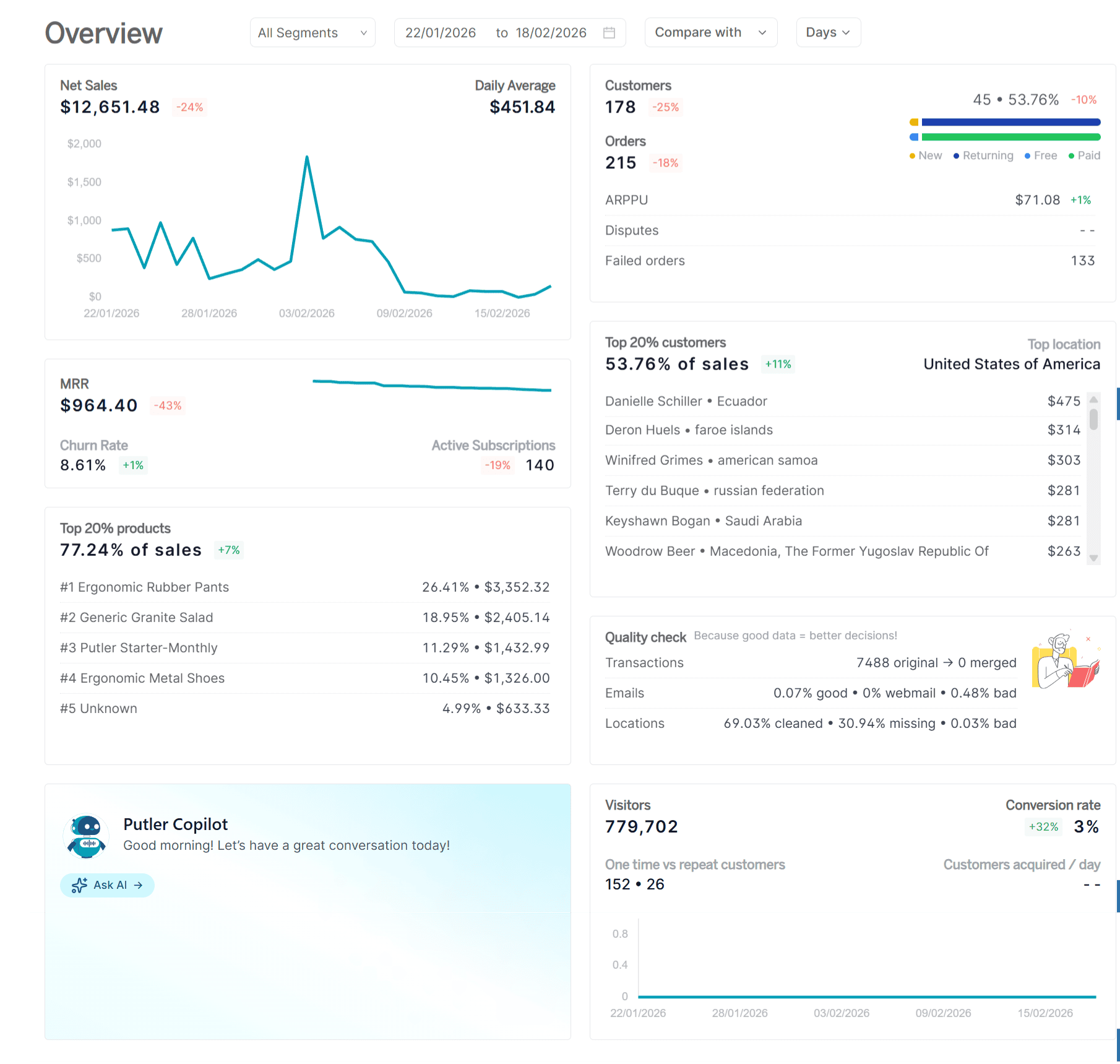
Here’s what that looks like in practice:
- eCommerce dashboard: Shows your true consolidated revenue, top products, top customers, and forecasts the moment you log in. No reconciliation required.
- Transaction management: Brings every sale, refund, and dispute from all your payment processors into one feed. Refunds processed through Stripe or PayPal automatically appear because Putler reads your gateway data directly, not just WooCommerce.
- Customer profiles: Unify purchase history across every platform, so you see one customer, one lifetime value, one complete picture, regardless of how many sources that customer’s orders came from.
- eCommerce data consolidation: The engine underneath all of this. It is what makes the revenue number trustworthy when every other platform gives you a different answer.
- Sales heatmap: Shows your actual peak selling hours and days based on confirmed transaction data across all sources, so your campaigns and email timing are based on reality.
Putler does not replace WooCommerce. It does what WooCommerce cannot — read your payment gateway data independently, reconcile it against your store data, and give you one number you can actually trust.
- Managing Multiple WooCommerce Stores: The Definitive Guide
- Best WooCommerce Reporting Plugins of 2024
- WooCommerce Reports: A Detailed Guide
- WooCommerce Analytics: Complete Guide To Successful WooCommerce Reporting
- WooCommerce export: How to export orders, customers, and everything else from WooCommerce