
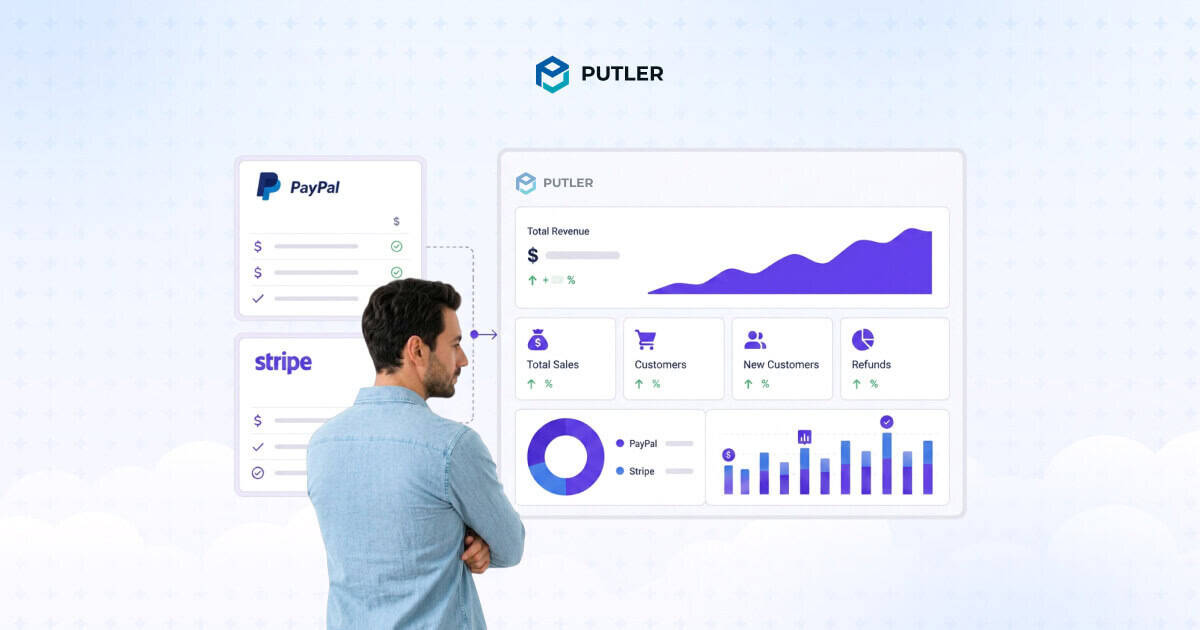
You use both PayPal and Stripe. But every time you try to see your total revenue, you’re staring at two dashboards with two different numbers.
And you’re asking yourself the same question – How to track revenue from PayPal and Stripe together.
Here’s every method people use to track revenue from PayPal and Stripe together, what works, what breaks, and what actually solves it.
Why tracking PayPal and Stripe revenue together is harder than it sounds
The problem isn’t the data. Both platforms give you transaction exports, payout reports, and dashboard summaries.
The problem is that the data lives in two completely separate systems. They have different schemas, different timezone conventions, different fee structures, and no shared customer identifier.
A customer who buys from you twice, once through Stripe, once through PayPal shows up as two different people across two different dashboards.
Refunds live in separate queues. Currency conversions work differently. And when you try to add the two revenue totals manually, the number still won’t match your bank deposit because of how each platform handles fees, holds, and payouts.
That’s the gap every method below is trying to close and provide a answer to how to track revenue from PayPal and Stripe together.
Method 1: Using PayPal and Stripe dashboards separately
How it works
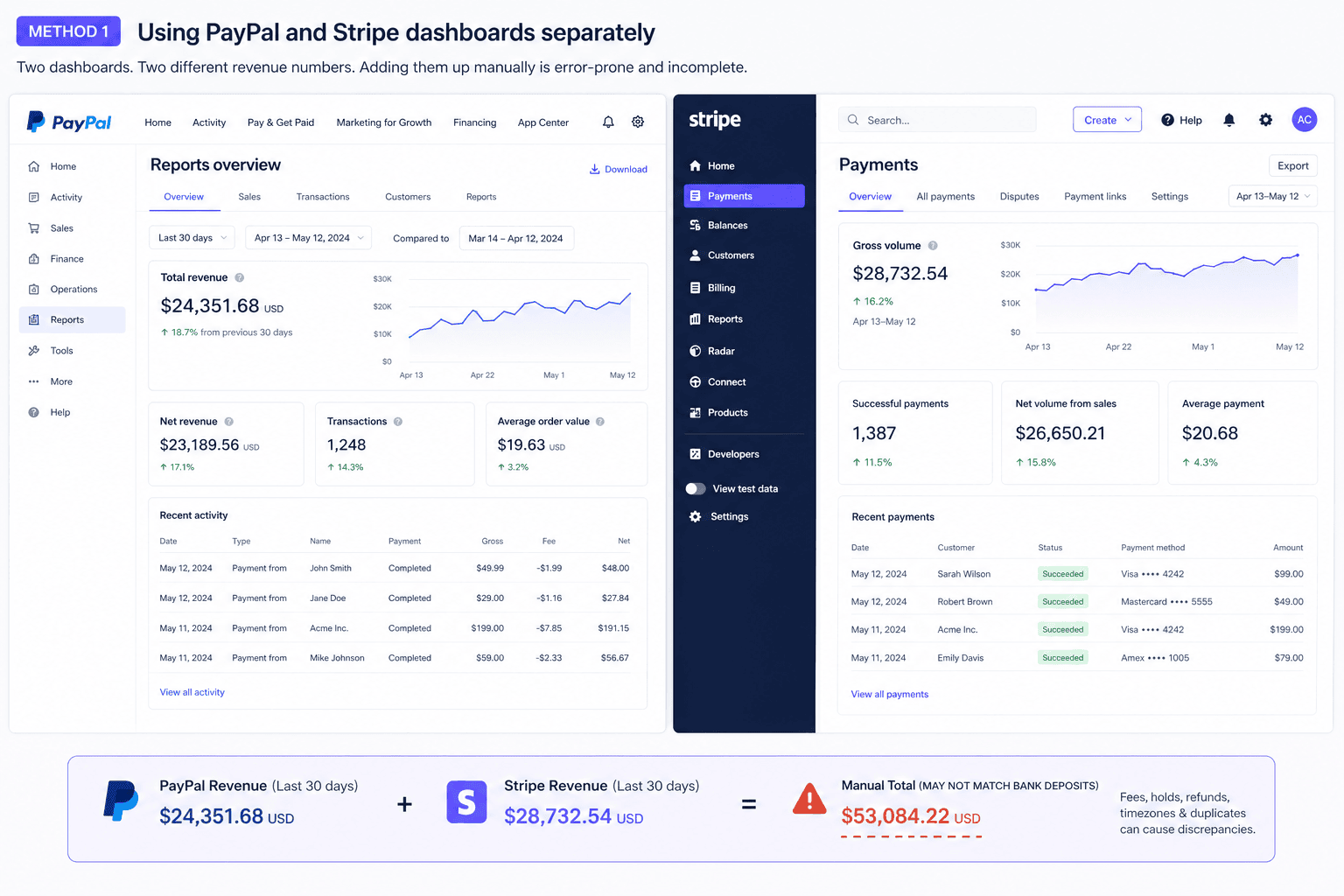
Most people start here. You’ve got two dashboards, so you open both, find the revenue number for the same date range, and add them up. Simple enough, until it isn’t.
How to do it
- Log into PayPal → Reports → Activity Download
- Select “Balance affecting payments” and choose your date range
- Export as CSV
- Log into Stripe → Payments → Export
- Match the date ranges across both files
- Add the gross totals and subtract fees manually
The problems with this approach
Here’s what nobody tells you when you first set this up: the two numbers were never designed to be added together.
PayPal’s transaction history only goes back 45 days in the search interface. Stripe’s revenue data takes up to 72 hours to appear.
So even before you start combining anything, you’re working with two figures that aren’t measuring the same moment in time.
Then there’s the customer problem. Someone who bought from you once through Stripe and once through PayPal?
Two separate customers across two separate dashboards. Your revenue looks inflated. Your customer count is wrong. And you won’t catch it unless you manually cross-reference every transaction. (Nobody does that.)
There’s no combined MRR, no shared customer record, no currency normalization. You’re just adding two numbers and hoping they’re both right.
Method 2: Exporting CSVs and merging in Excel or Google Sheets
How it works
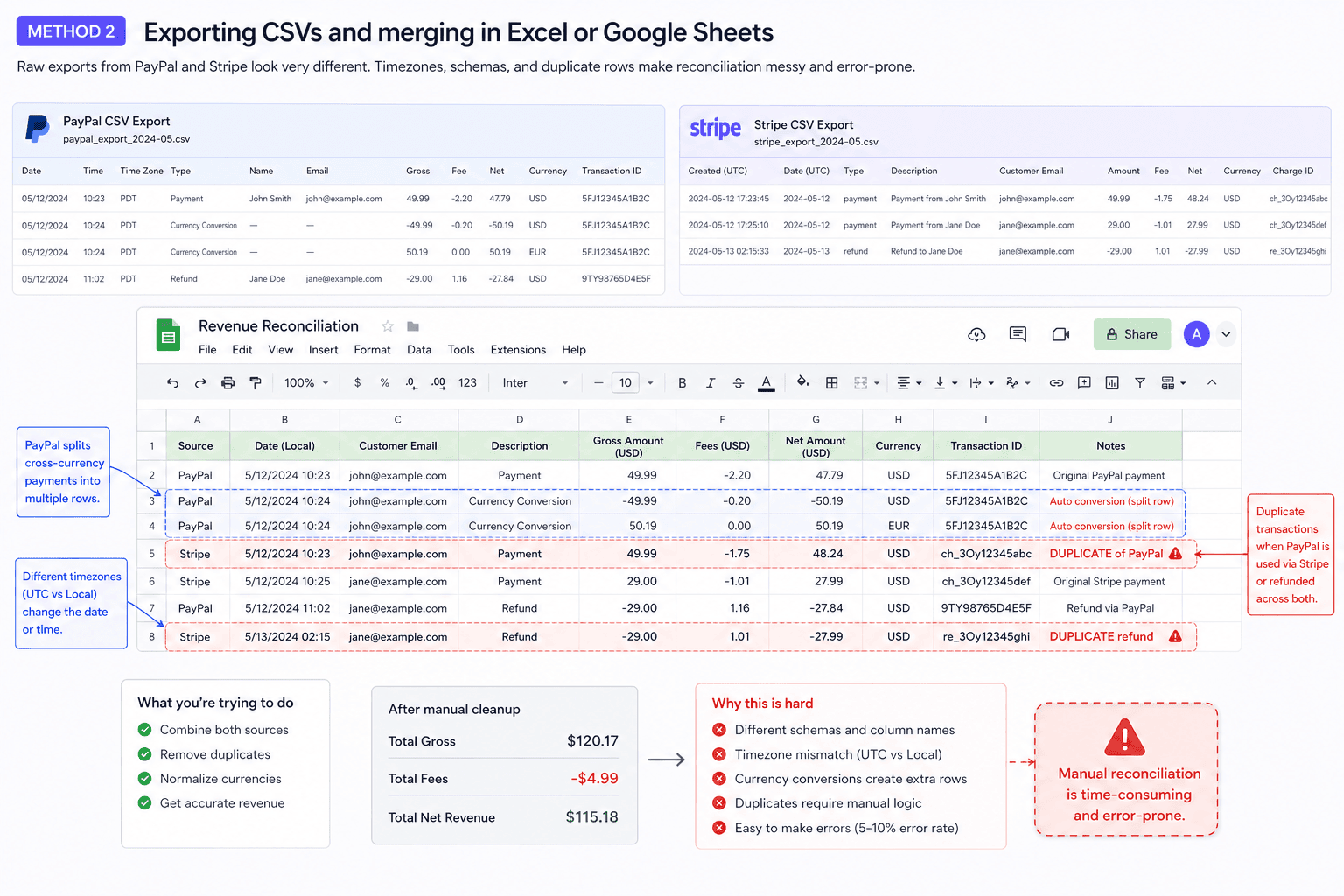
Instead of eyeballing dashboard totals, you export the raw transaction data from both platforms and merge it in a spreadsheet. It feels more rigorous. And for a while, it is.
How to do it
- Log into PayPal → Reports → Activity Download → select “Balance affecting payments” → export CSV
- Log into Stripe → Payments → Export → select date range and columns → export CSV
- Open both files in Google Sheets or Excel
- Normalize column names and align timezones manually
- Use VLOOKUP or INDEX/MATCH on email or transaction ID to identify duplicates
- Remove duplicate rows and sum the cleaned totals
The problems with this approach
- Stripe exports in UTC, PayPal uses your local timezone: same transaction, different dates
- PayPal splits cross-currency payments into multiple rows, inflating your totals
- Duplicate transactions appear when PayPal is used as a Stripe payment method
- Column names and schemas are completely different across both exports
- Manual reconciliation carries a 5–10% error rate, it compounds every month
Method 3: Spreadsheet automation tools (Zapier, Make, Coupler.io)
How it works
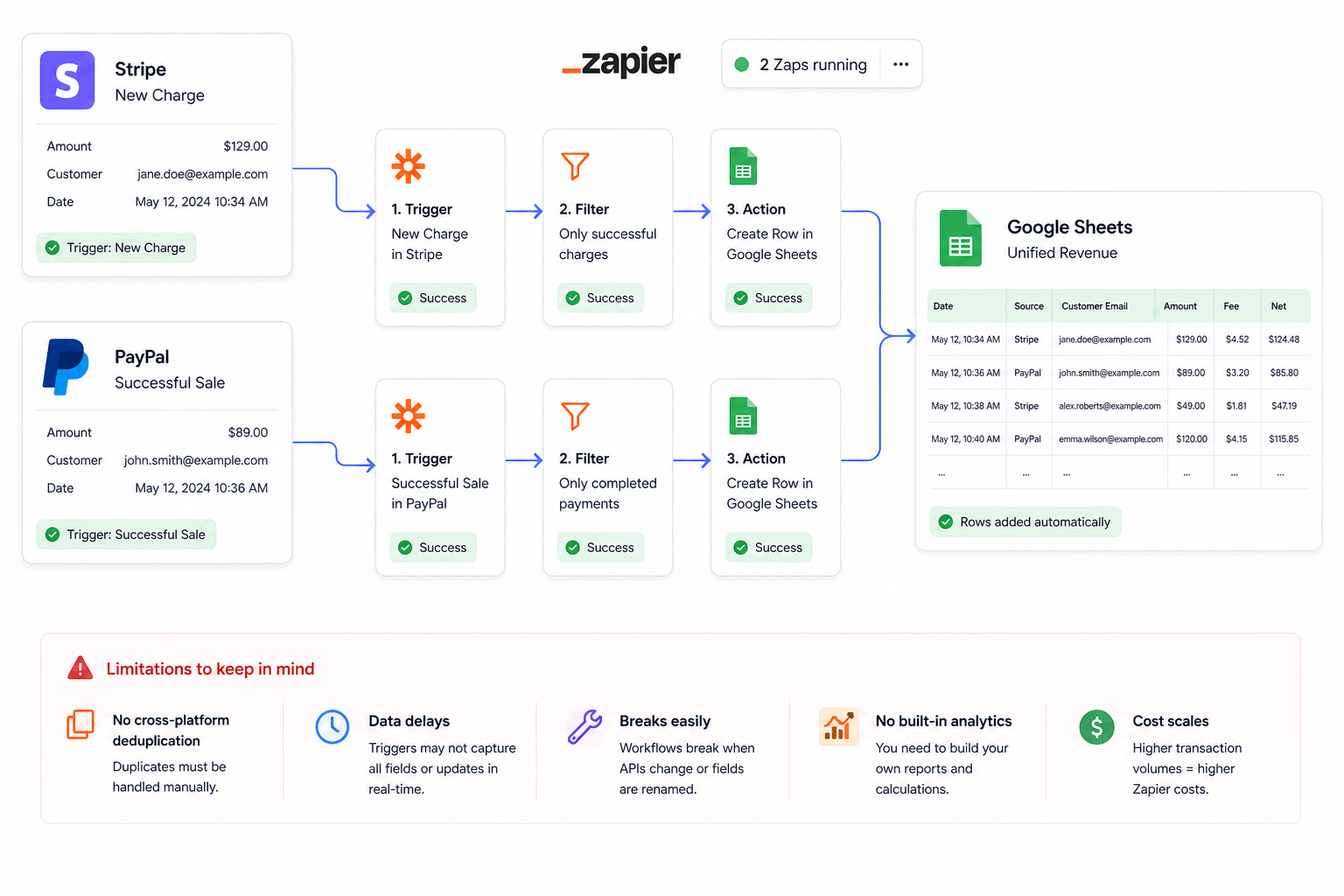
Instead of exporting CSVs manually every month, you build an automation. A Zapier workflow triggers on every new Stripe charge and logs it to Google Sheets.
A parallel zap does the same for PayPal. Coupler.io takes a slightly different approach, it pulls scheduled data dumps from both platforms into your spreadsheet on a set interval.
How to do it
- Connect Stripe to Zapier → trigger on “New Charge” → action “Create row in Google Sheets”
- Connect PayPal to Zapier → trigger on “Successful Sale” → action “Create row in Google Sheets”
- Or use Coupler.io → add Stripe and PayPal as sources → select destination (Google Sheets, Looker Studio, Power BI) → set refresh interval
- Map fields manually to align both datasets in the same schema
- Build your own formulas for revenue totals, deduplication, and any metrics you need
The problems with this approach
- None of these tools deduplicate across PayPal and Stripe, that’s still your job
- PayPal’s Zapier triggers don’t expose every field available in the CSV export
- Coupler.io refreshes every 15 minutes on higher tiers, hourly or daily on cheaper plans
- Field mapping breaks when either platform updates its API or renames a column
- You still have to write all the analytics yourself — MRR, LTV, churn, none of it comes built in
- Pricing scales with volume, seasonal spikes can push you into a higher tier overnight
Method 4: QuickBooks
How it works
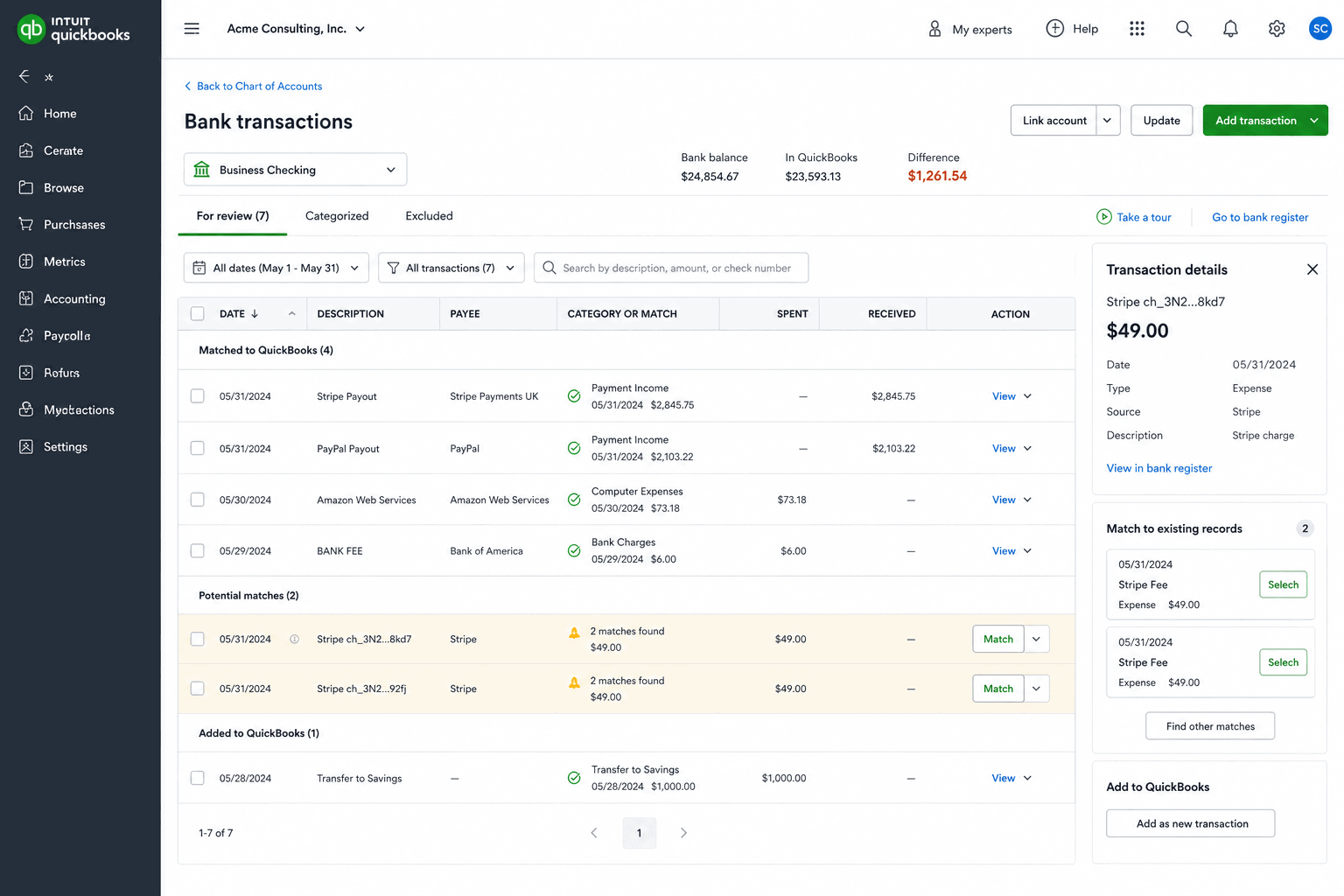
QuickBooks connects to both PayPal and Stripe through its native integrations and third-party apps like Synder and PayTraQer.
The typical setup treats both as bank-style accounts with a clearing account in between, then matches incoming deposits to invoices automatically.
How to do it
- Go to QuickBooks → Apps → search “Stripe” or “PayPal” → connect native integration
- Set up a clearing account for each gateway to handle gross sales and fee separation
- Enable bank feed for both PayPal and Stripe
- Match each Stripe payout to its underlying charges manually using the Stripe Dashboard as reference
- Reconcile PayPal transactions against your PayPal balance account monthly
The problems with this approach
- Duplicate transactions are the biggest issue, the same payment pulls in once via your eCommerce integration and again via the PayPal bank feed
- Stripe pays out lump sums but each underlying charge is a separate event — reconciling them in QuickBooks is a manual job every payout cycle
- Multi-currency Stripe accounts regularly cause negative clearing account balances
- QuickBooks is accounting-first, not analytics-first — there’s no MRR, no LTV, no RFM, no product performance view
- Intuit themselves advise against using third-party PayPal apps alongside their native integration because of duplicate transaction conflicts
Method 5: Looker Studio
How it works
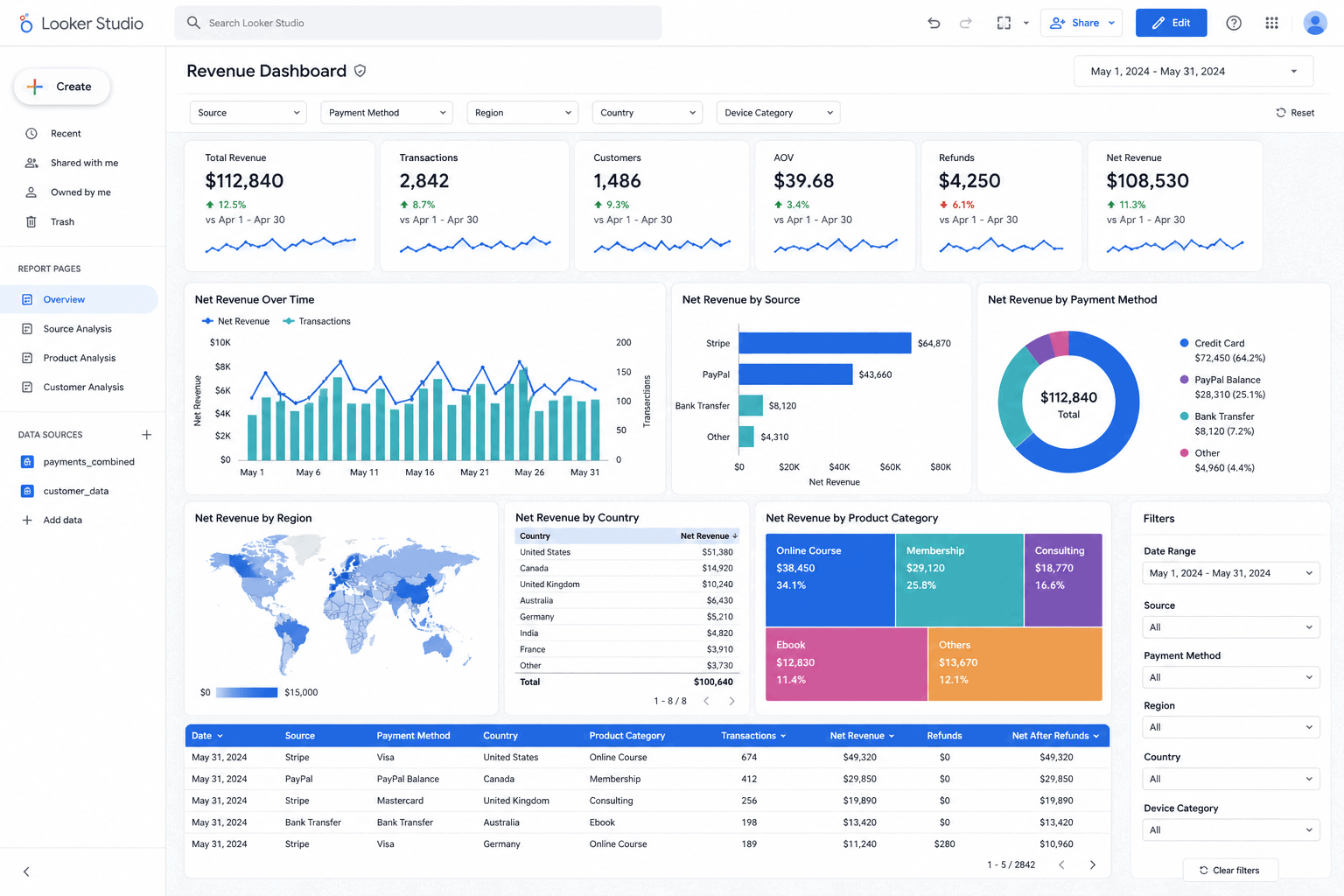
Looker Studio has no native PayPal or Stripe connector. You get there through third-party tools like Supermetrics or Coupler.io for Stripe, and the same for PayPal.
The alternative is a DIY route: land both datasets in Google Sheets first via Zapier or Make, then connect Looker Studio to the sheets using its free native connector.
How to do it
- Sign into Looker Studio → Add data → search for Supermetrics or Coupler.io connector
- Authenticate your Stripe account → select data entities (charges, invoices, balance transactions)
- Repeat for PayPal using the same connector or a separate one
- Blend both data sources using email or order ID as the matching key
- Build calculated fields manually for any revenue metrics you need
The problems with this approach
- No native connector for either PayPal or Stripe. Every setup depends on a third-party vendor
- Data refreshes on a schedule, with 15 minutes being the fastest and hourly or daily on cheaper plans
- Looker Studio’s data blending is capped at 5 sources and requires a matching key across PayPal and Stripe datasets
- No out-of-the-box MRR, churn, LTV, or RFM. You build every metric manually as a calculated field
- Connector reauthentication breaks dashboards without warning
- Supermetrics costs add up fast when you’re stacking multiple PayPal and Stripe accounts
Method 6: Power BI
How it works
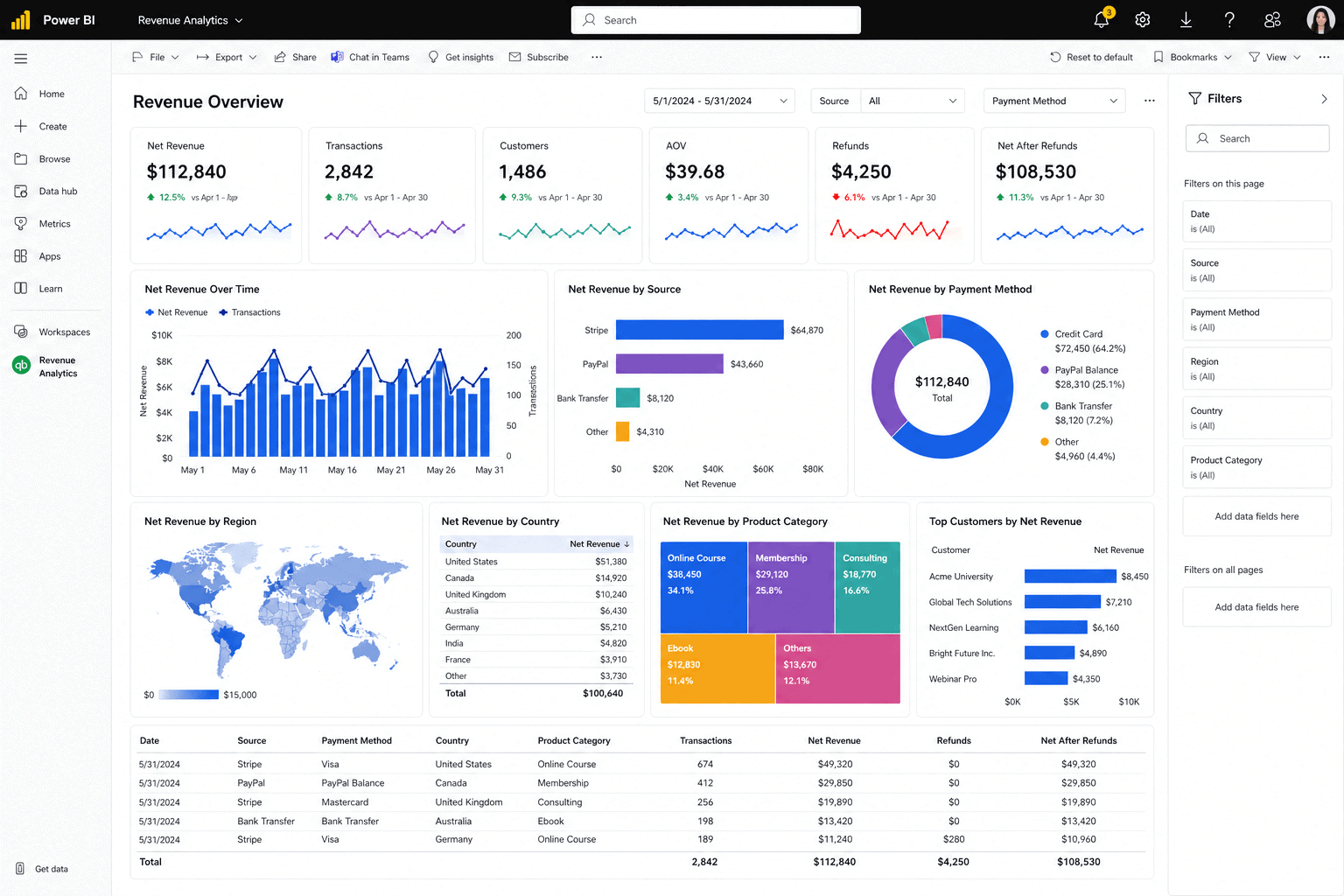
Power BI has no native connector for PayPal or Stripe either. You get there through third-party connectors like ZappySys, CData, or Coupler.io, or by building a custom REST API integration in Power Query.
The enterprise route involves an ETL pipeline, Stitch or Fivetran pulling data into a warehouse like Snowflake or BigQuery, then Power BI connecting to the warehouse.
How to do it
- Install a third-party connector like ZappySys or CData for Stripe and PayPal
- Configure ODBC/DSN settings and set up a Power BI gateway for scheduled refresh
- Or use Coupler.io → connect Stripe and PayPal → select Power BI as destination
- Build your data model in Power Query to align schemas across both sources
- Write DAX measures for revenue totals, deduplication, and any metrics you need
The problems with this approach
- No native connectors. Every implementation depends on a third-party vendor or custom development
- Custom REST API setup requires working knowledge of Power Query M, JSON flattening, and pagination
- Deduplicating customers across PayPal and Stripe requires writing your own DAX or Power Query logic
- Power BI Pro jumped from $10 to $14 per user per month in April 2025, a 40% price hike
- Sharing dashboards requires Pro licenses for every viewer
- Still no pre-built eCommerce metrics. MRR, churn, RFM all need to be built from scratch
Method 7: Tableau
How it works
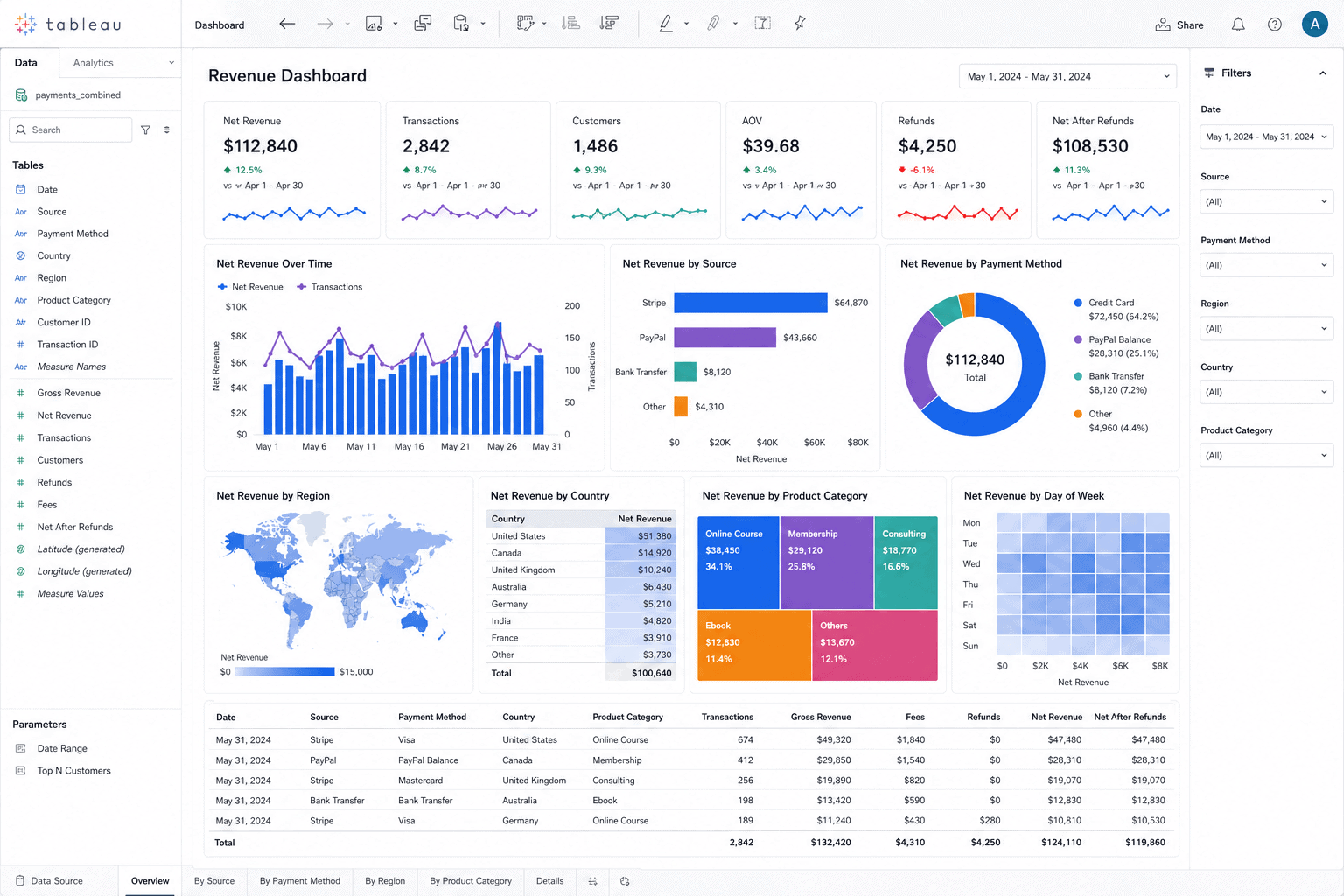
Tableau also has no native PayPal or Stripe connector. The standard enterprise path runs through an ETL layer.
Fivetran or Stitch pulls data from both platforms into a cloud warehouse like Snowflake or BigQuery, and Tableau connects to the warehouse. Smaller teams use Coupler.io for a more direct route.
How to do it
- Connect Fivetran or Stitch to your Stripe account → select data tables → load into your warehouse
- Set up a custom connector or manual CSV import for PayPal data
- Connect Tableau to your warehouse via native connector
- Build transformation logic in dbt or SQL to align schemas and deduplicate customers
- Create calculated fields in Tableau for revenue metrics across both gateways
The problems with this approach
- Requires a full data pipeline before Tableau even enters the picture, including a warehouse, ETL tool, and transformation logic
- Fivetran’s Stripe connector still has open feature requests for missing fields that have gone unresolved for years
- No native PayPal connector in Fivetran or Stitch. PayPal data requires custom work
- Customer deduplication across both gateways still requires custom SQL transformations
- Tableau Creator starts at $75 per user per month. Add Fivetran and a warehouse and you’re looking at $50,000 or more per year for a small team
- Steep learning curve. Most teams budget $3,000 to $5,000 per analyst for full certification
There’s a better way of how to track PayPal and Stripe revenue together
There’s a tool built specifically for this. Connect both PayPal and Stripe to Putler. It takes under five minutes per source, no code, just OAuth, and you’re done. Both gateways in one place. One revenue number. No spreadsheet. No third-party connector. No data engineer.
And it’s not just PayPal and Stripe. Putler connects to 17+ data sources including Shopify, WooCommerce, BigCommerce, Etsy, Amazon, Braintree, Razorpay, Google Analytics, Mailchimp, and more. So if you’re selling across multiple platforms on top of multiple gateways, everything consolidates in the same place.
How to connect PayPal and Stripe to Putler
- Sign up at putler.com → start your 14-day free trial
- Go to Settings → Data Sources → Add New Source
- Select PayPal → authenticate via OAuth → Putler pulls your historical data automatically
- Select Stripe → repeat the same process
- Done. Both sources are live in your dashboard in minutes
Where to find your revenue in Putler
Once connected, your combined PayPal and Stripe revenue lives in two places. The Home Dashboard gives you the morning snapshot: total sales, daily average, top customers, and recent transactions across both gateways in one screen.
The Sales Dashboard goes deeper: net sales after refunds and discounts, orders, average revenue per sale, MRR, churn rate, and a sales heatmap showing your best hours and days. Green marks are sales. Red marks are refunds. Everything from both gateways, in one view.
What Putler does with the data
Automatic deduplication: the same customer who paid you once through Stripe and once through PayPal becomes one customer record. One profile. Full purchase history across both gateways. Your revenue is accurate. Your customer count is accurate.
Timezone and currency normalization: Stripe’s UTC timestamps and PayPal’s local timezone entries get aligned automatically. Multi-currency transactions convert to your base currency using the mid-market exchange rate of the transaction date, across 36+ currencies.
Instant refunds without gateway access: your support team processes full or partial refunds directly inside Putler for both PayPal and Stripe transactions. No logging into either gateway separately. What used to take 5 minutes takes 5 seconds.
Putler starts at $20/month. First month is $1. 14-day free trial, no credit card required.
Stop switching between dashboards to track your revenue
Every method in this guide works. Some just cost you more time, money, or accuracy than others.
If you’re still logging into PayPal and Stripe separately every month, that’s the most expensive option of all, even though it feels free.
You came here to learn how to track revenue from PayPal and Stripe together. The answer is whichever method gets you one clean number without eating your week.
Pick the method that matches your scale. Or skip the workarounds entirely and connect both to Putler.
- Stripe dashboard limitations: every gap and how to fix them
- PayPal reporting tool: advanced analytics to boost your business
- eCommerce data consolidation: connect 17+ sources with Putler
- Cross-platform analytics for eCommerce: one view across every channel
- SaaS metrics dashboard for subscriptions and eCommerce