
GA4 ecommerce reports help you answer questions about revenue, products, checkout behavior, acquisition, landing pages, and tracking. They become useful when you start with one business question, verify the underlying data, and open the report whose scope matches that question.
That order matters. A revenue change creates an urge to inspect every chart for reassurance. More dashboards rarely produce a decision.
The better route is simpler: trust the data, locate the right report, diagnose one signal, and take one action.
How should you use GA4 ecommerce reports?
GA4 ecommerce reports work best as a four-step decision process: verify the data, match the question to a report, interpret metrics within the correct scope, and record one next action. GA4 explains acquisition and on-site behavior. Your commerce backend remains the authority for completed orders, refunds, and accounting records.
- Trust: Check dates, processing time, events, parameters, item IDs, transaction IDs, and metric scope.
- Locate: Pick the report that directly owns your question.
- Diagnose: Compare one useful dimension or metric without mixing user, session, event, and item scopes.
- Act: Write down one change, one owner, and one date to check the result.
This guide follows that sequence instead of teaching every GA4 screen.
Which GA4 ecommerce report answers your question?
The right GA4 report depends on the event you are trying to explain. Start with Monetization overview for the size of a revenue change, then move to a product, funnel, acquisition, landing-page, transaction, promotion, or event report for the cause you need to test.
| Business question | Start with this report | Inspect first |
|---|---|---|
| Did reported revenue change? | Monetization overview | Revenue trend and the period being compared |
| Which products gained or lost sales? | Ecommerce purchases | Item views, cart additions, purchases, and item revenue |
| Did an internal promotion get attention? | Promotions | Promotion views, clicks, and downstream item actions |
| Is a purchase missing or duplicated? | Transactions / Transaction ID | Order identifier and purchase value |
| Where do shoppers leave before buying? | Purchase journey | Largest trustworthy loss between journey stages |
| Where does checkout break? | Checkout journey | First confirmed loss after begin_checkout |
| How were new users first acquired? | User acquisition | “First user” channel or source |
| Which sources drove current sessions? | Traffic acquisition | “Session” channel, source, or medium |
| Which pages began sessions that produced outcomes? | Landing page | Sessions, engagement, key events, and revenue |
| Are ecommerce events reaching GA4? | Events and Realtime | Required event names and recent activity |
The monetization and funnel reports sit under Life cycle → Monetization or Business objectives → Drive online sales, where the overview is labeled Overview. In the Life cycle collection, User acquisition and Traffic acquisition sit under Acquisition, while Events and Landing page sit under Engagement. If a report seems missing, your team may have edited the collections, so search for its name or check the Library.
How can you trust the data before reading a report?
A GA4 report is ready for diagnosis only when its events, parameters, identifiers, dates, and scopes are sound. Otherwise, a product problem may be a tracking problem. Check these five items before changing a campaign, page, promotion, or checkout.
Check the date and processing window
Google says standard ecommerce data generally starts appearing within 24-48 hours after correctly implemented events begin collecting. The Events report can take up to 24 hours to update, while Realtime covers the last 30 minutes.
Use Realtime to ask, “Did the event arrive?” Use processed reports to ask, “What pattern does this event show?” Diagnosing this morning’s missing standard-report data at lunchtime can send you down a very tidy, completely unnecessary rabbit hole.
Check events and their required parameters
Seeing a purchase event does not prove that GA4 received valid item IDs, item names, value, currency, and transaction details. The event can appear while the Ecommerce purchases report remains incomplete.
Validate the payload for the event tied to your question. It prevents you from blaming a product or campaign for missing fields.
Check item identity across the journey
GA4 connects product behavior through the item information sent with ecommerce events. If view_item uses a parent product ID while purchase uses a variant ID, the report can make one product appear viewed but never bought and another bought but never viewed.
Before changing merchandising, compare item IDs and names across view, cart, checkout, and purchase events.
Check transaction IDs
A unique transaction_id helps GA4 deduplicate web purchases. Reusing one ID can suppress valid purchases, while an empty ID makes GA4 deduplicate every purchase that carries that empty value.
Take a small order sample from your store and compare its IDs with GA4. Fix ID generation before treating a gap as lost demand.
Check the report’s scope
GA4 does not use one universal level of measurement. Ecommerce purchases centers on items, and Events counts event activity. User acquisition uses first-user dimensions, while Traffic acquisition uses session dimensions.
One add-to-cart event can contain three items, so event counts and item counts do not have to match. Different values can both be correct when they describe different scopes.
Different values can both be correct when they describe different scopes.
What does the Monetization overview report show?
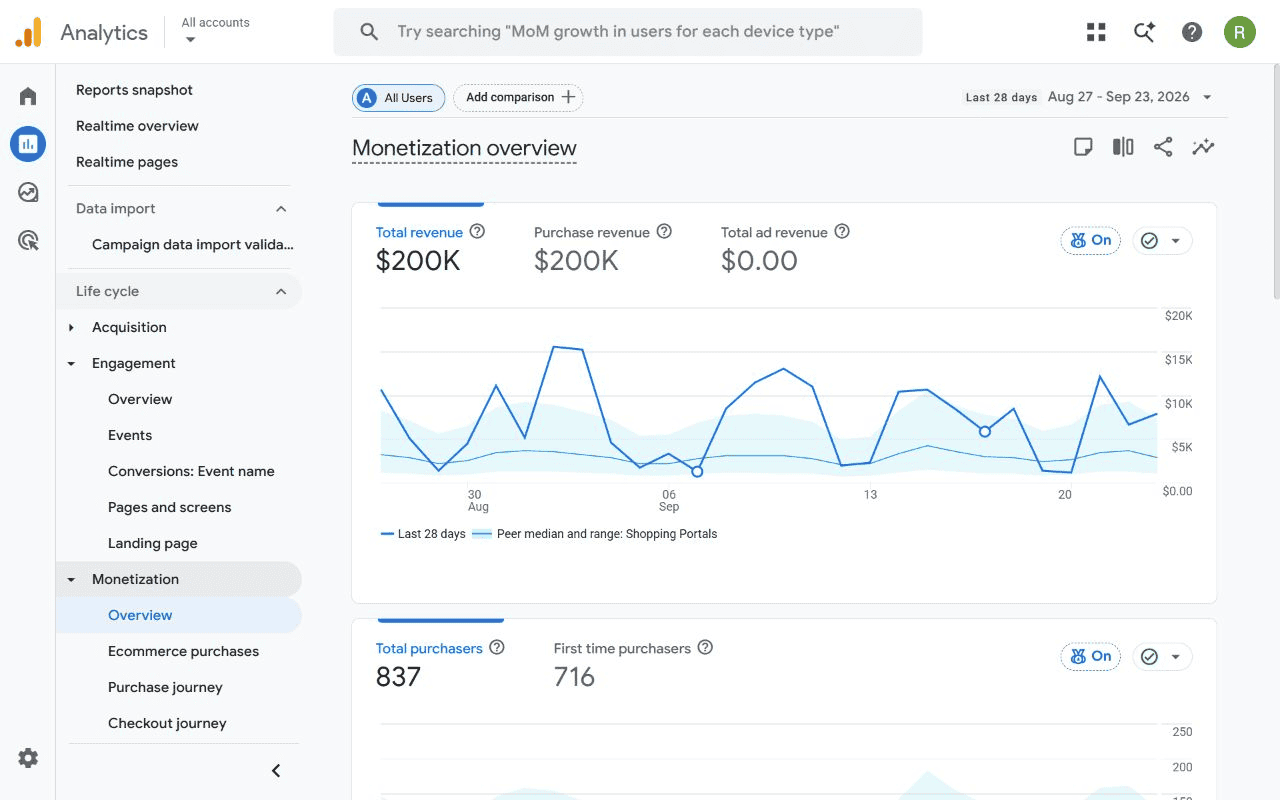
The Monetization overview summarizes revenue activity through configurable cards. It is the best first stop for judging the size and timing of a change, but it is not a diagnosis. Total revenue can include ecommerce, subscriptions, in-app purchases, and advertising revenue, minus refunds recorded in GA4.
What to inspect:
- Confirm the date range and comparison period.
- Check the direction and timing of the revenue change.
- Note which product, promotion, or funnel report should explain it next.
What it cannot prove: The overview cannot explain why revenue changed or confirm that GA4 reconciles with your store’s financial records. Its cards can also differ because an editor can customize the report.
Next action: Write one specific follow-up question, such as “Which item lost purchases?” Then leave the overview and open the report that can answer it.
What does the Ecommerce purchases report show?
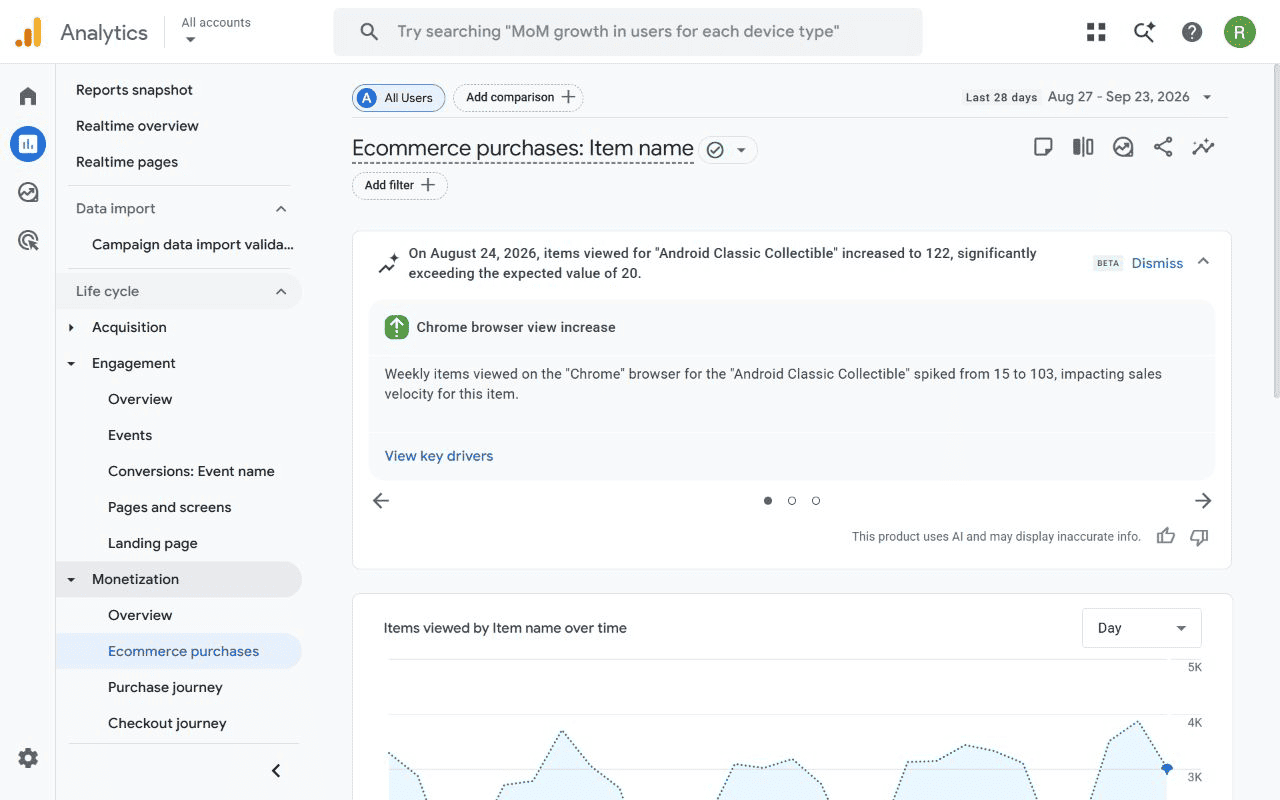
The GA4 Ecommerce purchases report shows item-level product performance from recommended ecommerce events and the items array. Use it to compare product exposure, cart activity, purchases, and item revenue. Missing parameters or inconsistent item identifiers can make a product look weaker or stronger than it is.
What to inspect:
- Compare item views, additions to cart, purchases, and item revenue.
- Look for products with traffic but little downstream activity.
- Check whether product and variant identifiers stay consistent at every event.
What it cannot prove: A low purchase count does not prove that the product, price, or page caused the issue. Broken item identity can split one journey across two rows, and the report provides no universal “good” conversion benchmark.
Next action: Select one meaningful product gap. Validate its event payload first, then review the product page or merchandising only if the tracking survives that check.
What does the Promotions report show?
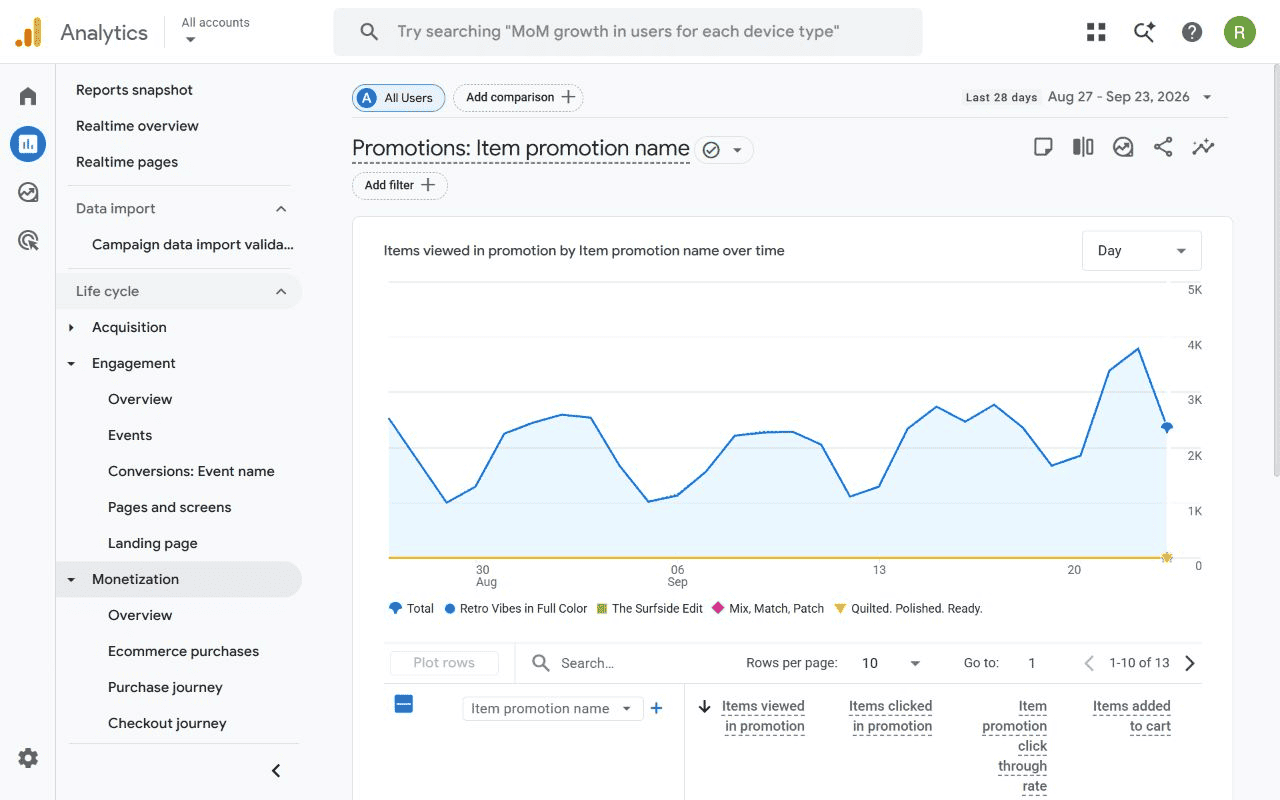
The Promotions report evaluates internal promotions when the required promotion events and item-level parameters are present. It can show promotion views, clicks, click-through rate, later item actions, and revenue. A campaign name alone does not populate this report or prove that the promotion caused a sale.
What to inspect:
- Compare promotion views with clicks.
- Check whether item actions follow those clicks.
- Look for inconsistent promotion names, IDs, placements, or creative fields.
What it cannot prove: Revenue beside a promotion does not establish incremental lift. Shoppers may have purchased anyway, while missing events can make a visible banner disappear from the report.
Next action: Fix incomplete promotion tracking first. If the data is sound, test one weak placement or message instead of redesigning every promotion at once.
What does the Transactions report show?
The Transactions or Transaction ID report helps you inspect purchase activity at the order-identifier level. Use it to find an expected order, investigate a duplicate, or compare selected transactions with your commerce backend. The exact report label and location can vary across GA4 collections and custom libraries.
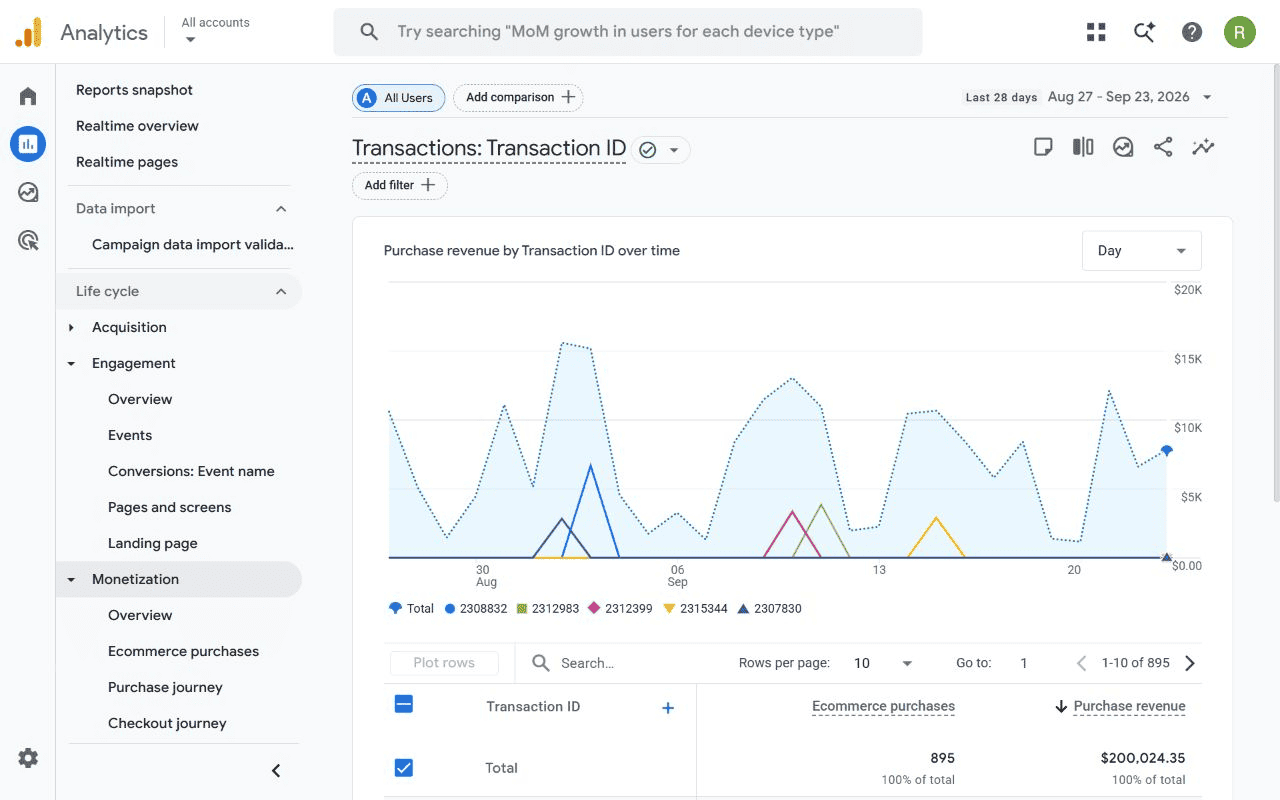
What to inspect:
- Search for missing, empty, repeated, or reused transaction IDs.
- Compare a small sample of purchase values with store orders.
- Confirm that one transaction ID represents one purchase across users.
What it cannot prove: GA4 is not an accounting ledger. Client-side collection, consent, refunds, currency handling, and implementation errors can make its recorded revenue differ from the store or payment system.
Next action: Reconcile five to ten specific orders. If identifiers fail, repair purchase collection before analyzing aggregate revenue.
What does the Purchase journey report show?
The Purchase journey report shows movement from session start through product view, add to cart, checkout, and purchase. By default, the funnel is closed, so a user must enter at the first displayed step to be counted through it. GA4 also lets you switch this report to an open funnel.
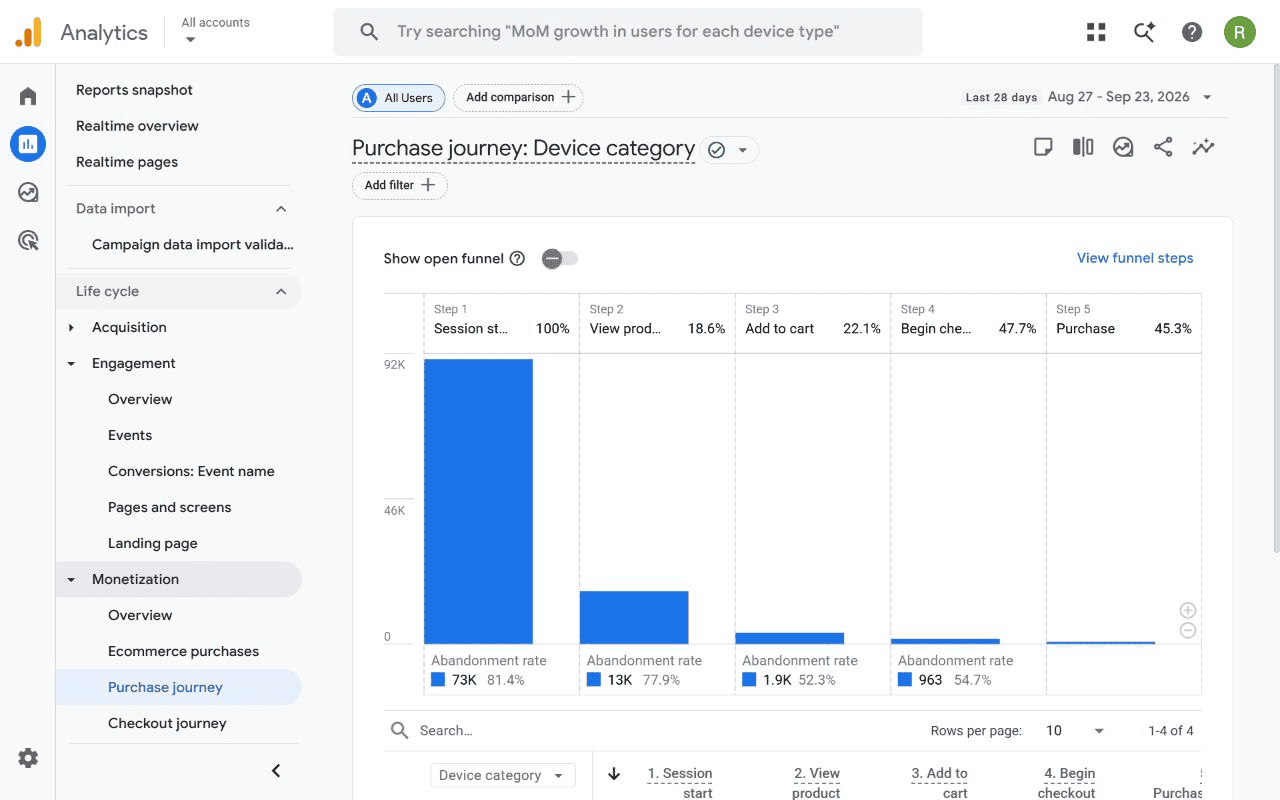
What to inspect:
- Find the largest loss between trustworthy stages.
- Confirm whether the funnel is open or closed.
- Verify that the event for every displayed stage is firing correctly.
Google’s own worked example starts with 200 users at one step and 140 at the next. Google describes the difference as 60 abandoned users, a 30% abandonment rate, and 70% retention. That explains the labels; it is not an ecommerce benchmark.
What it cannot prove: A drop shows where the observed journey stopped, not why. Missing events, consent gaps, device changes, or a genuine experience problem can produce a similar shape.
Next action: Investigate the largest verified loss. Pair it with the relevant page, device, product, or channel evidence before choosing a fix.
What does the Checkout journey report show?
The Checkout journey report is a fixed closed funnel from begin_checkout through shipping, payment, and purchase. It depends on begin_checkout, add_shipping_info, add_payment_info, and purchase. A store with a different checkout sequence may need a Funnel exploration for an honest view.
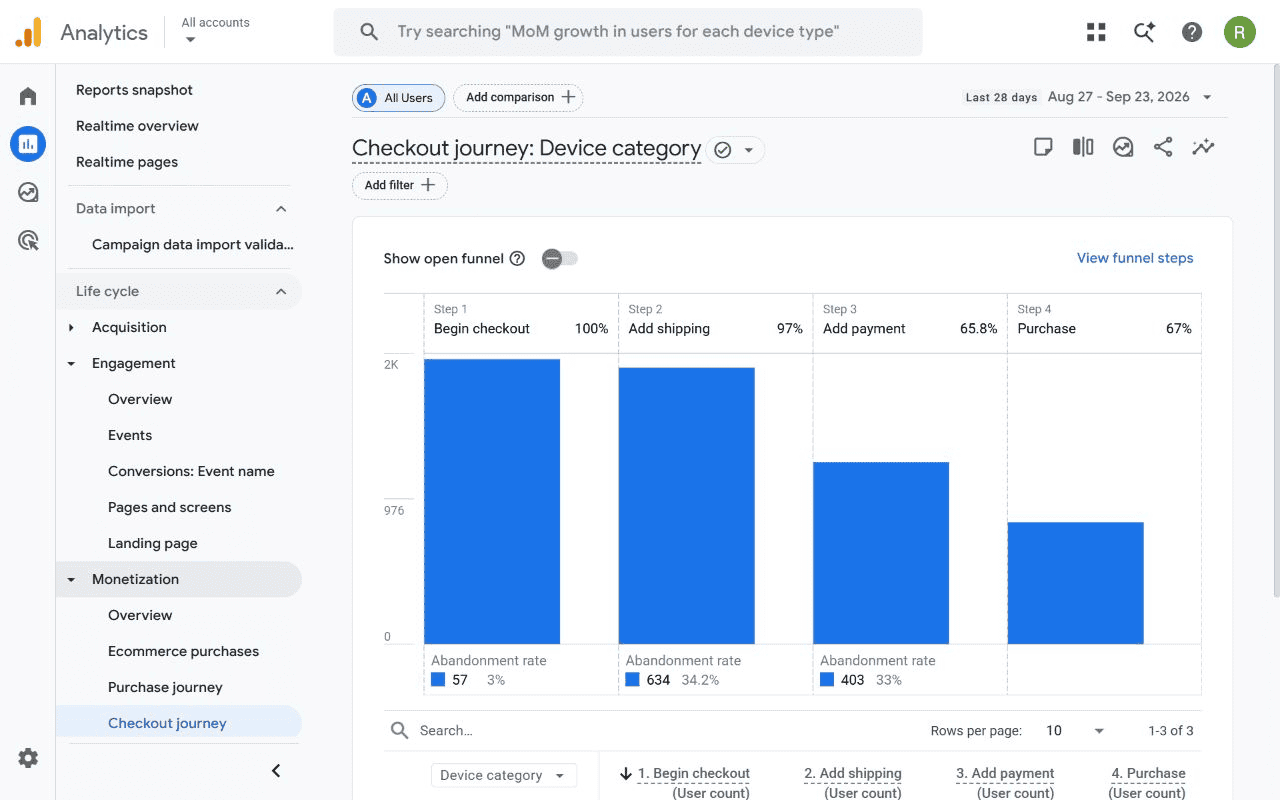
What to inspect:
- Locate the first large loss after checkout begins.
- Confirm that shipping and payment events match real checkout steps.
- Segment only after the base funnel is trustworthy.
What it cannot prove: The standard funnel cannot describe a different checkout sequence. It also cannot separate form friction, payment failure, price shock, and tracking gaps by itself.
Next action: Validate the four defined events. Then investigate the first confirmed friction point, or create an Exploration when the standard sequence does not match your store.
What does the User acquisition report show?
The User acquisition report shows how a new user was first acquired. Its dimensions use the “First user” prefix, so a channel row describes the user’s original acquisition source, not necessarily the session that produced a later purchase. Use it for first-touch questions, not every-touch attribution.
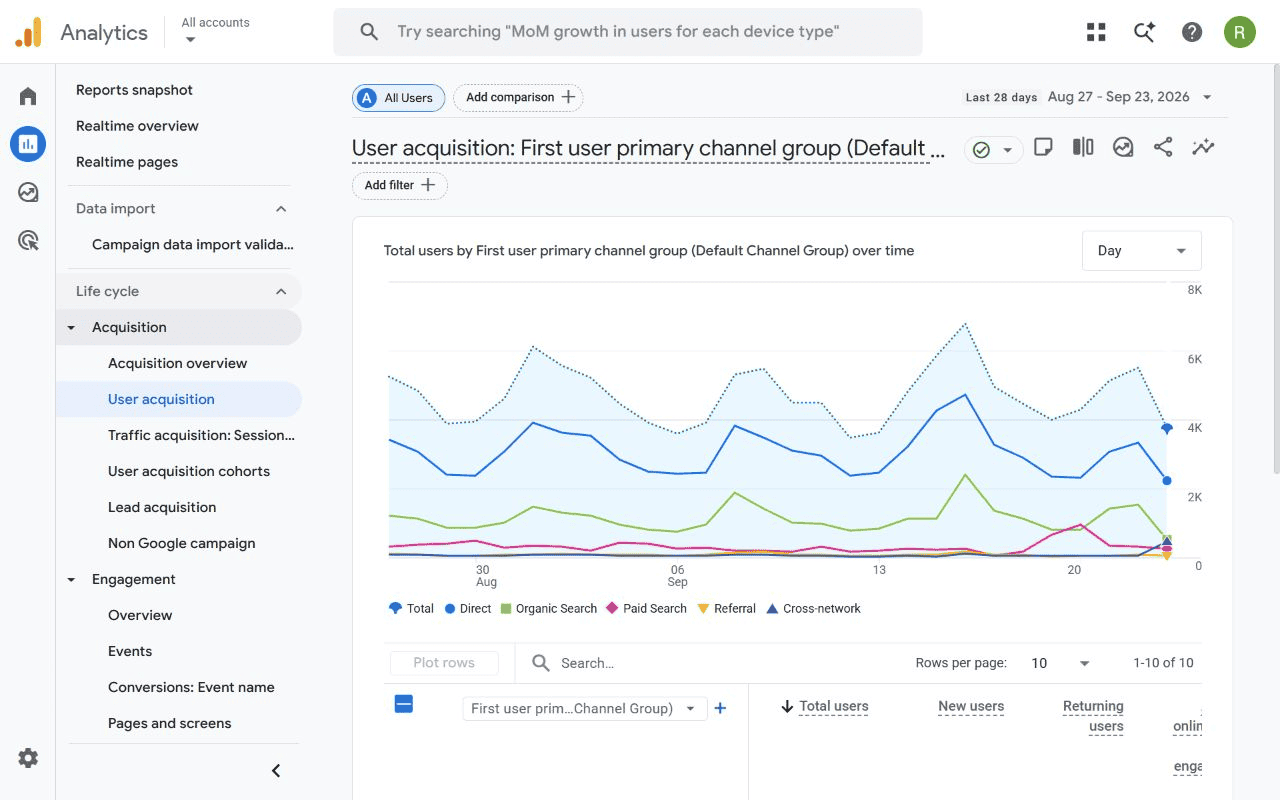
What to inspect:
- Compare new users by First user channel, source, or medium.
- Review key events for those users, and check whether your version of the report shows revenue.
- Match date ranges before comparing another report.
What it cannot prove: First-user attribution does not identify every later visit. A returning customer may buy during an email session while remaining assigned to their original acquisition channel.
Next action: Choose one first-touch source worth validating or improving. Do not compare its rows directly with session-scoped traffic rows and call the difference an error.
What does the Traffic acquisition report show?
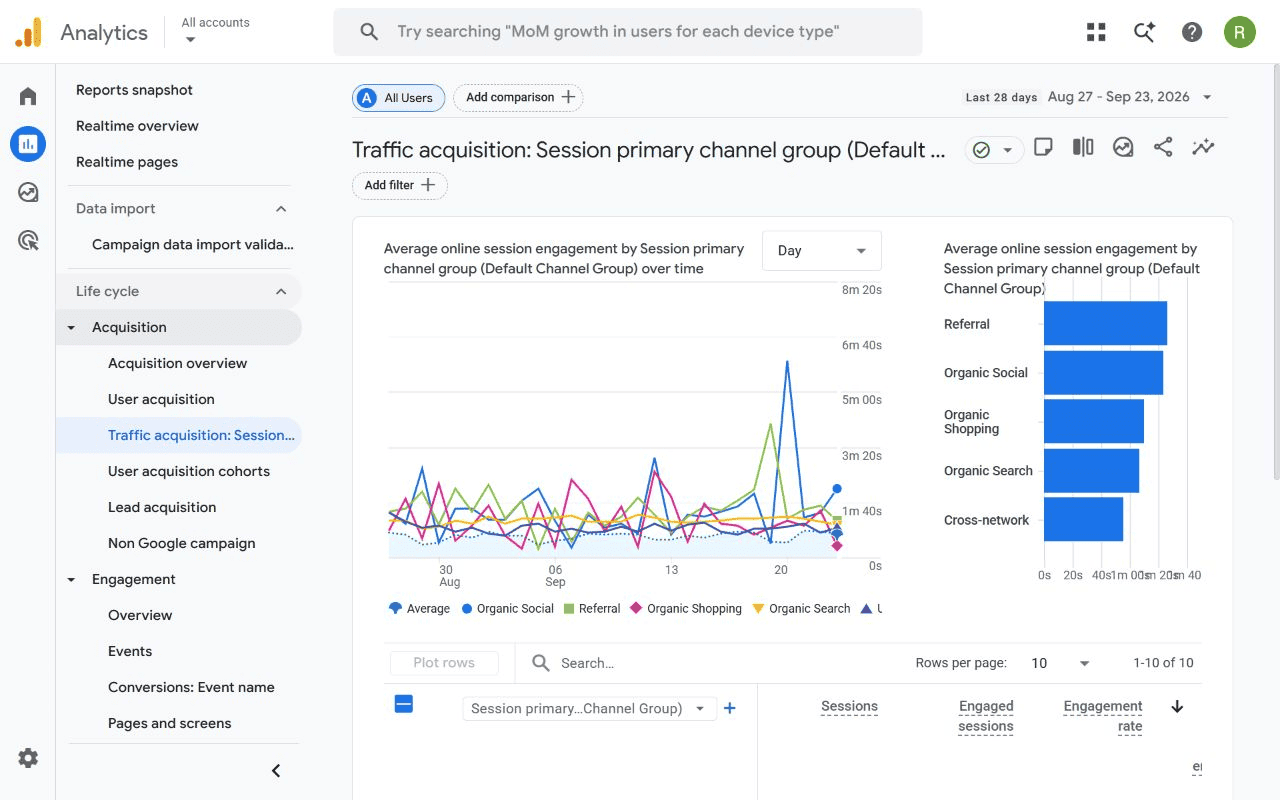
The Traffic acquisition report explains where sessions from new and returning users came from. Its dimensions use the “Session” prefix. It is the better starting point for current campaign and visit questions because it describes the source, medium, or channel associated with each session.
What to inspect:
- Compare sessions and engaged sessions by Session channel or source/medium.
- Review key events and total revenue, which can include more than ecommerce purchases.
- Check tagging and unwanted-referral settings when a payment provider appears as a source.
What it cannot prove: Session attribution does not reveal a user’s original acquisition source or establish that a channel caused the purchase. Paid, organic, direct, referral, and email rows still depend on tagging and attribution rules.
Next action: Select one meaningful source with weak downstream behavior. Review its campaign tagging and landing experience before changing spend.
What does the Landing page report show?
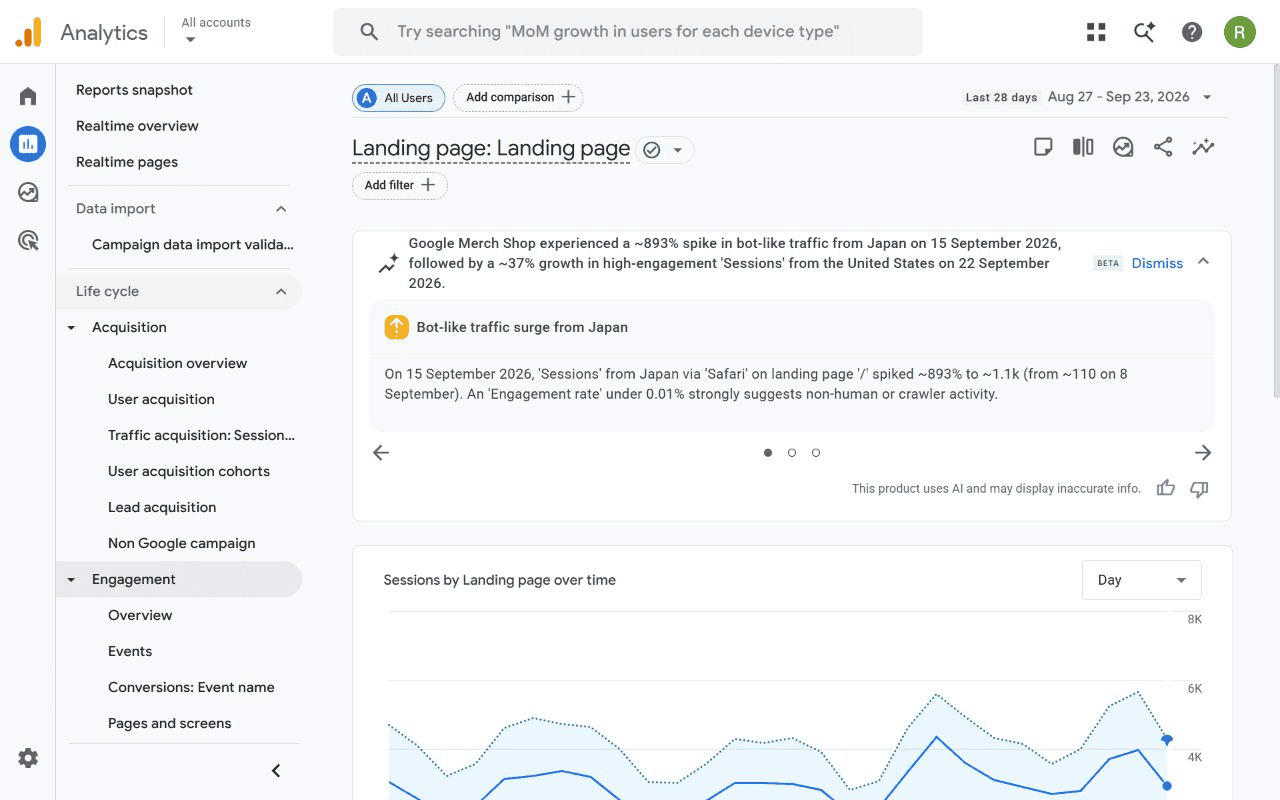
The Landing page report groups outcomes by the first page viewed in a session. It helps compare entry pages by sessions, engagement, key events, and revenue. A revenue value on a row does not mean that page alone persuaded the shopper to buy.
What to inspect:
- Compare high-traffic entry pages on engagement and downstream outcomes.
- Look for an unexpected thank-you or payment page as the landing page.
- Check session breaks, cross-domain settings, and referral handling before judging the page.
What it cannot prove: Landing-page revenue is not page-level causality. A payment-domain transition can start a new session and make a confirmation page appear to be the entry point, even though it did not create demand.
Next action: Improve one high-traffic entry page with weak outcomes, or fix the session boundary when the listed landing page is logically impossible.
What does the Events report show?
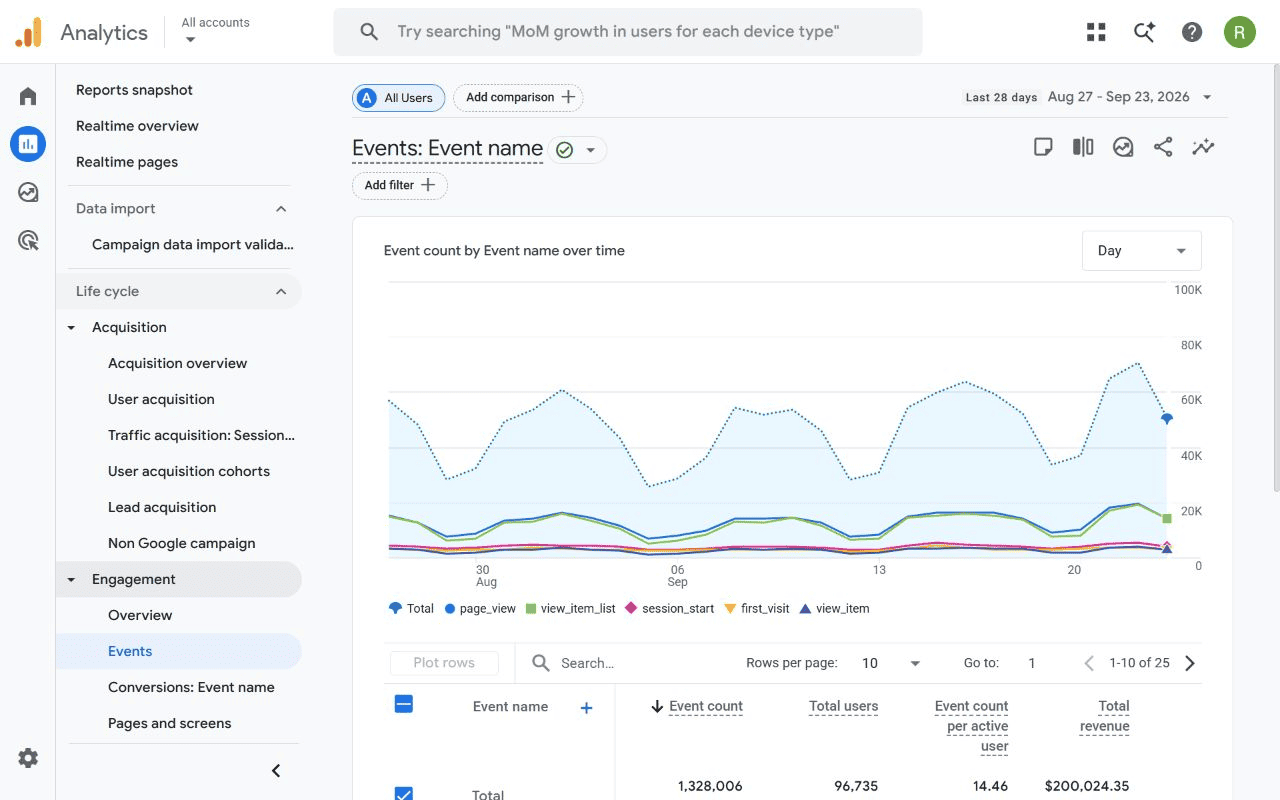
The Events report lists event names with counts and users. Use it to check whether required ecommerce events are reaching processed GA4 reports, then use Realtime for activity from the last 30 minutes. Event presence is a collection signal, not proof that every required parameter is valid.
What to inspect:
- Confirm that each required ecommerce event appears.
- Look for sudden gaps, spikes, duplicates, or naming variations.
- Use Realtime or debugging tools for a recent test, then wait for standard processing.
What it cannot prove: A purchase row cannot confirm that value, currency, item arrays, and transaction IDs are correct. Likewise, event count is not the same as item quantity or order count.
Next action: Pick one critical event and inspect its payload. Do not move downstream until its parameters match Google’s current ecommerce specification.

How can you review GA4 ecommerce reports in 15 minutes?
A short review of GA4 ecommerce reports should answer one question, not survey the whole property. Check data quality, choose one report, inspect one meaningful comparison, and record one action with an owner and review date.
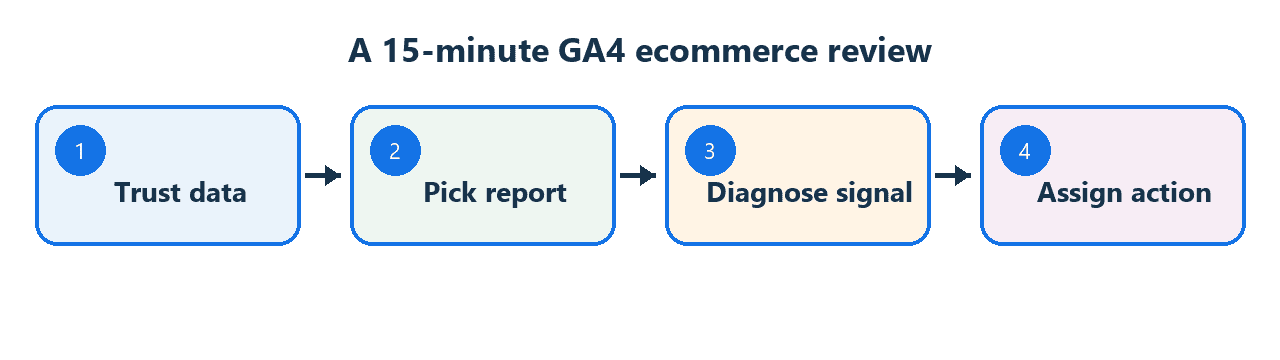
Step 1: trust the measurement
Write the question in one sentence. Then check the date range, processing delay, required events, key parameters, item identity, transaction IDs, and report scope. Stop if any of these make the result unreliable.
Step 2: locate the report that owns the question
Use Monetization overview to size a change, not explain it. Move to Ecommerce purchases for products, a journey report for funnel loss, an acquisition report for channels, Landing page for entry pages, Transactions for order lookup, or Events for collection checks.
Step 3: diagnose one signal
Choose one comparison that fits the report’s scope. For example, suppose item views hold steady while purchases fall for one product. This is an illustrative case, not demo data.
First confirm that the same item ID reaches view and purchase events. Only then inspect the product page, availability, pricing, or checkout experience.
Step 4: act and schedule the re-check
Write one action, the person responsible, and the date you will look again. “Review analytics” is not an action. “Validate purchase item IDs for Product A by Friday, then compare seven complete days” is.
When is GA4 enough, and when do you need another view?
GA4 is the right tool for acquisition, sessions, landing pages, events, and on-site funnel behavior. Your store or payment system is the source of truth for orders, refunds, and financial reconciliation. A consolidated analytics layer becomes useful when the question crosses stores, gateways, currencies, products, or customer records.
For a broader measurement model, see ecommerce analytics. If you need to connect website behavior with transaction data, ecommerce web analytics explains that boundary. Shopify users who still need setup context can connect Shopify with GA4.
FAQ
Where are ecommerce reports in GA4?
GA4 ecommerce reports may appear under Life cycle → Monetization or Business objectives → Drive online sales. An editor can also change the published report collections, so navigation differs between properties. Search for the report name or inspect the Library if Monetization, Ecommerce purchases, Purchase journey, or Checkout journey is missing.
Why is my GA4 Ecommerce purchases report empty?
The report may be empty when recommended ecommerce events are missing, the items array is incomplete, required item parameters are absent, the date is too recent, or filters remove the activity. First confirm the event in Realtime, then inspect its parameters and allow standard reports time to process.
What is the difference between Purchase journey and Checkout journey in GA4?
Purchase journey covers the broader path from session start through product view, cart, checkout, and purchase, and it can be viewed as an open or closed funnel. Checkout journey is a fixed closed funnel based on checkout, shipping, payment, and purchase events. Use an Exploration for a different checkout sequence.
Why do User acquisition and Traffic acquisition show different numbers?
User acquisition uses first-user dimensions and describes how new users were originally acquired. Traffic acquisition uses session dimensions and describes where current sessions came from. A returning buyer can retain one first-user source while purchasing during a session attributed to another channel, so the reports are not expected to match row for row.
Should GA4 revenue match my ecommerce platform exactly?
GA4 and your ecommerce platform collect data in different ways. Totals can differ because of consent, blocked scripts, implementation errors, refunds, currencies, time zones, attribution, or transaction-ID handling. Use the commerce backend for actual orders and financial reconciliation. Use GA4 to understand comparative acquisition and on-site behavior after checking tracking quality.
What should you do next?
Write down the one ecommerce question that matters this week. Run the trust checks, open the matching report, inspect one signal, and record one action with a date to check again.
If the question crosses several stores, payment sources, products, or customer records, test that same decision in a consolidated post-purchase view. Do not replace a clear question with another dashboard.