
If you’ve ever tried pulling order data out of WooCommerce to send to your accountant, sync with a CRM, or move everything to a new platform, you’ve probably realised it’s not as simple as hitting one button.
WooCommerce export isn’t a single feature. Some data types have built-in options. Others need a plugin. And if your store was set up after October 2023, there are database-level changes that affect how exports work and which plugins are compatible.
I’ve spent considerable time figuring out the cleanest ways to get data out of WooCommerce stores, for accounting, inventory management, migrations, and reporting. This guide covers every method available: what’s built in, what needs a plugin, and which tools are actually worth the cost.
Once you have your data out, you’ll want to make sense of it too. That’s where proper WooCommerce reports come in.
Why export data from your WooCommerce store?
Whether you’re running financial reports, syncing with external tools, or moving platforms entirely, having reliable export access saves a significant amount of manual work.
Common reasons store owners export WooCommerce data:
- Accounting and financial reconciliation at month or year end
- Inventory management and syncing with warehouse systems
- Importing customer lists into email marketing tools or a CRM
- Analysing sales data to make better stocking and pricing decisions
- Creating a full store backup before major changes or plugin updates
- Migrating to a new domain, hosting provider, or eCommerce platform
Four ways to export from WooCommerce
Before jumping into steps, it helps to understand which method fits your situation. There are four distinct ways to export WooCommerce data, each with different capabilities, limitations, and cost implications.
WooCommerce Analytics CSV: Built into WooCommerce 4.0 and above. Covers orders, products, and customers at a high level. Good for quick overviews, but it does not include line item details, customer shipping addresses, or advanced filtering. No plugin required.
WordPress native XML export: Available for free under Tools > Export in your WordPress dashboard. Exports products, orders, refunds, and coupons as XML files. The output is basic and can be difficult to work with, but it costs nothing and requires no plugin.
Third-party export plugins: The most flexible option for most stores. Plugins give you full control over fields, file formats (CSV or XML), filters by date, status, or product, and the ability to schedule recurring exports. This is the right choice for any store with real, ongoing export needs.
Direct database export: A developer-level approach. Since WooCommerce 8.2, order data is stored in dedicated HPOS tables rather than the legacy wp_posts structure. Direct database access gives you complete data control, but it carries risk and requires solid technical knowledge to do safely.
WooCommerce export via WooCommerce Analytics
WooCommerce Analytics is the built-in reporting suite that ships with WooCommerce 4.0 and above. It covers nine report types and each one includes a CSV download, making it the fastest way to export basic WooCommerce data without installing anything extra.
To access it, navigate to WooCommerce > Analytics in your WordPress dashboard.
WooCommerce Analytics export — Products
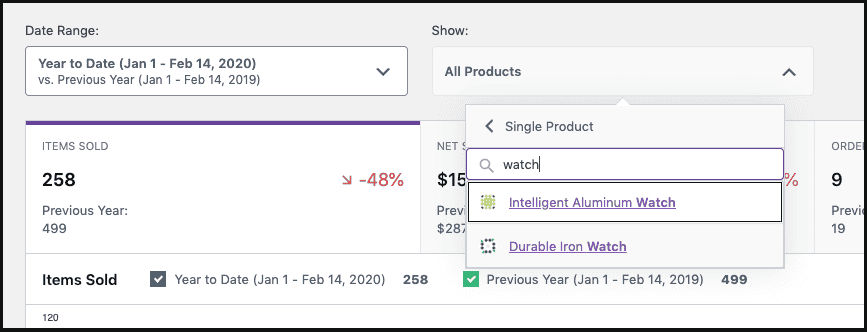
To export WooCommerce products via Analytics, go to WooCommerce > Analytics > Products. The report shows all products that had sales in your selected date range, with three view modes: All Products, Single Product, and Comparison Mode for evaluating multiple products side by side.
Each row in the report includes: Product Title, SKU, Items Sold, Net Sales, Orders count, Category, Variations count, Stock Status, and current Stock quantity. You can sort by most of these columns. The default sort is by items sold.
To download, set your date range, apply any filters you need, and click the Download button at the top right. Your data exports as a CSV file.
- Identify your top five highest-selling products and plan targeted promotions around them.
- Spot your lowest-selling SKUs and decide whether to discount, bundle, or discontinue them.
- Upload product data to another WooCommerce store or marketplace like Amazon or Etsy.
- Feed product and stock data into an analytics tool for category-level insights.
WooCommerce Analytics export — Customers
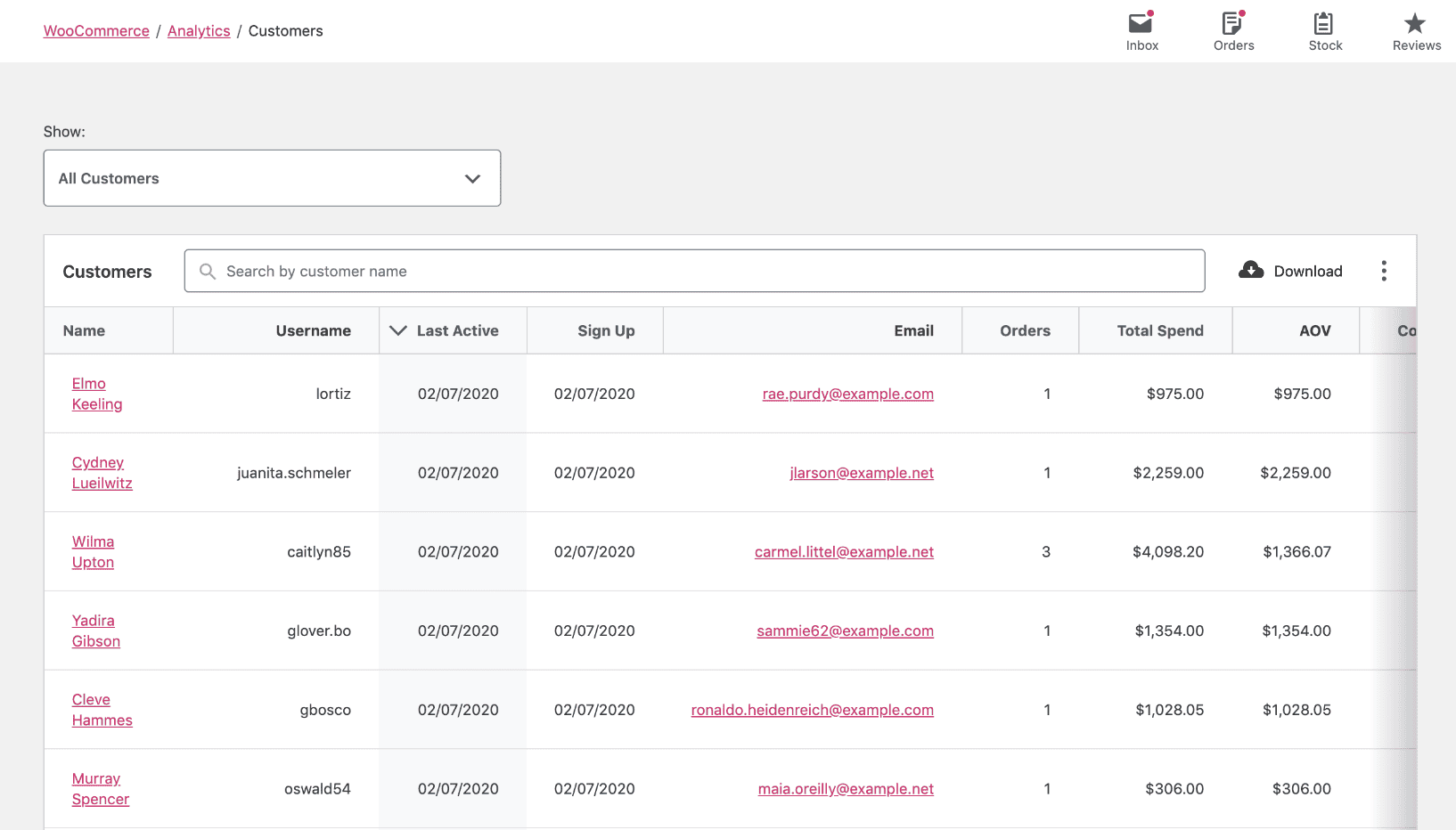
To export WooCommerce customers via Analytics, go to WooCommerce > Analytics > Customers. The report gives you location and lifetime value data for every customer in your store. You can drill into an individual customer’s full order history using the Single View option.
Available filters include name, country, username, order count, Average Order Value, total spend, and last active date. Once your filtered view is ready, click Download to export as a CSV file.
- Import the list into your CRM to build better customer profiles and track interactions.
- Upload to an email marketing tool to send targeted offers, win-back campaigns, or birthday emails.
- Identify your highest-spending customers and reward them with exclusive discounts or early access.
WooCommerce Analytics export — Orders

To export WooCommerce orders via Analytics, go to WooCommerce > Analytics > Orders. The report gives you a high-level overview of all orders within your selected date range. Refunds appear twice in the report: once on the original order date and once on the refund date, so your revenue figures stay accurate across periods.
Use the advanced filter to narrow results by order status, customer type, product, or coupon before downloading. When your view is set, click Download to export as a CSV file.
Worth noting: this CSV gives you order-level summary data only. If you need line item details, individual product quantities, shipping addresses, or custom field data, you will need a dedicated export plugin. For more information on WooCommerce Analytics, see the official documentation.
For deeper analytics beyond what a CSV export can tell you, consider using a dedicated WooCommerce reporting plugin that gives you real-time dashboards, customer segmentation, and revenue forecasting alongside your export capabilities.
WooCommerce product import export
Exporting products is the one area where WooCommerce does not need a plugin at all. The built-in product importer and exporter has been part of WooCommerce core for years and handles most standard product export needs cleanly.
How to export WooCommerce products
Step 1: Log in to your WordPress dashboard. Go to WooCommerce > Products.
Step 2: Click the Export button at the top of the products list.
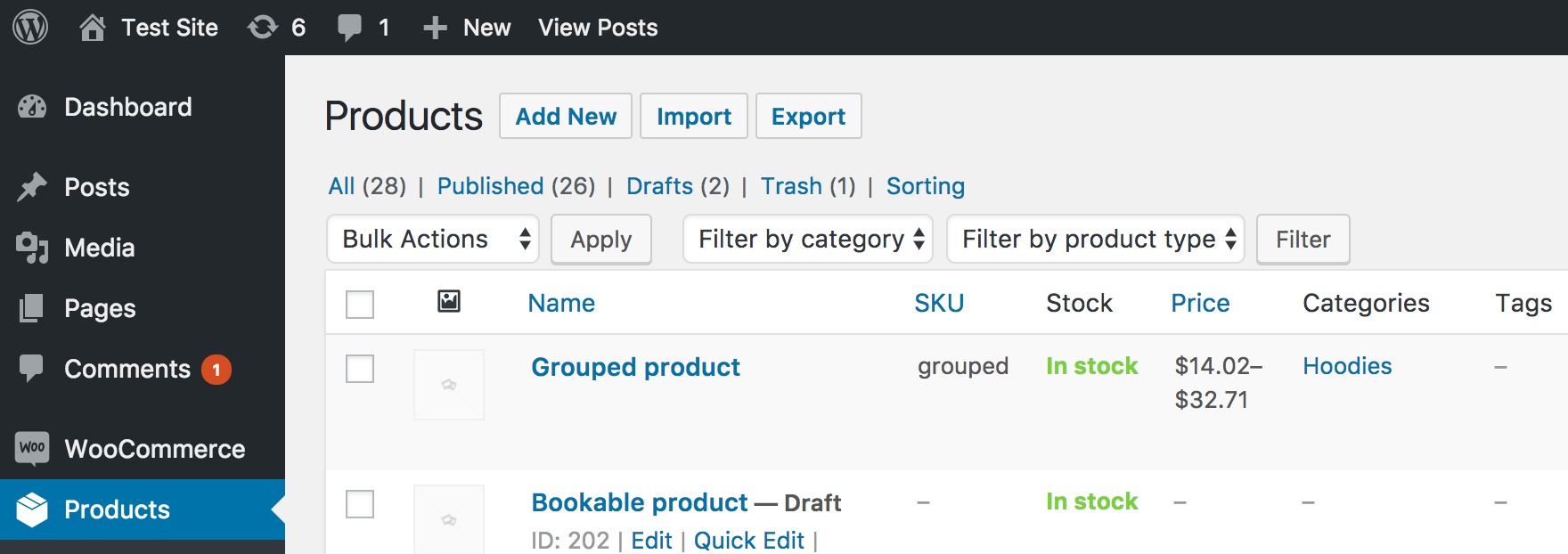
Step 3: The export settings screen will appear.
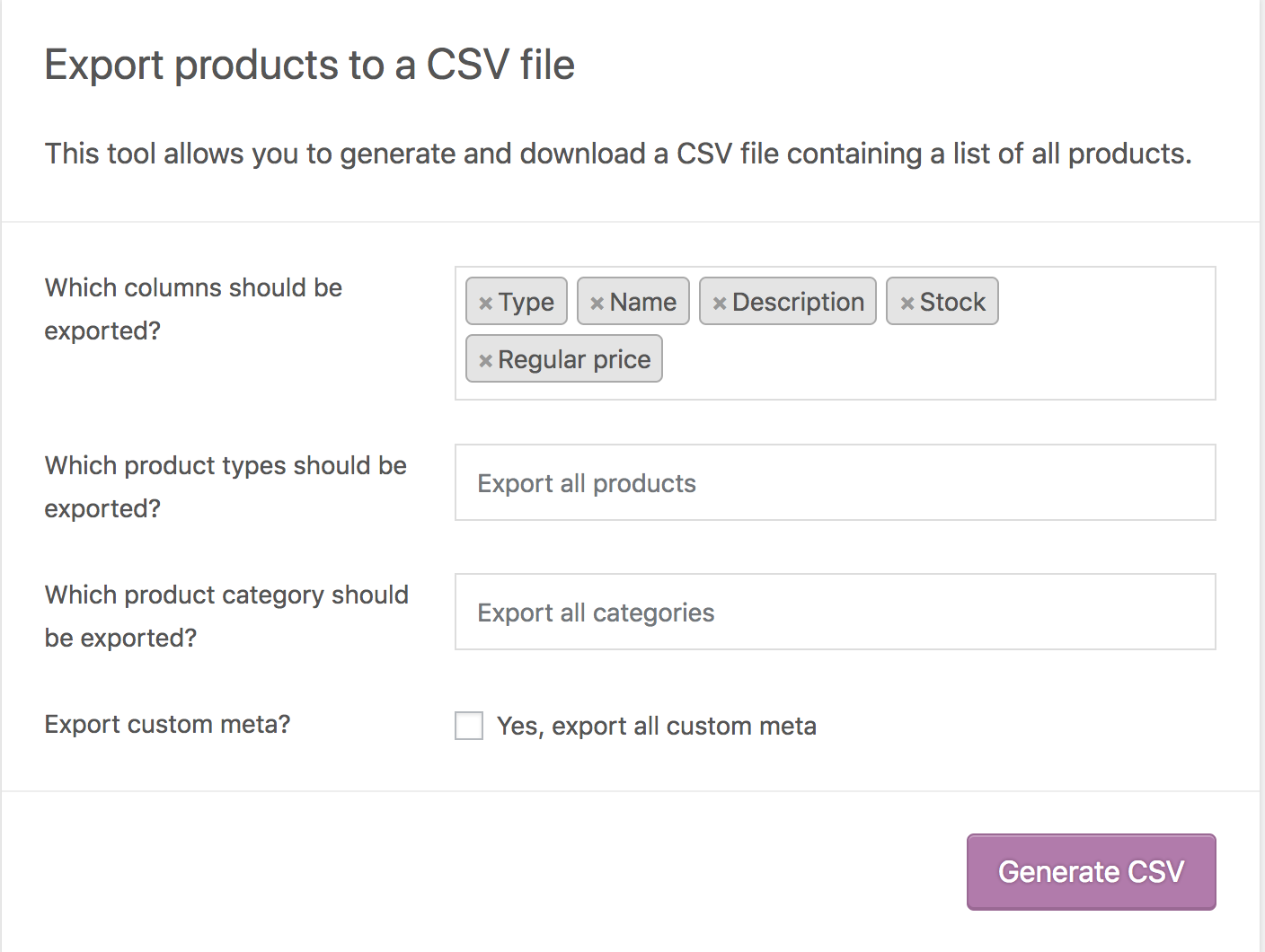
Step 4: Choose which columns to include. You can export all columns or select specific ones using the dropdown, which is useful when you only need SKUs, prices, or stock levels.
Step 5: Filter by product type and product category if you only need a specific subset of your catalogue.
Step 6: Click Generate CSV and save the file.
- Upload the file to Google Drive or OneDrive as a regularly updated product backup.
- Import the product list into another WooCommerce store to replicate your catalogue.
- Send product data to a warehouse partner who needs SKUs, descriptions, and shipping dimensions.
- Upload your catalogue to Amazon, eBay, Etsy, or other marketplaces in bulk rather than one product at a time.
How to import products into WooCommerce
The same built-in tool also handles product imports, which makes it useful when setting up a new store, updating products in bulk, or migrating from another platform.
Step 1: Go to WooCommerce > Products and click the Import button at the top.
Step 2: Upload your CSV file and set your import preferences, including whether to update existing products and which delimiter your file uses.
Step 3: On the column mapping screen, match your CSV columns to the corresponding WooCommerce fields. Unmap any columns you do not want to import.
Step 4: Click Run the Importer and wait for the process to complete. Do not refresh the browser while the import is running.
Step 5: Once finished, click View Products to confirm everything imported correctly.
For more advanced product import and export scenarios, including variable products, product bundles, and custom product types, a dedicated WooCommerce product import export plugin gives you considerably more control over field mapping and scheduling.
WooCommerce export orders, customers, coupons and subscriptions via plugin
Orders, customers, coupons, and subscriptions are not covered by WooCommerce’s built-in export tools. For all of these, you need a plugin. The steps below use the WooCommerce Customer/Order/Coupon Export plugin by SkyVerge, which is one of the most widely used and actively maintained options available. It is priced at $79 per year for a single site.
If you are looking for a free alternative, WebToffee’s Order Import Export plugin covers order and coupon exports at no cost and is confirmed compatible with WooCommerce 10.5.3, WordPress 6.9.1, and PHP 8.3 as of early 2026.
WooCommerce export orders
Exporting WooCommerce orders is one of the most commonly needed tasks for store owners. It feeds into accounting, fulfilment workflows, logistics partners, customer service, and dispute resolution.
Step 1: Log in to your WordPress dashboard. Go to WooCommerce > Export.
Step 2: Select your output format. CSV works with Excel, Google Sheets, and most accounting tools. XML is useful if you are sending data to an ERP, fulfilment provider, or a system like Stamps.com.
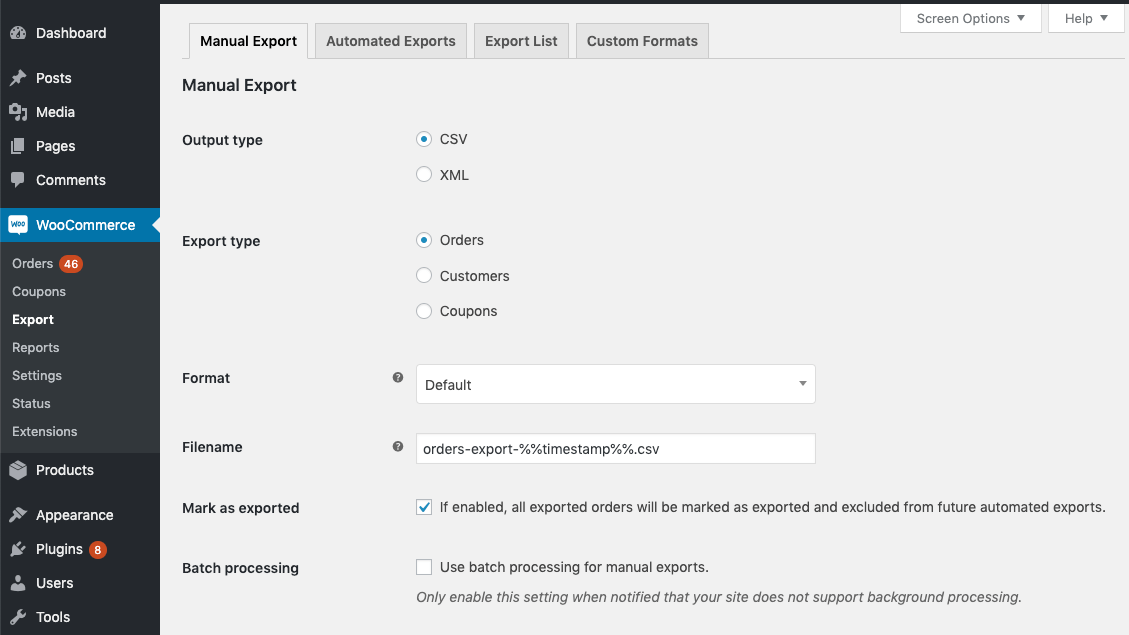
Step 3: Select Orders as the export type.
Step 4: Choose a predefined format or build a custom one. Give your file a name that includes the date range so it is easy to identify later.
Step 5: Check Mark as exported if you want to exclude these orders from future exports. This is especially useful when sending regular order batches to a fulfilment partner.
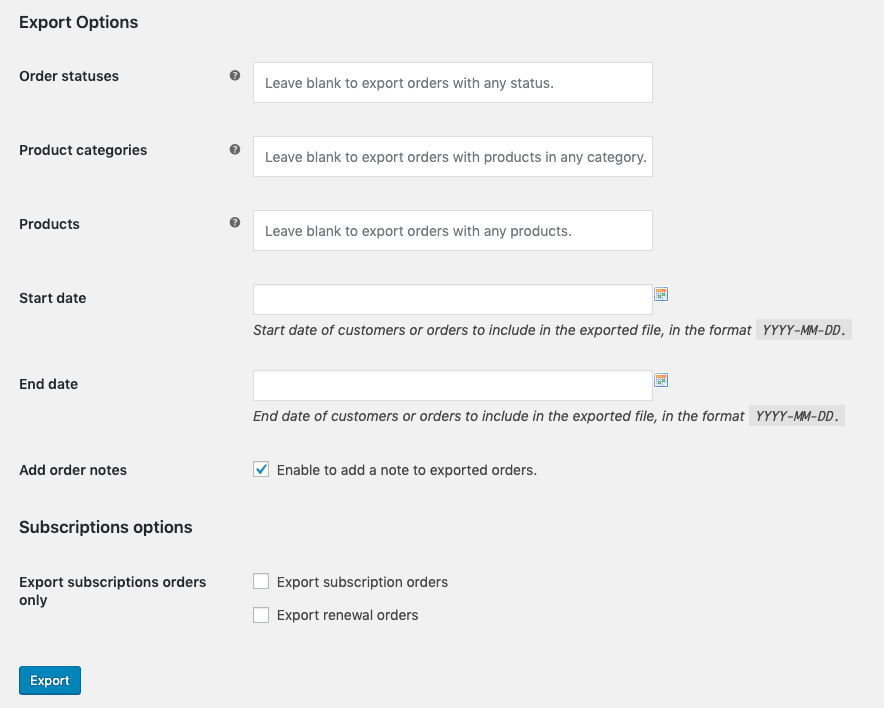
Step 6: Use the Export Options section to filter by order status, date range, product, customer email, or coupon code. Only orders matching your filters will be included in the export.
- Find your five highest-selling products and run targeted campaigns to push them further.
- Identify products that are frequently ordered together and build a bundle or combo offer around them.
- Spot your lowest-selling products and decide whether a promotion or a price change would help.
WooCommerce export customers
Exporting WooCommerce customers gives you a portable list you can use in your CRM, email platform, or loyalty programme. WooCommerce does not offer a native customer export outside of the Analytics CSV, which lacks address and order history data. For complete customer records, a plugin is the right approach.
Step 1: Go to WooCommerce > Export.
Step 2: Select your output format. CSV is the right choice for most CRM and email platform imports.
Step 3: Select Customers as the export type.
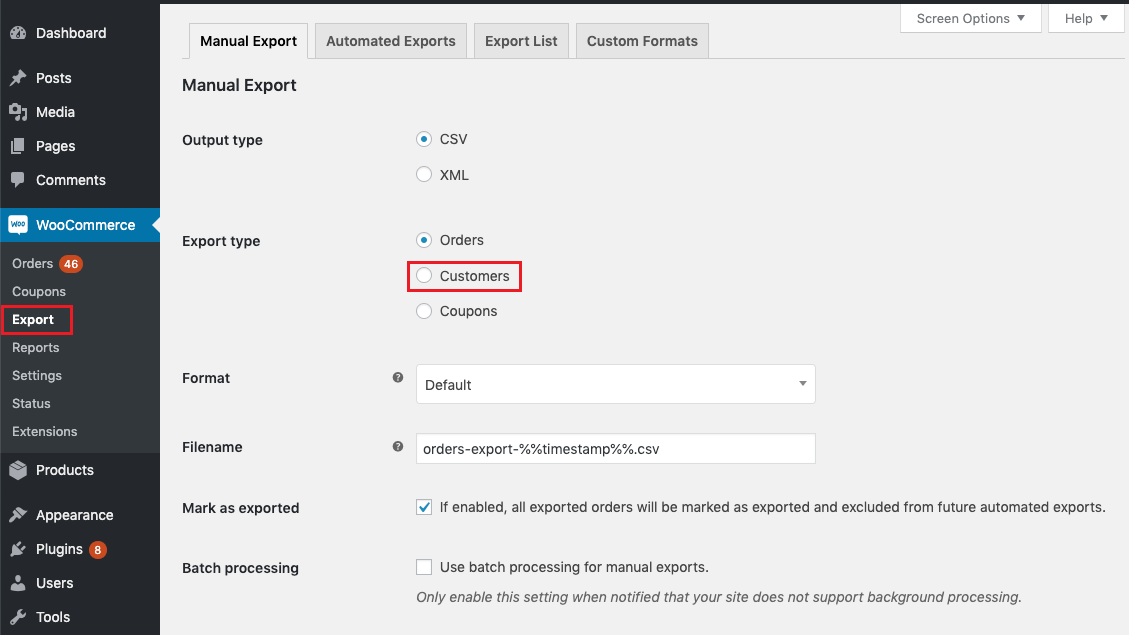
Step 4: Select a predefined format or build a custom one and provide a filename.
Step 5: Check Mark as exported if you want to exclude these customers from future runs of the same export.
Step 6: Use the Export Options section to filter by registration date, country, or other customer attributes.
- Import the list into your CRM to centralise customer interactions and purchase history.
- Upload to an email marketing platform and segment by purchase frequency, location, or total spend.
- Send gift cards or exclusive offers to customers who order above a certain threshold.
WooCommerce export coupons
Coupon export is one of the most overlooked parts of WooCommerce data management. If you are migrating your store to a new domain, duplicating a store setup, or running the same promotions across multiple sites, exporting coupons manually is tedious and error-prone at any real scale.
The SkyVerge plugin (and WebToffee’s free alternative) both support coupon exports in CSV format, including coupon code, discount type, discount amount, usage limits, expiry date, and any product or category restrictions tied to the coupon.
Step 1: Go to WooCommerce > Export.
Step 2: Select Coupons as the export type.
Step 3: Choose CSV as your format and apply any filters if you only need a subset of coupons (for example, active coupons only or coupons expiring within a specific date range).
Step 4: Click Export to download the file.
WooCommerce export subscriptions
If you run a subscription-based store using WooCommerce Subscriptions, exporting subscription data is just as important as exporting orders or customers. Subscription exports help you track recurring revenue, monitor churn, and migrate subscribers when switching platforms.
WooCommerce does not offer native subscription exports. You will need a plugin such as the Import Export Suite for WooCommerce or the official WooCommerce Subscriptions Importer and Exporter extension.
Step 1: Install and activate your chosen plugin.
Step 2: Navigate to WooCommerce > Import Export Suite and select the Export tab.
Step 3: Choose Subscription as the post type.
Step 4: Apply filters if needed. You can filter by subscription status (active, cancelled, on hold), specific products, customer email, or date range.
Step 5: Map and reorder the columns you want in your export file.
Step 6: Select CSV or XML as your format and click Export.
Automated and scheduled WooCommerce exports
Most store owners start with manual exports, but once your store reaches a certain volume, pulling data by hand every week becomes its own job. Scheduled exports solve this by running automatically on a set cadence and sending the file wherever you need it, without you having to touch anything.
This is especially useful for:
- Sending daily or weekly order batches to a fulfilment partner automatically
- Keeping your CRM or email platform in sync with your latest customer list
- Pushing sales data to your accounting software on a regular schedule
- Triggering an export immediately after an order is placed or a payment is confirmed
Plugins like SkyVerge’s Customer/Order/Coupon Export and WebToffee’s Order Import Export both support automated exports. You can configure them to send files via FTP, SFTP, HTTP POST, or email on a recurring schedule, from every five minutes to once a month, depending on your needs.
How to set up a scheduled export in SkyVerge:
Step 1: Go to WooCommerce > Export and click the Automated Exports tab.
Step 2: Click Add Export and choose your export type (Orders, Customers, or Coupons).
Step 3: Set your file format (CSV or XML), your column layout, and any filters you want to apply, such as exporting only orders with a status of Processing.
Step 4: Under Automation Settings, choose your delivery method: FTP, SFTP, HTTP POST, or email. Enter the destination details.
Step 5: Set your schedule frequency and choose whether to trigger the export immediately after an order is paid, or on a time-based recurring schedule.
Step 6: Save the export. From this point, the plugin runs the export automatically without any manual action needed.
Choosing the right WooCommerce export plugin
There is no single best plugin for every store. The right choice depends on what you need to export, how often, and whether you need analytics alongside your export capability. Here is a straightforward comparison of the three most reliable options available in 2025 and 2026.
SkyVerge — Customer/Order/Coupon Export
SkyVerge is the most established paid option and the one most frequently recommended for stores that need reliable, automated exports with custom formatting.
Best for: Stores that export regularly to fulfilment partners, CRMs, or accounting platforms and need precise control over column layout and delivery method.
What it covers: Orders, customers, coupons, and refunds in CSV or XML. Supports automated exports via FTP, SFTP, HTTP POST, and email. Custom format builder included. Runs exports asynchronously in the background so large exports do not affect store performance.
Price: $79 per year for a single site.
HPOS compatible: Yes.
Advanced Order Export for WooCommerce
Advanced Order Export for WooCommerce is a free WordPress.org plugin with a generous feature set that covers the most common order export scenarios without any cost. It is one of the most actively maintained free export plugins available, with a detailed changelog that includes dedicated HPOS compatibility fixes across multiple recent releases.
Best for: Stores that need solid, flexible order exports without a recurring cost. A good starting point before committing to a paid plugin.
What it covers: Order exports in CSV, Excel, XML, JSON, PDF, and HTML. Supports filtering by order status, date range, product, customer, and coupon. Custom fields from orders, products, and coupons can all be included. A premium version is available for advanced scheduling and delivery options.
Price: Free for core features. Premium version available for automated and scheduled exports.
HPOS compatible: Yes. Multiple HPOS-specific fixes confirmed in recent changelogs.
WP All Export
WP All Export takes a different approach with a drag-and-drop interface that lets you build any export format visually without touching a column mapping screen. It is the most flexible option for stores with complex or non-standard export requirements.
Best for: Stores that need highly customised export formats, exports that combine multiple data types, or XML feeds for external systems with strict formatting requirements.
What it covers: Orders, products, customers, and any custom post type. Supports CSV, Excel, and XML. No limit on the number of orders you can export. Large exports can be split across multiple files automatically.
Price: Free for basic exports. WP All Export Pro required for full WooCommerce order and customer export functionality.
HPOS compatible: Yes.
Putler — when you need more than just an export
Putler approaches this differently from the plugins above. Rather than being a dedicated export tool, it is an analytics platform that connects your WooCommerce store (or multiple stores) and gives you exports as part of a broader analytics capability.
WooCommerce export and HPOS: what you need to know
If your store was created on or after October 2023, or if you have updated to WooCommerce 8.2 or above, your store is likely running High Performance Order Storage (HPOS). This is a significant change to how WooCommerce stores order data, and it directly affects how export plugins interact with your database.
What HPOS is
Before HPOS, WooCommerce stored all order data inside WordPress’s generic posts and postmeta tables. This worked well for small stores but caused serious performance problems at scale, with slow order searches, backend timeouts, and bloated database tables.
HPOS moves order data into dedicated, purpose-built database tables optimised specifically for WooCommerce queries. The result is considerably faster order processing, up to 5x faster order creation and up to 40x faster backend filtering on stores with large order volumes.
Why it matters for exports
Older export plugins that read order data directly from the legacy wp_posts and wp_postmeta tables may not work correctly on HPOS-enabled stores. If a plugin has not been updated to use WooCommerce’s CRUD layer for reading order data, it will either miss orders entirely or throw errors on export.
How to check if your export plugin is HPOS compatible:
Step 1: Go to WooCommerce > Settings > Advanced > Features in your dashboard.
Step 2: If HPOS is enabled, you will see a notice listing any installed plugins that are not yet compatible.
Step 3: For any flagged plugin, check the plugin’s WordPress.org listing or changelog for a specific mention of HPOS compatibility or a tested WooCommerce version of 8.2 or above.
Step 4: If a plugin you rely on is not compatible, either switch to a compatible alternative (SkyVerge, WebToffee, and WP All Export are all HPOS compatible) or keep Compatibility Mode enabled in your WooCommerce settings temporarily while you transition.
Which WooCommerce export method is right for you?
Getting data out of WooCommerce is straightforward once you know which method matches your situation. Here is a quick way to decide.
If you need a fast, high-level CSV of your orders, products, or customers and do not want to install anything, start with WooCommerce Analytics under WooCommerce > Analytics. It is built in and takes about two minutes.
If you need a free option for regular order exports with solid filtering and format flexibility, Advanced Order Export for WooCommerce covers most scenarios at no cost and is actively maintained for HPOS compatibility.
If you need automated exports on a schedule, custom column layouts, and delivery via FTP or email, SkyVerge’s Customer/Order/Coupon Export at $79 per year is the most reliable paid option for that use case.
If you need highly customised export formats or XML feeds for external systems, WP All Export gives you the most flexibility through its drag-and-drop format builder.
If you are managing multiple WooCommerce stores and want exports alongside proper analytics, customer segmentation, and revenue forecasting in one place, Putler gives you all of that without needing separate tools for each function.
Whichever method you choose, connecting your store to a proper reporting tool will help you make better use of the data you export. Putler takes less than five minutes to set up and gives you an accurate, real-time view of your business across all connected stores.
FAQ
How do I export WooCommerce orders?
WooCommerce does not include a native order export tool beyond WooCommerce Analytics. For a quick high-level CSV, go to WooCommerce > Analytics > Orders, set your date range, and click Download. For complete order data including line items, shipping addresses, and custom fields, you will need a plugin.
Advanced Order Export for WooCommerce is a well-maintained free option. SkyVerge’s Customer/Order/Coupon Export is the best paid option for stores that need automation and custom formatting. For more detail, here are strategies related to WooCommerce order exports.
How do I export WooCommerce products?
Product export is built into WooCommerce core. Go to WooCommerce > Products and click the Export button at the top. You can choose which columns to include, filter by product type or category, and download as a CSV.
If your products have custom fields from other plugins, check the Export custom meta option before generating the file. Here is a full guide to WooCommerce product exports.
How do I export WooCommerce customers?
For a basic customer CSV, go to WooCommerce > Analytics > Customers and click Download. This gives you location and lifetime value data but does not include full address records or order history.
For complete customer exports, use a plugin like SkyVerge or Advanced Order Export for WooCommerce, which include billing and shipping addresses, order counts, and custom customer fields.
How do I export WooCommerce data to CSV?
Every WooCommerce Analytics report (orders, products, customers, categories, coupons) has a CSV download button accessible from WooCommerce > Analytics.
For more detailed or customised CSV exports, export plugins like SkyVerge, Advanced Order Export, and WP All Export all support CSV as a primary format with full control over which fields are included.
How do I export WooCommerce orders for free?
There are two free routes. The first is WooCommerce Analytics: go to WooCommerce > Analytics > Orders, apply your filters, and click Download.
This gives you a high-level order summary CSV with no plugin required. The second is the Advanced Order Export for WooCommerce plugin, which is free on WordPress.org and gives you considerably more control over fields, filters, and file formats including CSV, Excel, and XML.
What is WooCommerce product import export?
WooCommerce has a built-in product importer and exporter accessible from WooCommerce > Products. It handles standard product imports and exports in CSV format, including product variations, categories, and stock data.
For more advanced scenarios, including variable products with complex attributes, scheduled imports, or custom product types, a dedicated WooCommerce product import export plugin gives you additional field mapping and automation options.
Is my WooCommerce export plugin compatible with HPOS?
If your store is running WooCommerce 8.2 or above (which is the default for any store created after October 2023), it is likely using High Performance Order Storage. To check plugin compatibility, go to WooCommerce > Settings > Advanced > Features.
Any installed plugins that are not HPOS compatible will be flagged there. You can also check the plugin’s WordPress.org listing or changelog for a specific mention of HPOS compatibility. All three plugins covered in this guide (SkyVerge, Advanced Order Export for WooCommerce, and WP All Export) are HPOS compatible.
What format should I export WooCommerce data in — CSV or XML?
CSV is the right choice for most use cases. It opens in Excel and Google Sheets, imports cleanly into most CRM and email platforms, and is easy to review and edit.
XML is better suited for integrations with ERP systems, fulfilment providers, or external tools that require a structured feed format.
If you are exporting orders for Stamps.com, for example, a dedicated XML format is required. Most export plugins support both formats, so you can choose based on where the data is going.
When should I export WooCommerce products in bulk?
There are several situations where a bulk product export is the right move. When setting up a new store with an existing catalogue, exporting products from your current store lets you import them in bulk rather than recreating each one manually.
When establishing a relationship with a warehouse, they will typically need a full product file with SKUs, dimensions, and descriptions. When expanding to marketplaces like Amazon, eBay, or Etsy, a bulk CSV export is the starting point for uploading your catalogue.
When updating product information in bulk, such as pricing changes or discontinued variations, exporting, editing, and reimporting is considerably faster than editing products individually.