
Suppose you have a VOD channel with a 30-day free trial. How does this work?
You ask users to enter their billing details in advance, and only after the customer’s engagement exceeds 30 days, the same is charged for the account, and this would then occur in tandem every month until the user deactivates their account. Sounds good.
The question that arises here is how? How do you set up a system where your customers do not need to enter manual payments every time? Or, how do you automate the process of regularly deducting money directly from the customer’s account?
Through subscriptions!
Yes, that’s right. Subscription is one such feature that enables merchants to charge a user’s account on a recurring basis. For this to function effectively, customers need to authorize merchants, and this is done when they subscribe to your channel.
PayPal Subscriptions: Steps to set up recurring payments
Now that we are clear on what subscriptions are, we need to know how to set them up. While there are many ways to set up subscriptions, one that is universally accepted is PayPal recurring payments.
If you are unsure how to proceed with the configuration process, here is a step-by-step guide to set up your PayPal subscriptions.
Step one: Enter subscription details
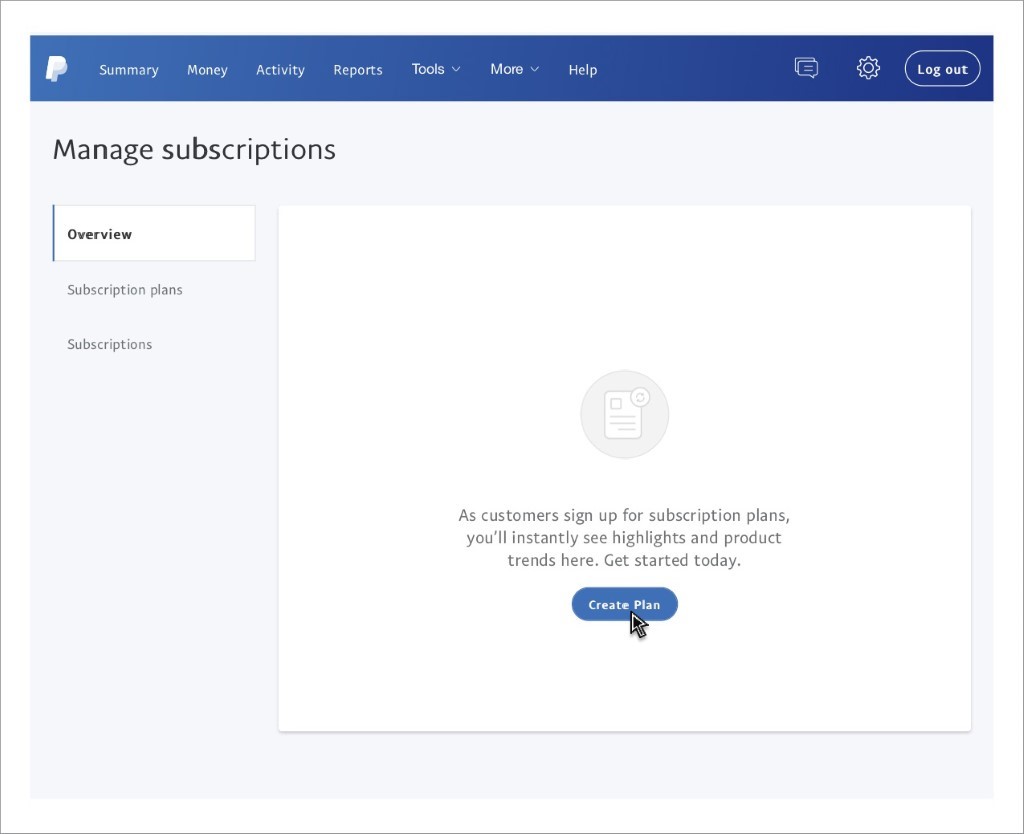
- To begin with, log in to your business account as registered with PayPal.
- Hover around the page and click on Manage Subscriptions. Since we are here for the first time and do not have any existing plans, we need to create one. To do so, click on Create Plan.
The next page will ask you to enter the details of the services and products included in the plan.
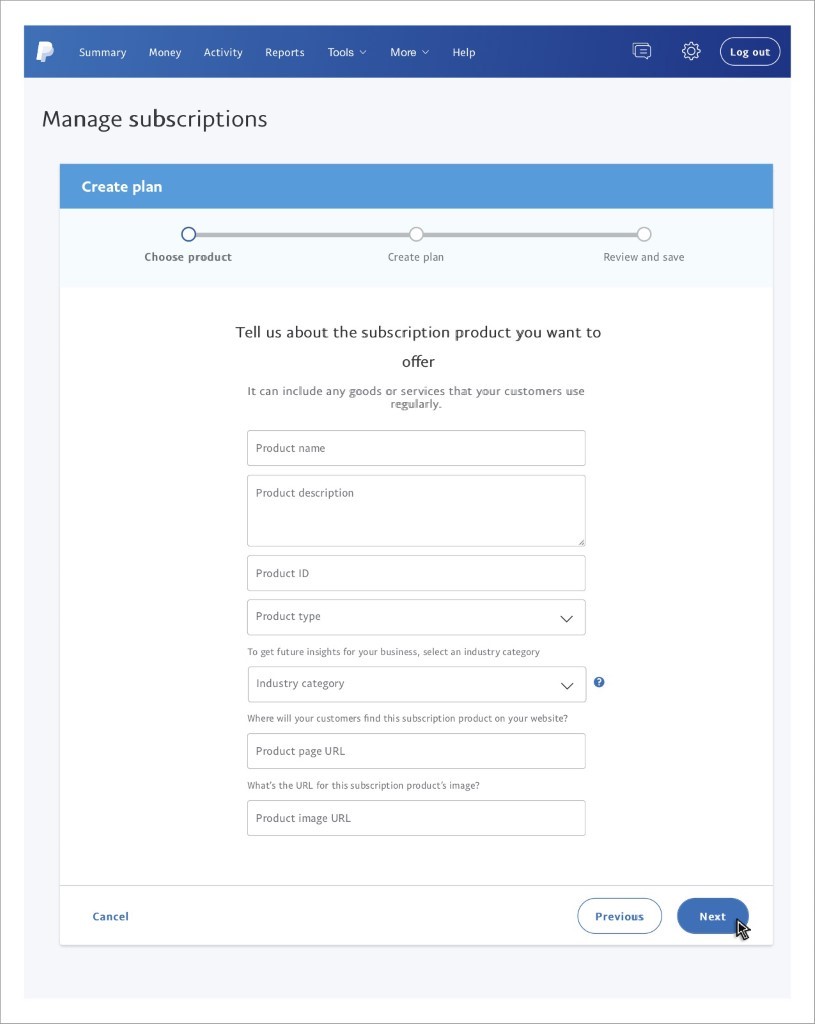
- Enter the product name, fill in the description, followed by the unique product ID.
- Next, you need to choose from the list the product type.
- Physical goods,
- Digital goods, or
- Service.
Now, enter the category of the industry that suits your business. For instance, we have chosen the VOD channel here, so the industry would be media and entertainment.
- Next, paste the product page URL, then the image.
- Click Next.
Here we need to select our pricing plan.
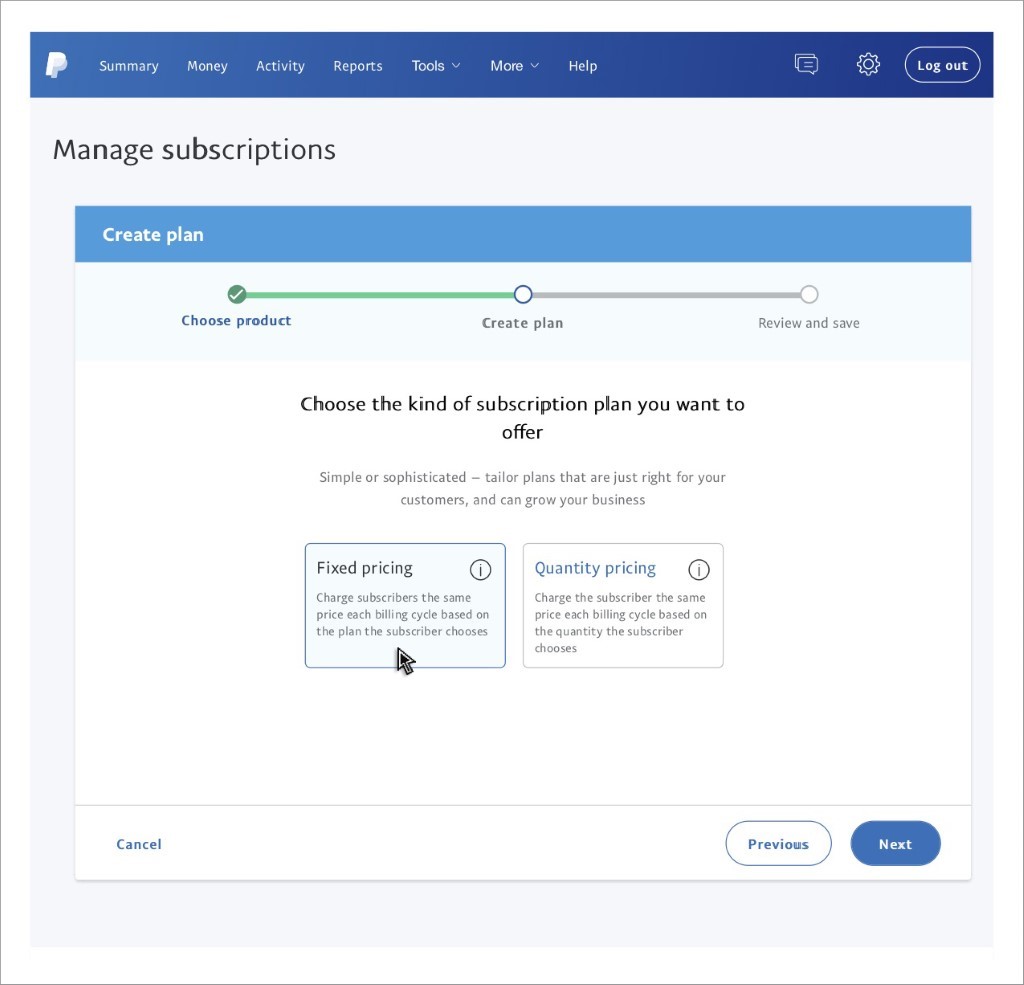
- Quantity-based pricing enables merchants to bill customers again for the quantity of products they choose.
- Fixed-based pricing enables merchants to bill customers again for the plans they pick.
Plan name & description
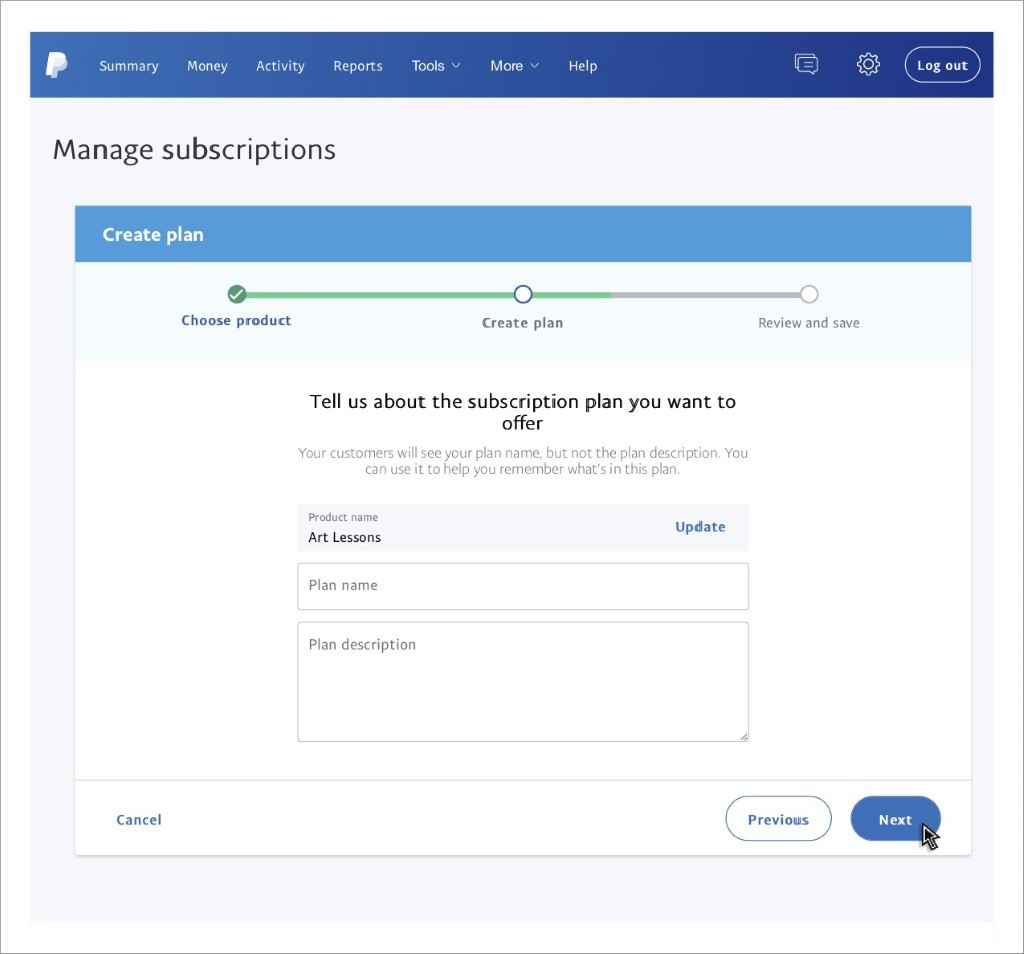
- Add a unique name to the plan. Such as we have basic, premium, high-rated, etc.
- Add a few details about the plan
- Click next.
Pricing Details
Now that we are mostly done, it’s time to configure the pricing norms.
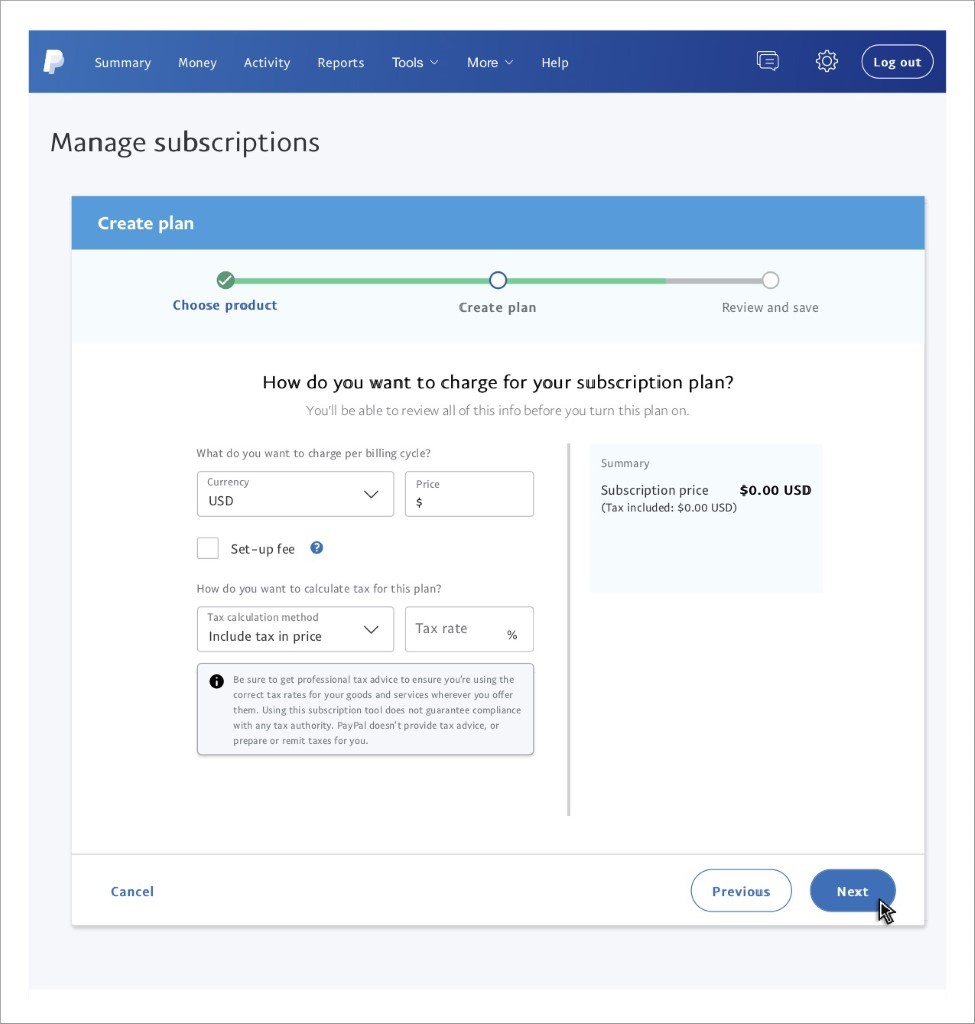
- Enter the currency.
- Feed in the price.
- Select if there is a one-time set-up fee. (Note: this is not mandatory)
- Pick the tax calculation method and enter the rate at which the same would be imposed.
- Click Next.
Billing Details
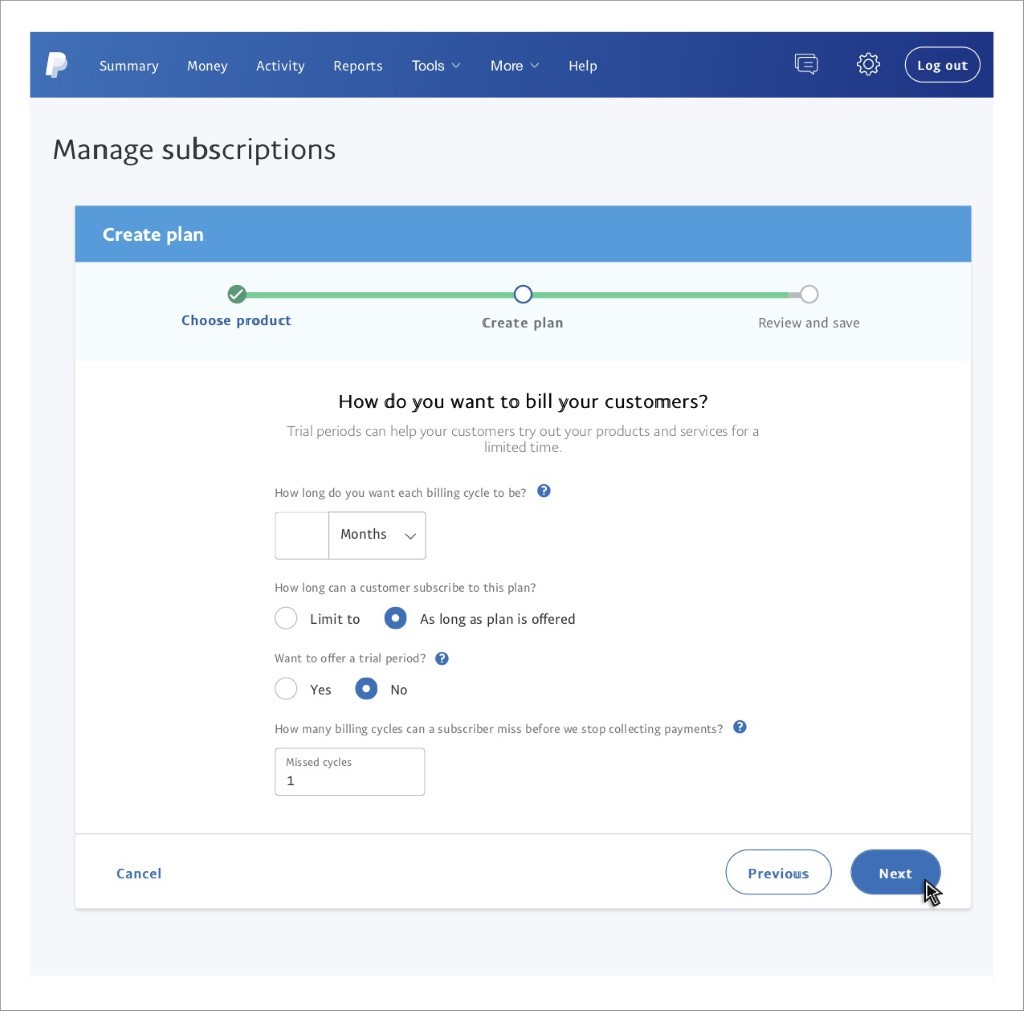
- Here, you need to choose the plan’s length, duration, and whether it is a monthly plan or a yearly plan
- Select if there is a trial period
- Enter the billing cycle post in which money collection is paused
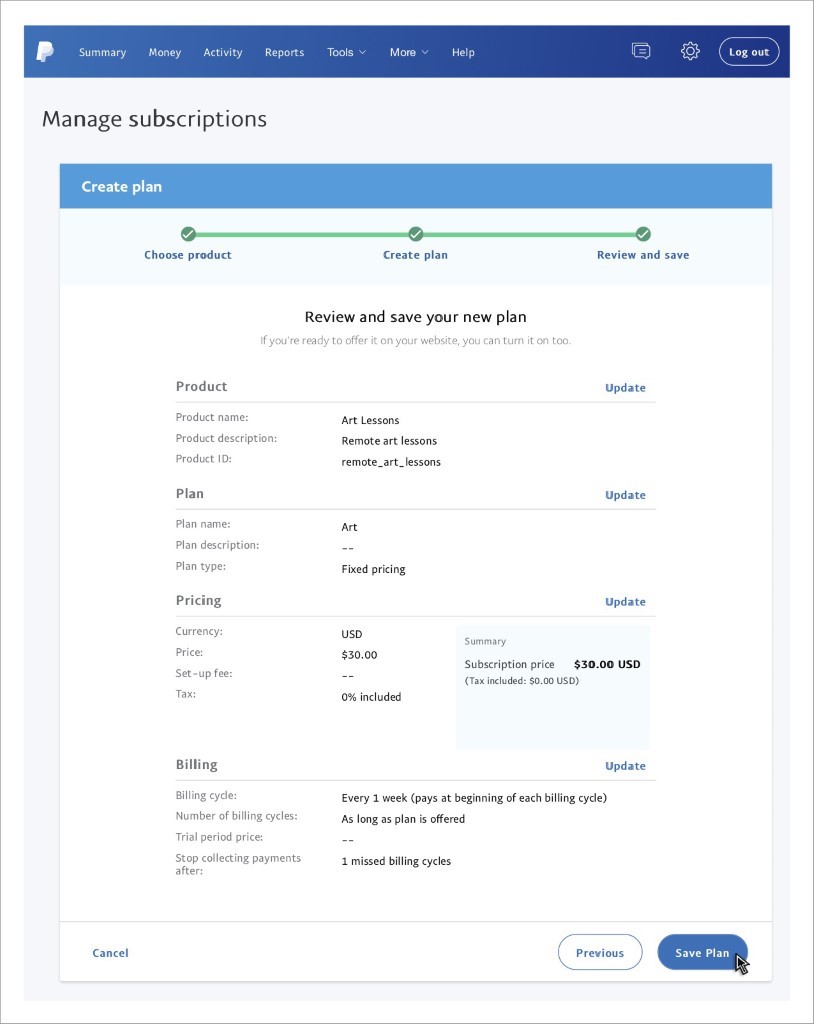
Confirm the details and save them.
Click on “save plan” to get ahead with your PayPal subscriptions.
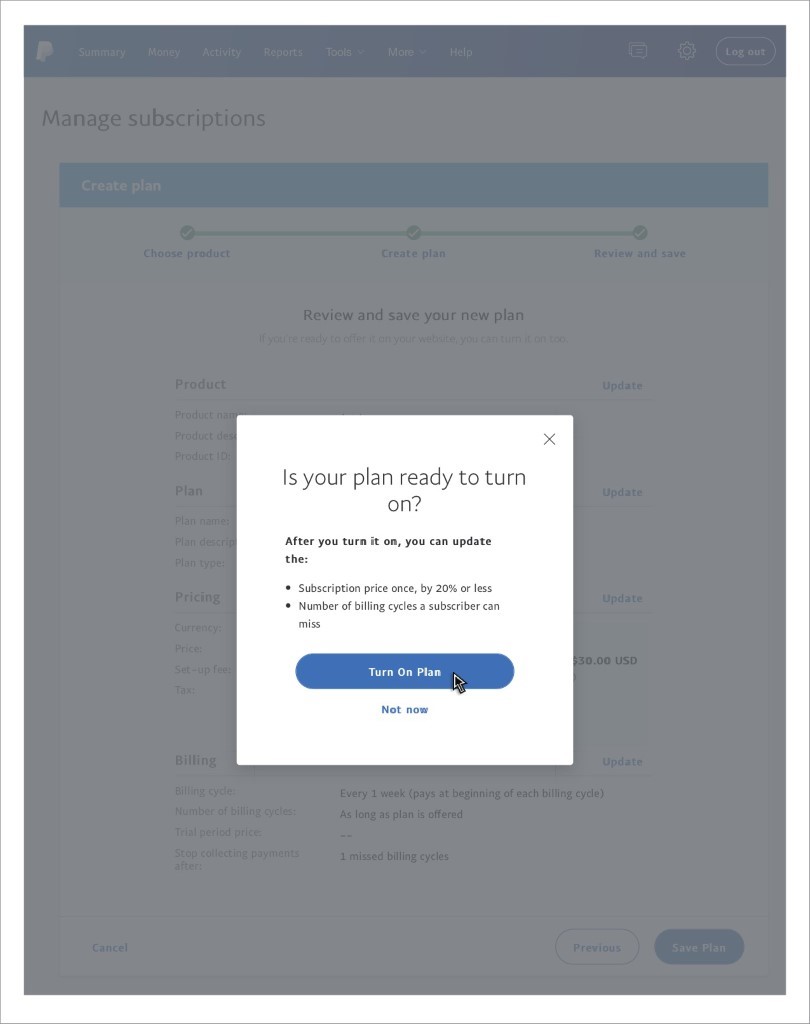
Once you have completed the steps above, you will start receiving automatic payments from your PayPal account.
PayPal recurring payments: Perks & bottlenecks
Besides being one of the most widely accepted online payment platforms, PayPal offers a lot more. One of these is the ease of collecting recurring payments.
For one, PayPal is one of the widely used and accepted forms of payment, and secondly, it has an easy-to-use interface that simplifies the overall process of creating subscriptions. It allows you to provide recurring payments and create a predictable revenue channel.
Pros of PayPal subscriptions
- Schedule payments
- Create and promote plans in more than 100 currencies
- One-click subscription cancellation
- Automate payments and corresponding notifications
- Get hold of subscription reports for PayPal. (A detailed report on the transactions made through subscriptions within the said duration)
Cons of PayPal Subscriptions
- Setting up PayPal for subscriptions can be a little complicated for people who don’t use the platform.
- Upgrading or downgrading plans is an erroneous task.
- Certain bugs automatically cancel subscriptions, even when the user does not request it.
- The IPN API used for sending notifications suffers from software glitches and serious bugs.
Apart from the above, one of PayPal’s controversial aspects is its reporting services. Having an online business and generating reports to study purchase patterns is necessary. And to everyone’s surprise, PayPal offers a reporting mechanism that lets merchants track sales, identify their premium customers, and target their audience more effectively.
If you’re evaluating other payment processors alongside PayPal, understanding how Stripe vs Braintree compares can help you make an informed decision for your subscription business.
Common PayPal subscription mistakes to avoid
Setting up PayPal subscriptions seems straightforward until something breaks. Most merchants make the same handful of errors that lead to failed payments, frustrated customers, and lost revenue. Here’s what to watch out for.
Not enabling Vaulting
Vaulting allows PayPal to securely store customer payment details for future automatic charges. Without it enabled, your subscription buttons may not appear at checkout, or customers won’t be able to complete recurring purchases. This is especially common when integrating PayPal with platforms like WooCommerce. Always verify Vaulting is active in your PayPal business settings before launching any subscription product.
Misconfiguring trial periods
PayPal has specific rules for trial durations. If your trial period exceeds 90 days and isn’t divisible by 7, 30, or 365, PayPal will round it to the nearest compliant number. This can confuse customers who expected a different trial length. Stick to standard intervals like 7 days, 14 days, or 30 days to avoid unexpected billing dates.
Ignoring payment failure thresholds
When a payment fails, PayPal automatically retries every 5 days, up to twice per billing cycle. If you haven’t configured your payment failure threshold properly, subscriptions can get suspended without you realizing why. Set clear thresholds and monitor your failed payments dashboard regularly.
Skipping webhook and IPN setup
Instant Payment Notifications keep your system in sync with PayPal. Without proper IPN configuration, your database won’t know when a subscription is cancelled, paused, or renewed. This leads to access issues where paying customers get locked out or cancelled users retain access.
Choosing the wrong pricing model
PayPal offers quantity-based and fixed-based pricing. Picking the wrong one for your product creates billing headaches later. Fixed pricing works for standard subscriptions like software or memberships. Quantity-based suits products where customers order varying amounts each cycle.
Not testing in the sandbox first
Launching a subscription plan without sandbox testing is asking for trouble. PayPal’s sandbox environment lets you simulate transactions, test edge cases, and verify your integration works correctly before real money is involved.
PayPal subscription fees explained
Understanding what PayPal charges for recurring payments helps you price your subscriptions profitably. The fee structure isn’t complicated, but the costs add up quickly on small transactions.
Standard transaction fees
For each successful subscription payment processed in the US, PayPal charges between 2.9% and 3.49% plus a fixed fee of $0.30 to $0.49, depending on your checkout integration. The exact rate depends on whether you’re using standard checkout, advanced checkout, or the subscriptions API directly.
International payment costs
When a subscriber pays from outside your country, expect an additional 1.5% fee for currency conversion. If you’re selling to a global audience, this can significantly impact margins on lower-priced subscriptions.
No monthly platform fees
Unlike some subscription management platforms, PayPal doesn’t charge a monthly fee for using its recurring payments feature. You only pay when transactions are processed. This makes it attractive for businesses testing subscription models without committing to fixed overhead.
Volume discounts
If you process more than $3,000 per month, you may qualify for reduced rates. Contact PayPal directly to negotiate volume-based pricing. The savings become meaningful once you scale past a few hundred active subscribers.
How fees impact small subscriptions
Here’s where math matters. On a $10 monthly subscription, you could lose $0.79 to $0.84 per transaction (assuming 3.49% + $0.49). That’s roughly 8% of your revenue gone to processing. On a $50 subscription, the same fee structure takes about 4.5%. The lower your price point, the harder fees hit your margins.
Calculating your true cost
Before setting subscription prices, factor in PayPal’s cut plus any failed payment recovery costs. A $9.99 subscription that looks profitable on paper might leave you with less than $9 after fees and the occasional chargeback.
PayPal reporting woes
PayPal offers a range of options for report generation. Despite offering a range of features, PayPal’s subscription reporting faces serious criticisms.
- The time taken to load transactions is very slow
- Merchants have to spend a lot of time manually searching for records
- The decryption of reports may require the expertise of a professional due to its complexities.
- Generating custom reports is a hectic and energy-draining process. Locating data might get tricky as you add more constraints.
- No data related to customer purchases/missing goods.
Scared? You might definitely not want to go ahead with PayPal subscriptions for your online business. But wait, have you heard about Putler?
If you are among the merchants who are highly fascinated with the perks of PayPal Subscriptions and want to leverage the platform and increase reach, Putler is one tool that will simplify the entire process for you. Basically an all-in-one tool, Putler has tons of features when it comes to operating and optimizing an online store.
For a deeper dive into what PayPal’s native reports offer and where they fall short, check out this detailed guide on PayPal reporting.
For the uninitiated, Putler has recently planned to bolster PayPal Subscriptions and help online merchants benefit from the platform. Don’t worry, you don’t have to be a Putler user to leverage services.
Here is an informative guide on configuring Putler and adding PayPal Subscriptions.
Steps to connect your PayPal to Putler

➔ To begin, you first need to sign up for Putler. Visit My Account and enter the login credentials (in case you already have an account)
➔ Now, move to Profile -> Settings -> Integrations -> Add
➔ Here, under the Account Type Category, click on the drop-down menu and select PayPal.
➔ Click on Continue. On the next page, you will be asked to enter your PayPal credentials.
➔ Once validated, you will have instant reports of your business.
If you’re managing multiple storefronts or regional accounts, Putler also supports connecting multiple PayPal accounts so you can view consolidated or separate reports from one dashboard.
Why use Putler?
Integration is fine, but one thing that is still not clear is why you should use Putler. Just because you can generate reports easily, does that automatically make Putler the best?
Well, that’s not it.
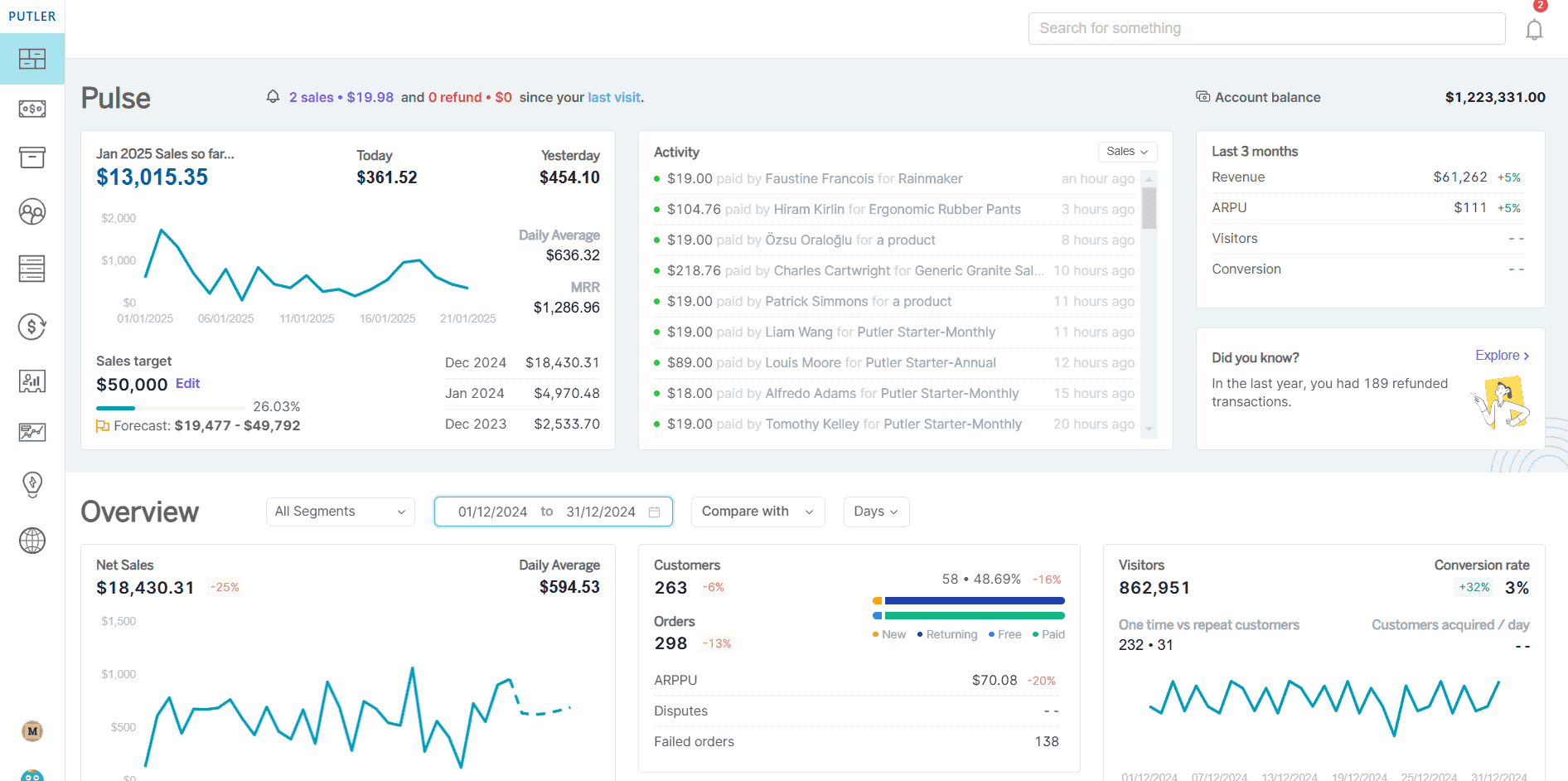
Putler is a customizable tool suitable for all kinds of accounts and features. Here, we emphasize the PayPal Subscription Reports rendered by the Putler. Even though PayPal has its own built-in reporting mechanism, it is limited in terms of features and functionalities.
Go beyond reports, Putler gives growth insights
On the other hand, Putler is not just a reporting tool but also facilitates the use of different metrics to generate detailed insights and corresponding information. Putler aims to help organizations boost their revenue 3x with ease.
Beyond PayPal, Putler also provides comprehensive analytics that help you understand customer behavior, identify trends, and spot opportunities you might otherwise miss.
Carry out tasks and make decisions quickly
Whether it’s managing subscriptions, issuing refunds, generating reports, or enabling better decision-making, Putler is at the forefront of it all.
Actionable real-time data at your fingertips
Putler has an intuitive dashboard with hordes of filters that can be applied to generate PayPal Subscription Reports. This data can be easily imported into a CSV file to gather real-time information and drive decisions. Unlike PayPal, Putler has a quick retrieval process and hundreds of built-in PayPal subscription metrics to customize the report.
View PayPal subscriptions quickly
Once you connect your PayPal account to Putler, you can view all your PayPal subscriptions in one place. You can easily search for any subscription using Putler’s intuitive search, saving a ton of time.
Manage PayPal subscriptions more securely
Instead of providing critical PayPal credentials to support personnel, simply give them support access to Putler. They won’t have access to your company’s financials, but they will be able to carry out support tasks like managing or canceling subscriptions.
Issue refund/cancel subscriptions with ease
Similar to managing subscriptions, your support personnel can process refunds from within Putler as well.
All in all, Putler is the best tool that enhances PayPal Subscriptions and Reporting.
Conclusion
Operating an online business, offering loads of features, and providing subscription facilities are definitely growth hacks for your business. However, not everyone can benefit from the above. While some manage to pull the plug, others grapple with deciding what to do and how to do it.
If you, too, are stuck in your customer’s expectations and purchase patterns, or if your subscriptions aren’t showing good results, it’s time you used a reporting and analytics tool. Putler is an excellent choice here. It comes with a free trial period, giving you ample time to test and decide whether it is worth your investment.
FAQs
How do I manage subscriptions through PayPal?
Log in to your business account, hover around until you spot “Manage Subscriptions,” and click on it. You’re in subscription central. From here, you can create new plans, peek at existing ones, or tweak things as needed. But here’s a pro tip: PayPal’s interface can be a bit tricky. Give Putler a try; it makes managing PayPal Subscriptions easier and offers extra features to simplify your tasks.
Is PayPal good for subscriptions?
PayPal offers both advantages and disadvantages for managing subscriptions. Pros include scheduled payments, support for over 100 currencies, one-click subscription cancellation, and automated notifications. However, setup can be complicated, upgrading plans can be challenging, and some users report issues with automatic cancellations. PayPal’s reporting system, while comprehensive, can be slow and complex to navigate.
Can PayPal block subscription payments?
Yes, PayPal can block subscription payments under certain circumstances. This may occur if there are insufficient funds in the customer’s account, if the customer’s payment method has expired, if the customer has manually cancelled the PayPal recurring payments, or if PayPal detects suspicious activity.
How do I block a company from charging my PayPal account?
To block a company from charging your PayPal account:
- Log in to your PayPal account
- Go to Settings
- Click on Payments
- Select “Manage automatic payments”
- Find the company’s subscription and click on it
- Click “Cancel” or “Cancel automatic billing”
- Confirm your decision
This process will stop future automatic payments to the selected company. If you encounter any issues or need further assistance, contact PayPal’s customer support.