
WooCommerce is a WordPress plugin that turns your website into an eCommerce store in a few clicks. It covers the basic selling functions well, but running a successful store takes more than that. It takes analytics to see how the store is actually performing.
Getting the most out of a WooCommerce store means using the right analytics tools. There are plenty of options, but Google Analytics is the one no store owner should skip.
Why you need Google Analytics for a WooCommerce store
Google Analytics gives you insight into who your audience is and how they behave, which is the foundation for better marketing and more targeted communication. It answers questions like:
- What do your visitors like?
- Which products are they interested in?
- Where do they come from?
- How often do they visit your store?
With WooCommerce Google Analytics, you can read your audience’s activity, learn what’s working and what isn’t, and put your budget where it actually pays off. Most eCommerce analytics follows the same loop:
- Set a goal.
- Collect data through analytics tools.
- Build and run strategies based on that data.
- Track performance through metrics.
- Spot what can be improved.
- Adjust the strategy and repeat.
Google Analytics is the most popular analytics platform because it’s thorough, easy to use, and free. It’s a solid base for making data-driven decisions about your WooCommerce store.
How to set up Google Analytics for your WooCommerce store
Setting up WooCommerce Google Analytics for advanced reporting is straightforward. Here’s the step-by-step.
Step 1: Create a Google Analytics account using a Gmail ID.
Step 2: Get the ‘Google Analytics Pro‘ plugin for integration. The Pro version has more detailed reporting than the free one, but the free version works if that’s what you need.
Step 3: Upload the plugin to WordPress. Go to WordPress > Plugins > Add new > Activate.
Step 4: Connect your site to GA. Go to WooCommerce > Settings > Integrations and open the ‘Google Analytics Pro’ section.
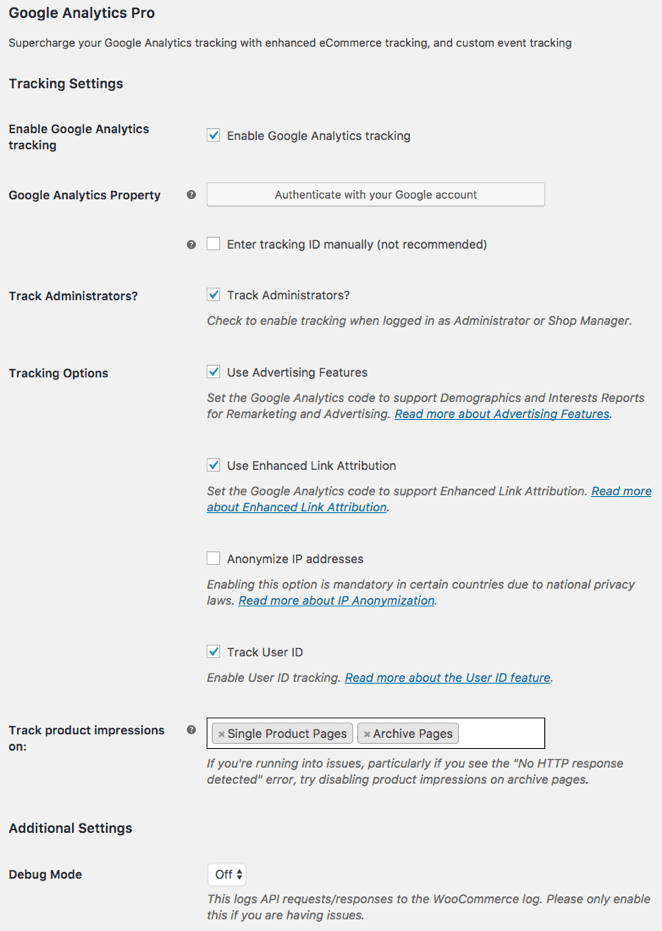
Check the box ‘Enable Google Analytics Tracking’, then click ‘Authenticate with your Google Account’ and authenticate the account set up with GA.
Step 5: GA has customisable settings for analysis and reporting. You can track checkout behaviour by enabling ‘Checkout Behaviour Analytics’ in the eCommerce settings, and customise your checkout steps by adding or removing the ones relevant to your business, then clicking ‘Submit’. Save everything and you’re done.
Don’t forget WooCommerce’s built-in analytics reports
WooCommerce Google Analytics reports are useful, but it’s worth keeping an eye on the built-in WooCommerce analytics dashboard too. WooCommerce ships with its own reporting, covering the following.
WooCommerce order reports
Order reports give you insight into your store’s orders and sales, which you can filter by date, last 7 days, month, year, or a custom range.
WooCommerce customer reports
Customer reports show details of the registered users and guests who visited your store.
WooCommerce stock reports
Stock reports tell you whether inventory is full or running low, and how many units have sold.
WooCommerce tax reports
Tax reports show ‘Taxes by Code’ (by state) and ‘Taxes by Date’, both filterable to your needs. For a deeper cut of native reporting, the WooCommerce advanced reports guide goes further.
Limitations of built-in WooCommerce analytics and Google Analytics
WooCommerce and Google Analytics reports are both useful, but together they still don’t give you the full picture of your store’s performance. The main limitations:
- Overwhelming volume of data.
- Confusing metrics.
- No advanced reporting.
- Thin insights.
- No practical way to handle multiple stores.
It’s easy to feel buried in complex GA data. What you actually need is concrete insight to grow your eCommerce business, and that’s where Putler comes in. It combines the best of WooCommerce and Google Analytics without the setup hassle, turning raw data into insight you can act on.
An all-in-one WooCommerce and Google Analytics reporting solution: Putler
Putler works like a data assistant for your store. It collects, filters, and reports all your WooCommerce and Google Analytics data in one place, so you can see what’s happening without digging through separate tools.
The useful part is that it turns overwhelming data into actionable insight through clear charts and graphs. No deciphering confusing metrics or sorting endless reports to get your WooCommerce analytics export done.
For a WooCommerce store owner who wants to make sense of store data, Putler is a strong option. Unlike most WooCommerce order reports plugins, it’s easy to set up. No hours of instructions, no hiring an expert. Here’s how simple it is.
Steps to connect your WooCommerce store to Putler
- Log in to Putler.
- Click settings.
- Click WooCommerce and enter your store URL.
- Log in to your WooCommerce store.
- Putler automatically installs the WooCommerce Putler connector plugin on your site via FTP.
Steps to connect your Google Analytics to Putler
Connecting Google Analytics to Putler is quick and gives you valuable insight into your eCommerce business. Follow these steps.
- Log in to Putler.
- Click settings.
- Click Google Analytics and connect your Google account.
- A window opens asking you to sign in to your Google Analytics account.
- Once signed in, allow Putler to access your analytics data.
- Select the views you want to connect in Putler.
- Hit save. Your Google Analytics data source is now connected.
Integrating WooCommerce and Google Analytics should take less than a few minutes. Once connected, Putler pulls in your data automatically and shows in-depth reports on products, sales, customers, and website audience.
What features does Putler provide that WooCommerce and Google Analytics lack?
Putler adds a range of features neither WooCommerce Analytics nor Google Analytics offers: reports on sales, products, customers, and subscriptions, plus actionable insight and the ability to track the metrics that matter. Here’s a closer look.
Customer history
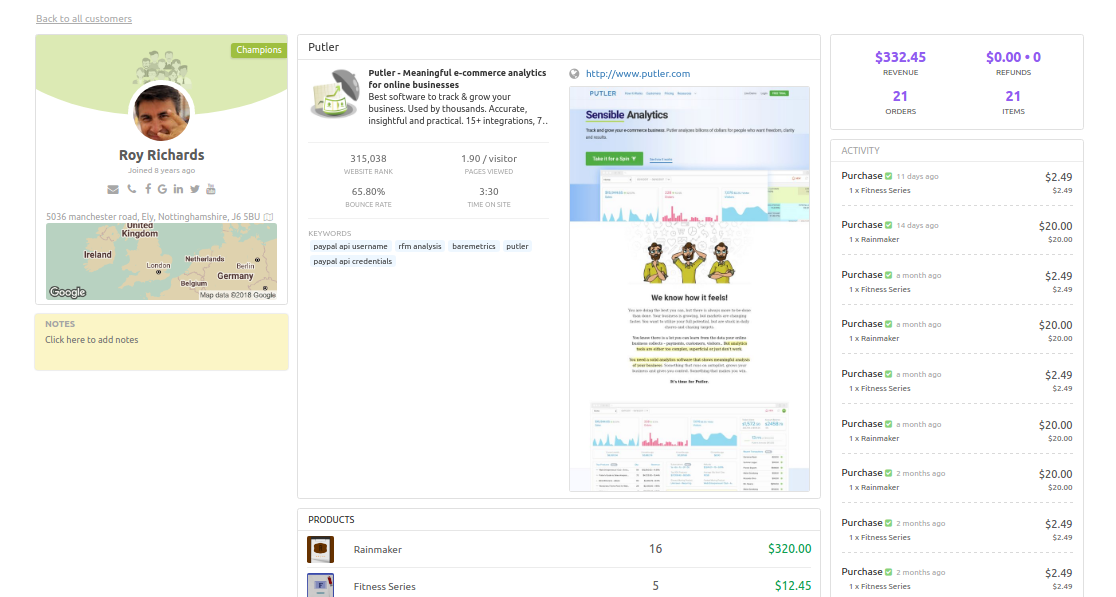
Putler gives you a full report on each customer’s history, from their activity to their buying habits. You and your team can use it to reach specific customers with tailored communication, which shapes the customer journey in your favour.
Customer segmentation
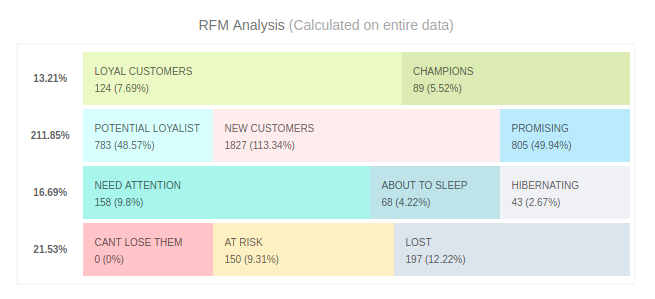
This report breaks down customer activity by recency, frequency, and monetary behaviour, alongside stats like visits, purchases, and location. From it you can build target groups like loyal customers, champions, and hibernating customers, which makes niche targeting far easier. WooCommerce sellers can go deeper on this with dedicated WooCommerce product filters.
SaaS metrics
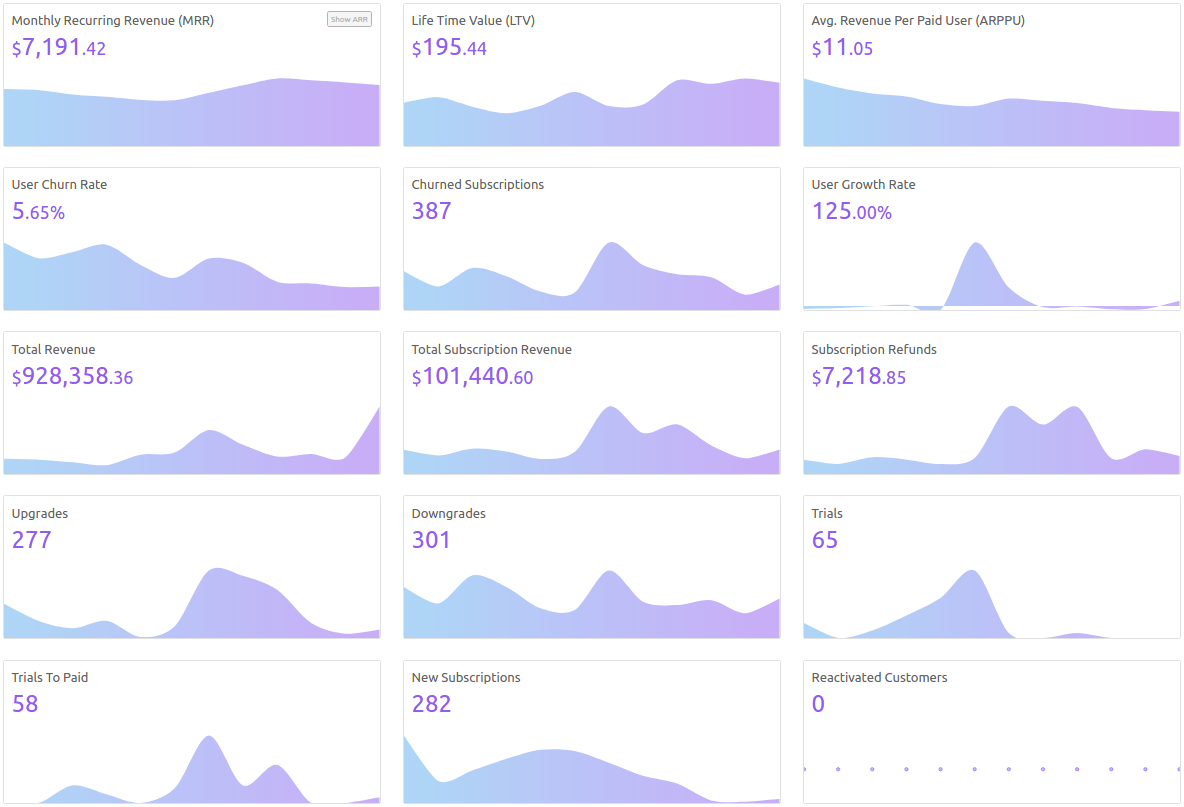
Since Putler is a SaaS product, you also get subscription metrics like:
- Customer Lifetime Value
- MRR
- ARR
- Churn
These show the overall value of your business and customers, and help you direct budget to where it’s needed. If you run subscriptions, the best reporting plugins for WooCommerce subscriptions covers your options in depth.
Forecasting
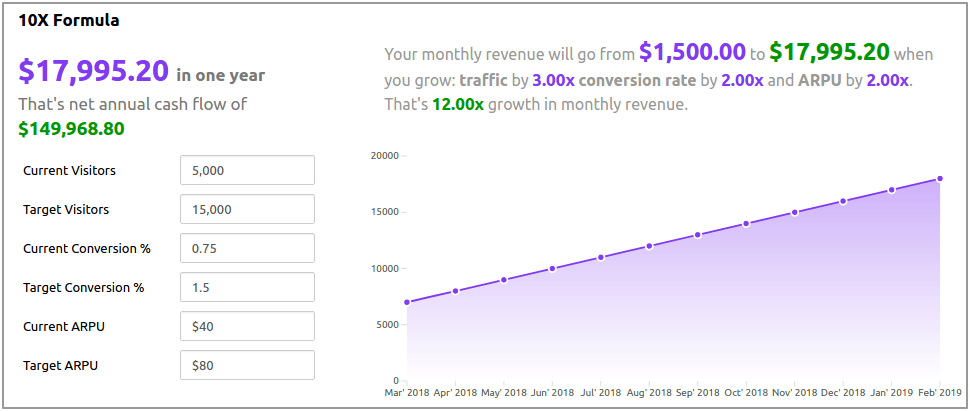
Putler forecasts your sales based on past and present activity. You can use it to set growth targets and sales goals for your team, and it helps everyone stay on track rather than just showing a number.
Multi-store reporting
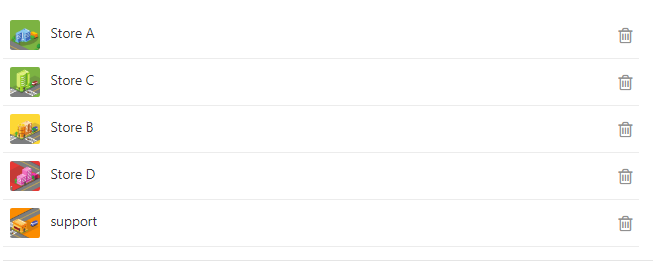
Running several stores gets time-consuming when you manage them one by one. Putler’s all-in-one dashboard handles multi-store reporting, so a few clicks gets you detailed data on each store or an overview of the whole business. You can also monitor multiple WooCommerce stores from one place.
Filtering
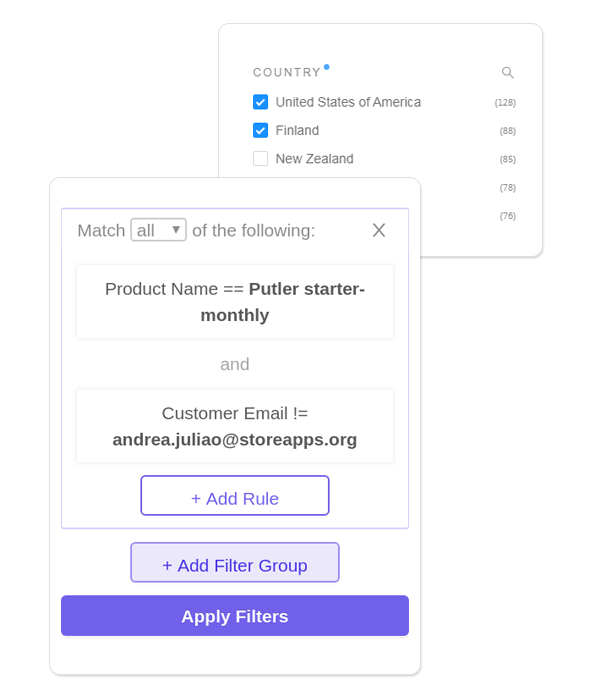
When the volume of data gets overwhelming, Putler’s filtering keeps it manageable. Filter by date, time, visits, location, and customer to get to a quick decision faster. If you’d rather compare your options first, the guide to alternatives to Google Analytics Pro and built-in WooCommerce reports lays them out.
Over to you
That’s a full run through WooCommerce reporting and analytics. Not every option out there gives the same depth of insight or the same ease of decision-making, and that’s the difference worth weighing.
With Putler’s data collection, filtering, and reporting in one place, you get the information you need to grow your store within reach. Easy Google Analytics integration and a clean interface mean you’re up and running quickly. Try it and see what your WooCommerce data looks like once it’s all in one view.
FAQs
How do I view WooCommerce analytics?
Go to WooCommerce > Reports. There you’ll find detailed reports on sales, tax, orders, and more.
How do I reset WooCommerce analytics?
First empty the orders in the trash, then go to WooCommerce > Status > Tools > Clear Analytics Cache. That resets your WooCommerce analytics.
How do I track WooCommerce in Google Analytics?
Set up enhanced eCommerce tracking in your Google Analytics account and add the tracking code to your WooCommerce store. A plugin like Google Analytics Dashboard for WP or MonsterInsights makes the setup easy. Once it’s running, you can view detailed reports on your store’s performance in Google Analytics.
What to do if native WooCommerce analytics isn’t working?
There are a few things to try. Make sure tracking is enabled in your WooCommerce settings, and if that doesn’t help, disable and re-enable it. Common causes include conflicts with other plugins, an outdated version, or incorrect configuration, so check the right plugin is installed and active, clear the cache, and update to the latest WooCommerce version. If the issue persists, contact WooCommerce support, or use a third-party tool like Putler for comprehensive reporting without the limitations of native analytics.
- Advanced WooCommerce analytics and reporting
- Monitor multiple WooCommerce stores from a single place
- Best WooCommerce plugins for your store
- Export your WooCommerce data the easy way