

An eCommerce business is a puzzle full of tons of data, analytics, and accounting. An operation-heavy business like this requires simple plugins that can assist business owners in day-to-day management.
Your online business thrives on data, so it is essential to monitor and analyze it regularly. This is why platforms like WooCommerce and Shopify provide some form of basic reporting.
In this comprehensive guide, we’ll focus on WooCommerce, delving into its built-in reporting features and exploring advanced reporting plugins.
What is WooCommerce reporting?
WooCommerce reporting refers to the analytics, dashboards, charts, and metrics that help you track your store’s performance. WooCommerce provides two types of reporting:
Legacy WooCommerce Reports (Deprecated)
These are found under WooCommerce → Reports and include Orders, Customers, Stock, and Taxes.
WooCommerce officially marked these as deprecated since WooCommerce 4.0, meaning they won’t receive ongoing improvements.
WooCommerce Analytics (Advanced Built-In Analytics)
Introduced with newer WooCommerce versions, this module provides upgraded dashboards, filters, segments, and CSV export options.
You can access it via WooCommerce → Analytics.
In this guide, we’ll cover both – but we’ll put more focus on WooCommerce Analytics, because that’s where WooCommerce is heading.
What are the different Reports in WooCommerce?
WooCommerce initially provided four report types directly within the plugin: Orders, Customers, Stock, and Taxes.
These reports are simple, easy to read, and give a basic overview of your store’s performance.
How do WooCommerce order reports work?
The ‘Orders’ section lets you view your net and gross sales volumes along with totals, top freebies, top earners, product downloads, etc. Some sub-sections under Orders include:
- Sales by date: Provides sales data based on last year, last month, this month, last 7 days, and a custom date range.
- Sales by category: Categories can view sales numbers.
- Sales by product: Gives you a report similar to sales by date, but it’ll be customized based on product.
- Coupons by date: Shows discounts in total and the number of coupons used. The coupons can be filtered by requirement.
- Customer downloads: Downloads are tracked and logged using a unique customer ID. This report details the customer activity using their IP address.
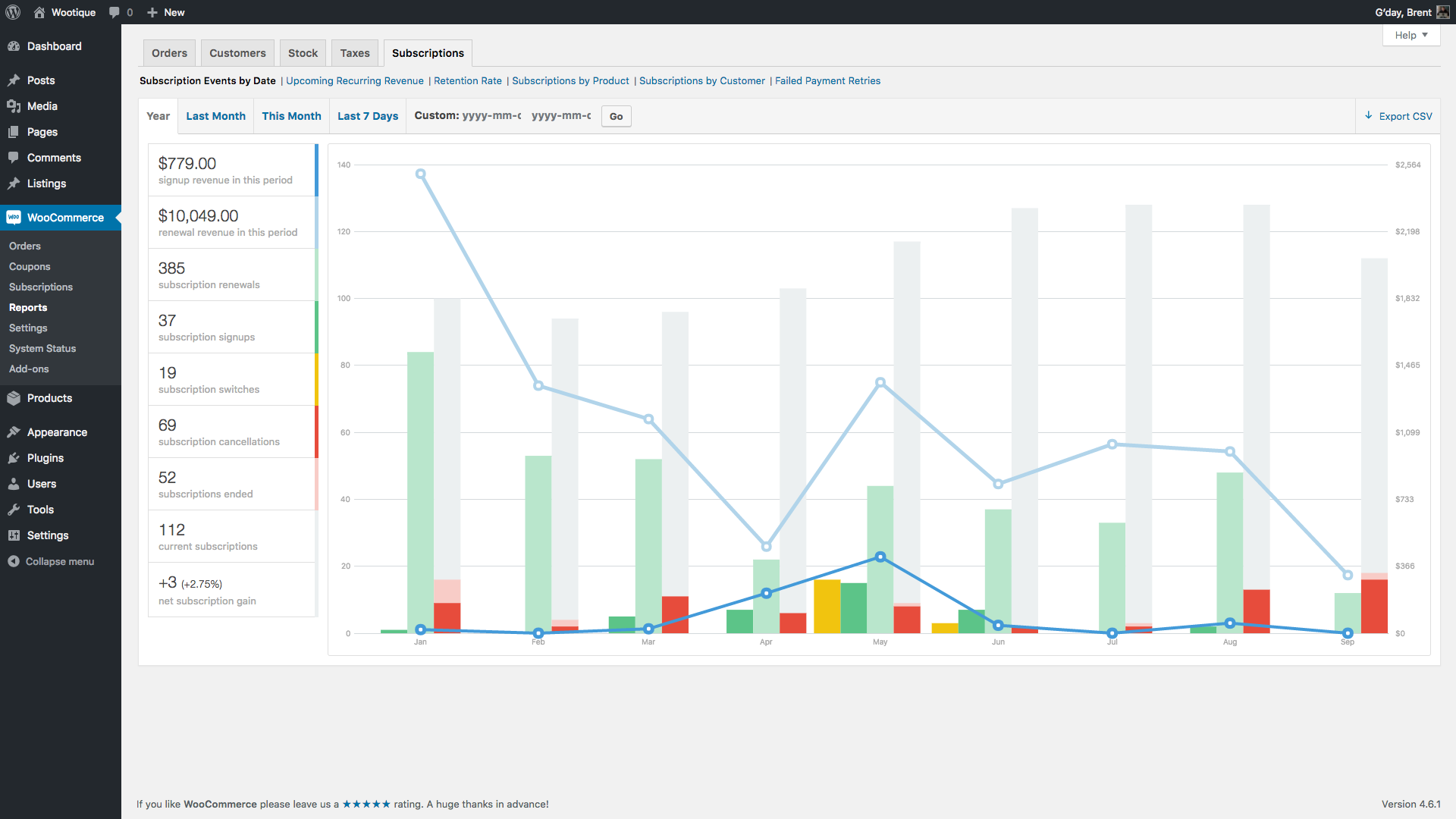
What insights do customer reports provide?
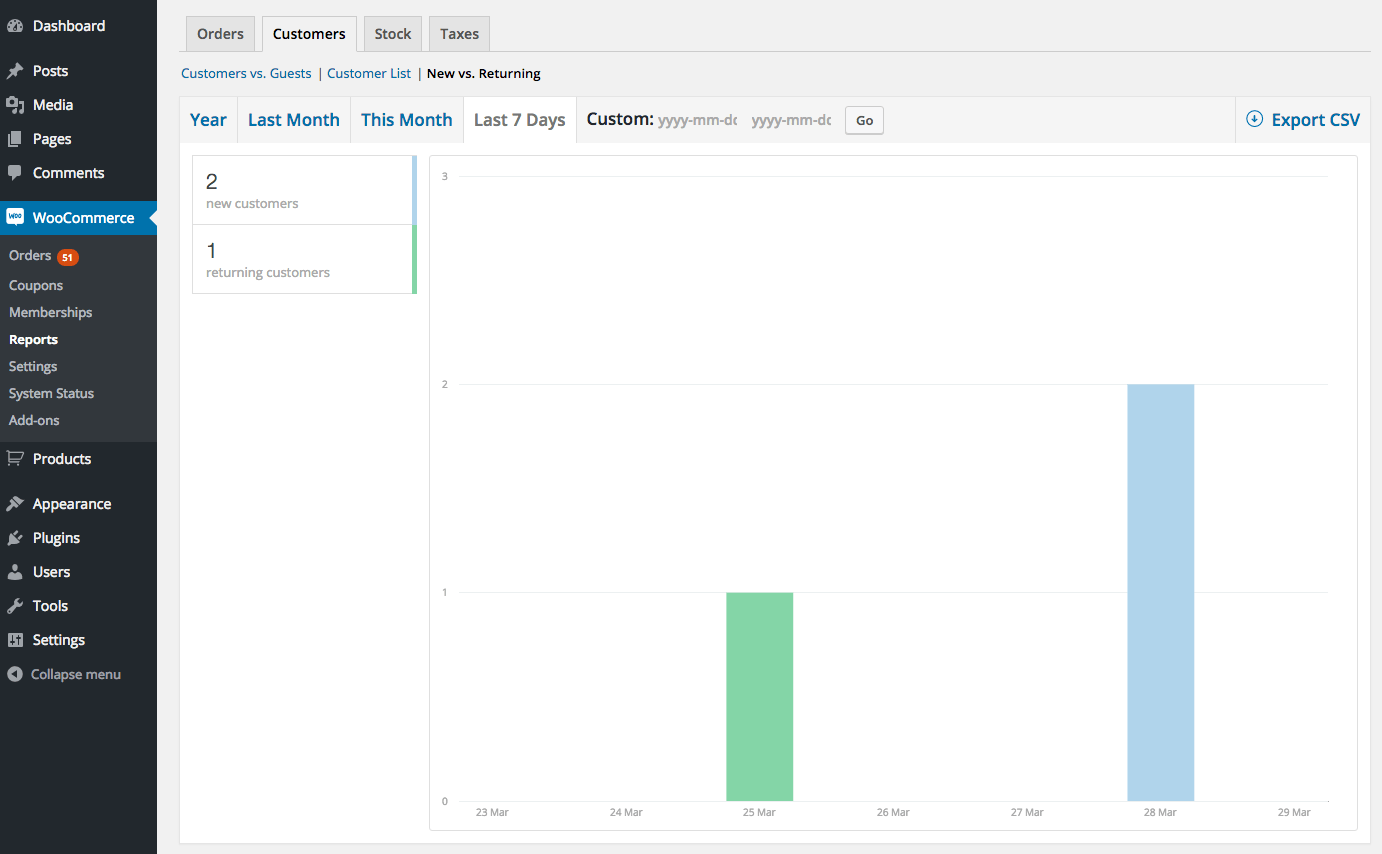
This gives an overview of the Customer V/S Guest report.
The report can be filtered by date and time. Apart from this, you will get an idea of the number of new and returning customers.
How do WooCommerce stock reports help?
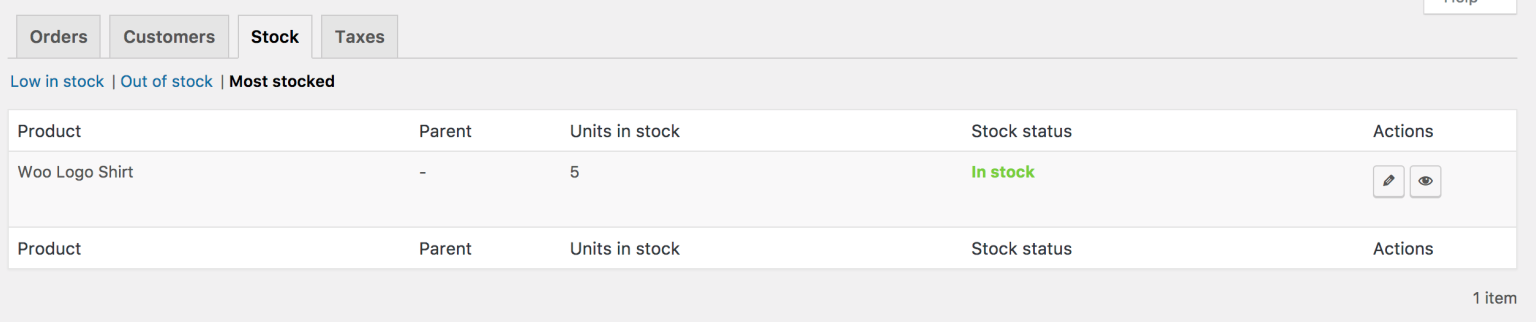
A stock report is quite literally your stock summary. It shows low stock, out-of-stock items, and the quantity of stock.
It’s a great way to analyze your inventory and pre-plan.
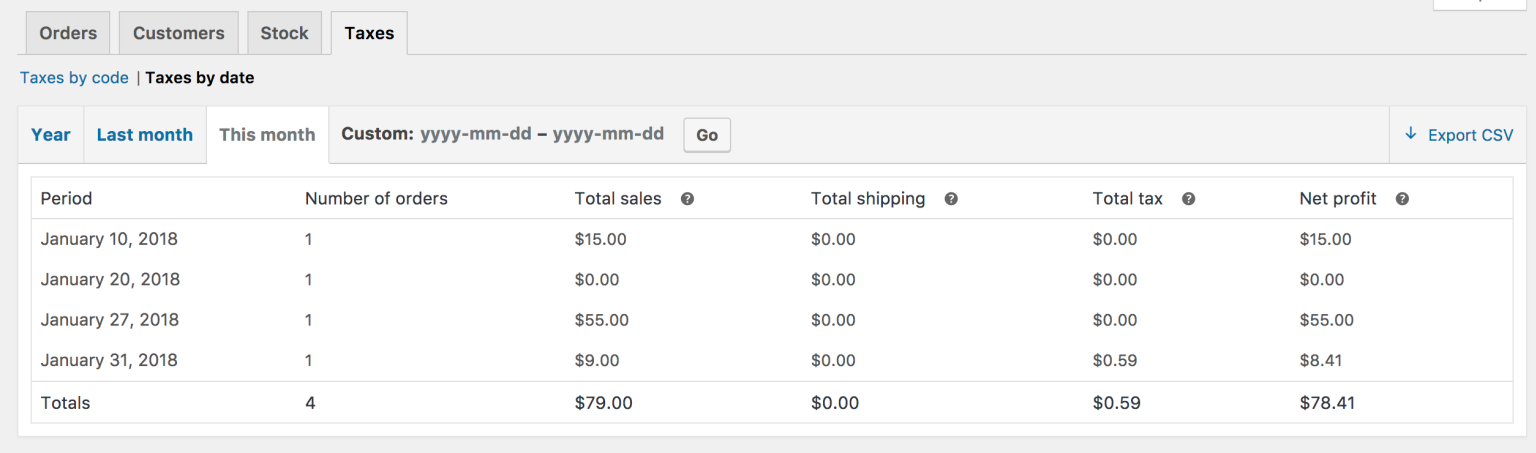
How do WooCommerce tax reports work?
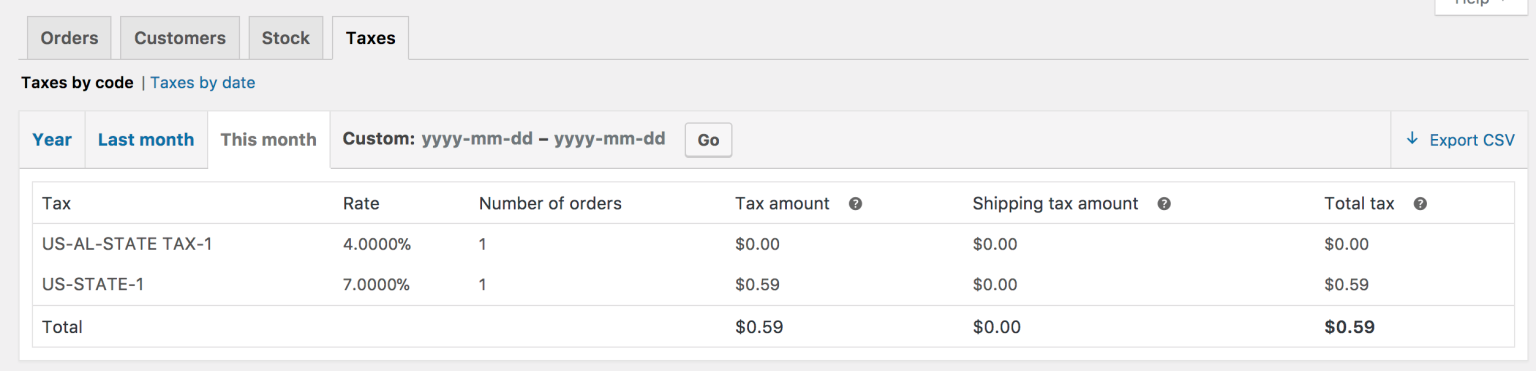
This report allows you to view ‘Taxes by Code’ (based on your state) and ‘Taxes by Date’. You can filter the details based on your preferred time.
Undoubtedly, WooCommerce reports are excellent. However, there are two significant disadvantages of WooCommerce’s in-house reporting that need to be analyzed.
Explore how to export WooCommerce data in more depth in our guide – WooCommerce Export: The Complete Guide.
Do these legacy reports still exist? Yes. But…
Although these reports are still available in WooCommerce, they were officially marked as deprecated in 2020 when WooCommerce 4.0 introduced the new WooCommerce Analytics system.
WooCommerce has clearly stated that the old Reports module will no longer receive improvements.
It remains mostly for backward compatibility or users who prefer a more straightforward, lightweight interface.
WooCommerce Analytics (Modern Reporting System)
WooCommerce Analytics is the newer and more advanced reporting system added in 2020. It replaces the old Reports module and gives store owners more precise, more flexible, and more accurate WooCommerce reports.
You can access it from WooCommerce → Analytics.
Here’s everything it includes – simplified into one section:
Dashboards available in WooCommerce Analytics
WooCommerce Analytics provides multiple built-in reports:
- Overview – High-level metrics like gross sales, net sales, orders, AOV, items sold, refunds, and taxes.
- Revenue – Breakdown of gross revenue, net revenue, discounts, taxes, refunds, and shipping.
- Orders – Total orders, order statuses, trends, and filters for coupon usage or date ranges.
- Products – Items sold, product revenue, top-sellers, and low-performing items.
- Variations – Sales and performance of product variations (sizes, colors, versions).
- Categories – Revenue and units sold by category.
- Coupons – Total discounts, number of discounted orders, and top-used coupons.
- Taxes – Tax collected by code and date, including shipping tax.
- Stock – Low stock, out-of-stock items, and stock quantity.
- Customers – New vs returning customers, guest checkouts, and basic spending activity.
- Downloads – Digital file downloads, logged by customer or IP.
- Order Attribution (latest WooCommerce versions) – Orders tracked by channel, source, campaign, and device.
Key features inside WooCommerce Analytics
Along with dashboards, WooCommerce Analytics adds several useful reporting tools:
- Custom date ranges.
- Advanced filters and segments (by product, category, coupon, customer type, order value).
- CSV export for all reports.
- Historical data import (to include older orders).
- Analytics caching for faster loading.
- Attribution tracking (orders shown by marketing channel – works only after enabling it).
Unlocking the Potential of WooCommerce Reporting
WooCommerce’s in-house reporting comes with certain limitations that can hamper in-depth analysis:
Limitations of WooCommerce reporting
- No advanced WooCommerce reports
- Multi-store WooCommerce reports in a single dashboard
The native WooCommerce reports are fundamental. They only provide you with an overview. To deeply analyze your business and gain insights, you need to dig into your data. And this is why you need WooCommerce plugins that offer such advanced reports.
WooCommerce reporting primarily gives you data for a single store on a single dashboard. This becomes tricky for those who manage multiple stores. You have to log in to each store to view its reports.
So, to mitigate these challenges, you do need advanced WooCommerce plugins. Let’s find out which one best fits your needs.
Which WooCommerce reporting plugins are best?
Since WooCommerce is one of the top eCommerce platforms, it has tons of WooCommerce analytics plugins that provide advanced reports.
While these options offer great features, not every business will benefit from them unless they find the perfect fit.
Here’s a quick overview of these tools:
Note: For stores offering subscriptions, check out our in-depth post on “Best Reporting Plugins for WooCommerce Subscriptions”.
| Features | Putler | Metorik | Metrilo | Advanced WooCommerce Reporting | Enhanced Ecommerce Google |
|---|---|---|---|---|---|
| Sales Reports | Yes | Yes | Yes | Yes | Yes |
| Customer Reports | Yes | Yes | Yes | Yes | Yes |
| Order Reports | Yes | Yes | Yes | Yes | Yes |
| Product Reports | Yes | Yes | Yes | Yes | Yes |
| Subscription Reports | Yes | Yes | No | No | No |
| Insight Reports | Yes | No | No | No | No |
| Customer RFM Segmentation | Yes | No | No | No | No |
| Filtering | Yes | Yes | Yes | No | No |
| Export option | Yes | Yes | Yes | No | No |
| Multi-store Reporting | Yes | Yes | No | No | No |
| Price | Starts at $20/mon | Starts at $50/mon | Starts at $119/mon | Starts at $39/mon | Free |
So, that was a quick comparison of the top WooCommerce reporting tools. As you can see, all these tools are feature-rich, and each provides advanced reports needed to make a business successful.
Want a broader view of plugins beyond just reporting? See “20+ Best WooCommerce Plugins to Boost Sales” for an expanded list.
We’d recommend analyzing what is essential to your business, then investing in the right tool. If you are a beginner or looking for something to try your hand at, do try Putler. It comes with a 14-day free trial.
But before you go for the trial, here’s Putler in a nutshell –
Putler: What makes it the top WooCommerce reporting tool?
Putler is a comprehensive WooCommerce analytics tool. Its sole purpose is to provide solutions to eCommerce problems, primarily for WooCommerce users.
The groundbreaking tool fetches data from all your integrated data sources, cleans it, and provides a detailed analysis of your data along with reports on all critical aspects of your business like – Products, Customers, Sales, Transactions, Orders, and Website Traffic.
Not just reports: Putler also provides essential features such as RFM customer segmentation, instant refunds, forecasting, filtering, custom segments, CSV export, performance comparison, and much more.
All you need to do is connect your data sources such as your WooCommerce store(s), payment gateways, and Google Analytics. The more data sources you add, the better Putler will work.
How to connect WooCommerce to Putler?
To integrate WooCommerce with Putler, follow these simple steps:
- Sign in to
Putler. - Click on the
WooCommerce icon. - Enter your
WooCommerce URLand log in to yourWooCommerce account. - Putler’s plugin will be automatically installed on your WooCommerce site.
- Know more details about integrating your WooCommerce with Putler here.
Putler’s WooCommerce Reports: A Comprehensive Toolkit
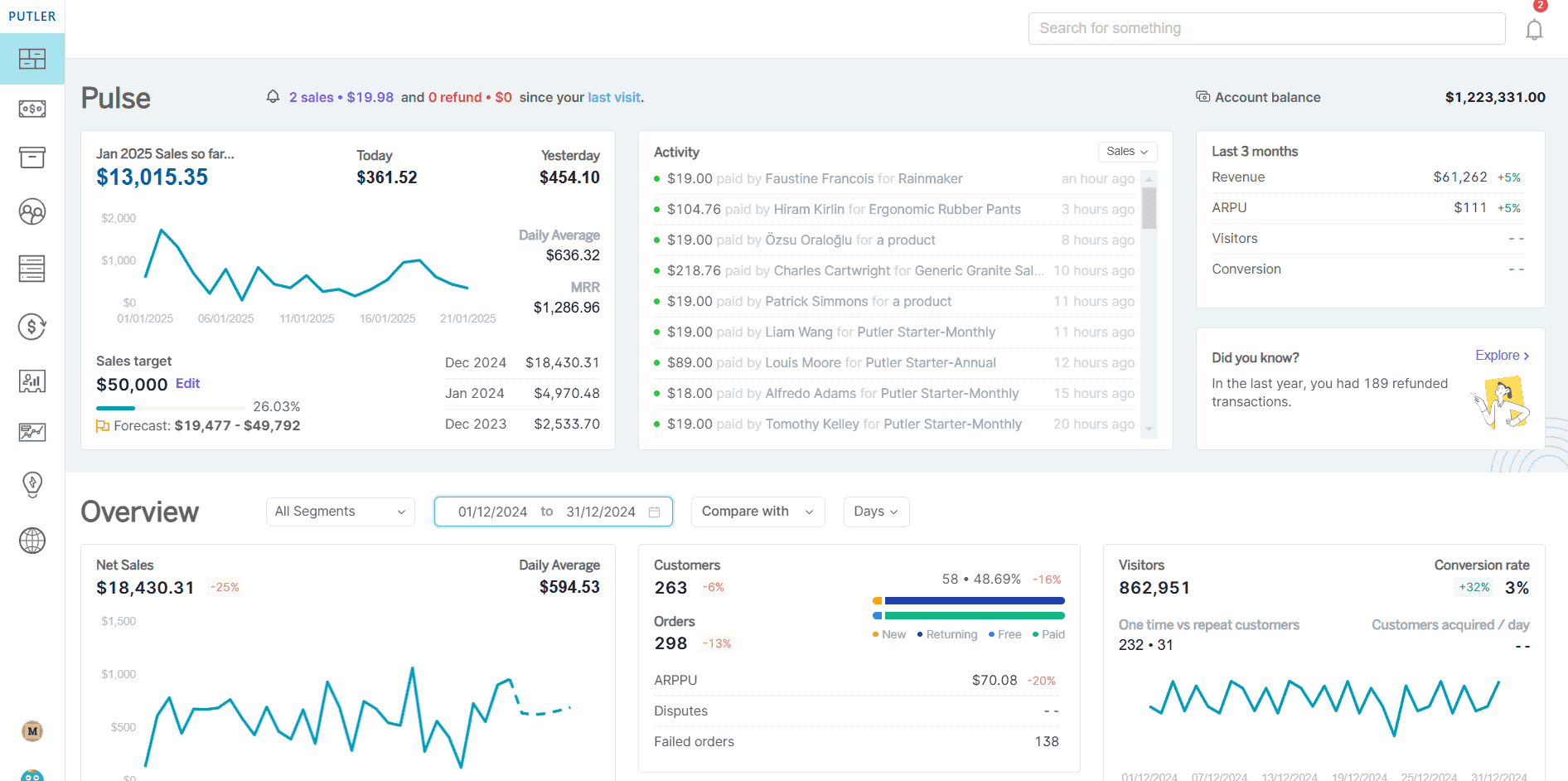
- Home dashboard: Offers an overview of your business, showcasing key performance indicators.
- Sales dashboard: Provides key KPIs, including net sales, revenue, and average sales.
- Subscription dashboard: Focuses on SaaS metrics like ARR, MRR, churn, and LTV.
- Product dashboard: Offers in-depth product performance analysis.
- Customer dashboard: Provides customer insights and RFM segmentation.
- Transactions dashboard: Unique to Putler, it extracts important metrics from Google Analytics and displays them within Putler.
- Time machine: Allows users to forecast monthly revenue and customers.
- Audience dashboard – Putler is the only tool that has a ready WooCommerce Google Analytics integration. This means that once you connect both WooCommerce and your Google Analytics account to Putler, it will automatically pull data from both and provide you with key insights from both.
- Insights dashboard: Continuously adding insightful reports to enhance decision-making.
This dashboard provides two insight reports:- Holiday sales insights
- Comparison insights
- Web Analytics dashboard: A privacy-friendly alternative to Google Analytics, this dashboard is your go-to place if you are in search of something much simpler and more business-oriented. Get every detail regarding your website that can help you make better business decisions.
Conclusion: Finding the Perfect Reporting Tool for Your Business
As WooCommerce reporting is quickly becoming a big part of eCommerce operations, more and more plugins are being developed to suit individual business needs.
We hope this article helps you find a tool that fits your business requirements. We invite you to first decide on a tool, take a trial, and then make a decision.
Still on the fence? Here’s a live demo of Putler. Take a look!
FAQS
How do I install WooCommerce analytics?
WooCommerce analytics is not a tool that you can install. You can get some basic WooCommerce analytics in WooCommerce’s built-in analytics dashboard. However, to get the most out of your WooCommerce store data, you can simply integrate it with Putler, along with your payment gateways and Google Analytics, to guide your business decisions! Here are the steps to do so.
How do I get reports from WooCommerce?
You can get reports from WooCommerce just by following these steps – WooCommerce > Reports > Search. However, to get a better hold of your business performance and vital stats, you can utilize Putler’s WooCommerce Integration. Once you complete the integration, you can visit any relevant dashboard and download your reports in CSV format with a single click.
How do I export a report from WooCommerce?
To export your WooCommerce reports, you need to visit the “All Reports” page. Over there, you will find a list of all the different reports that are available for your WooCommerce store. To make an export, just click on the “Export” button next to the relevant report. But if you have Putler integrated with your WooCommerce store, you can generate the reports you need with a single click.
This is a very informative article. Thanks for sharing these helpful articles.